
Customer Services - Booking Orders
Customer Services - How to book in jobs
Logging into MedequipWay
Go to webpage - http://apps.medequip-uk.com/way.
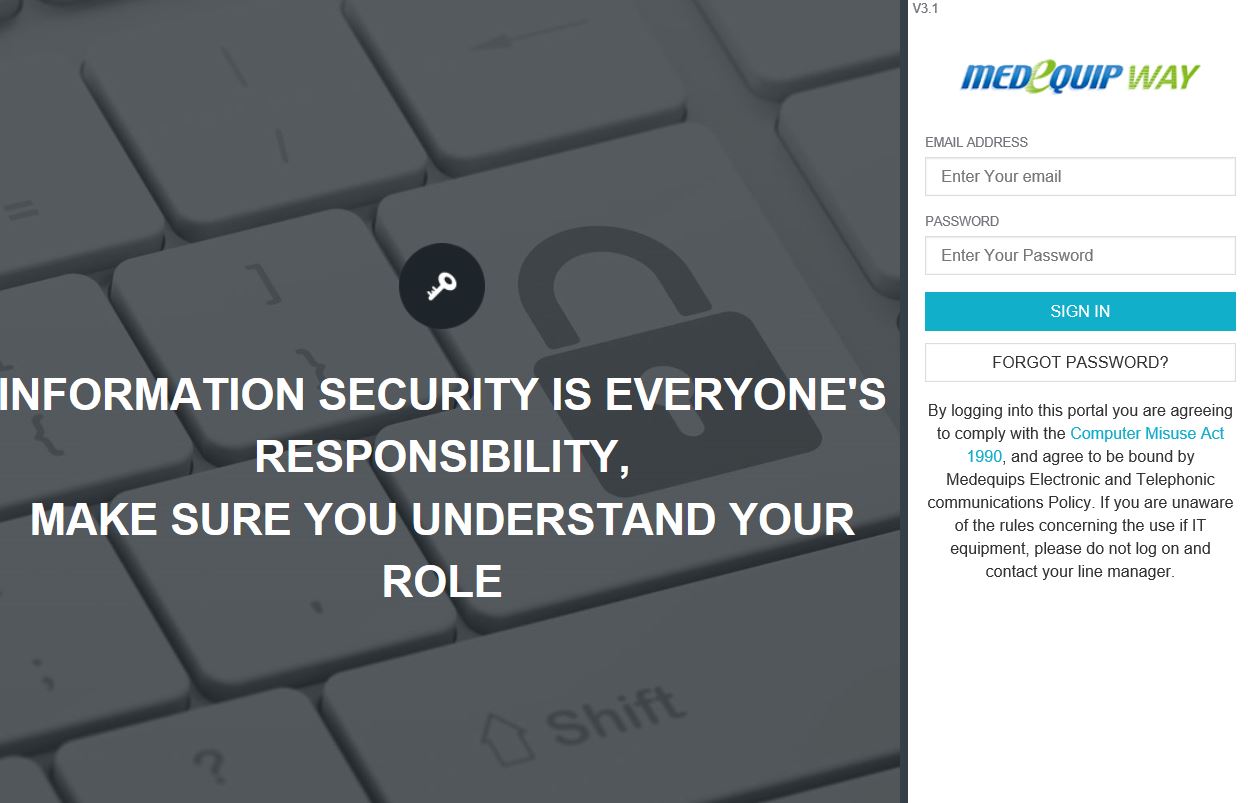
Log in with your designated log in details, if you do not have any login details please contact Livechat.
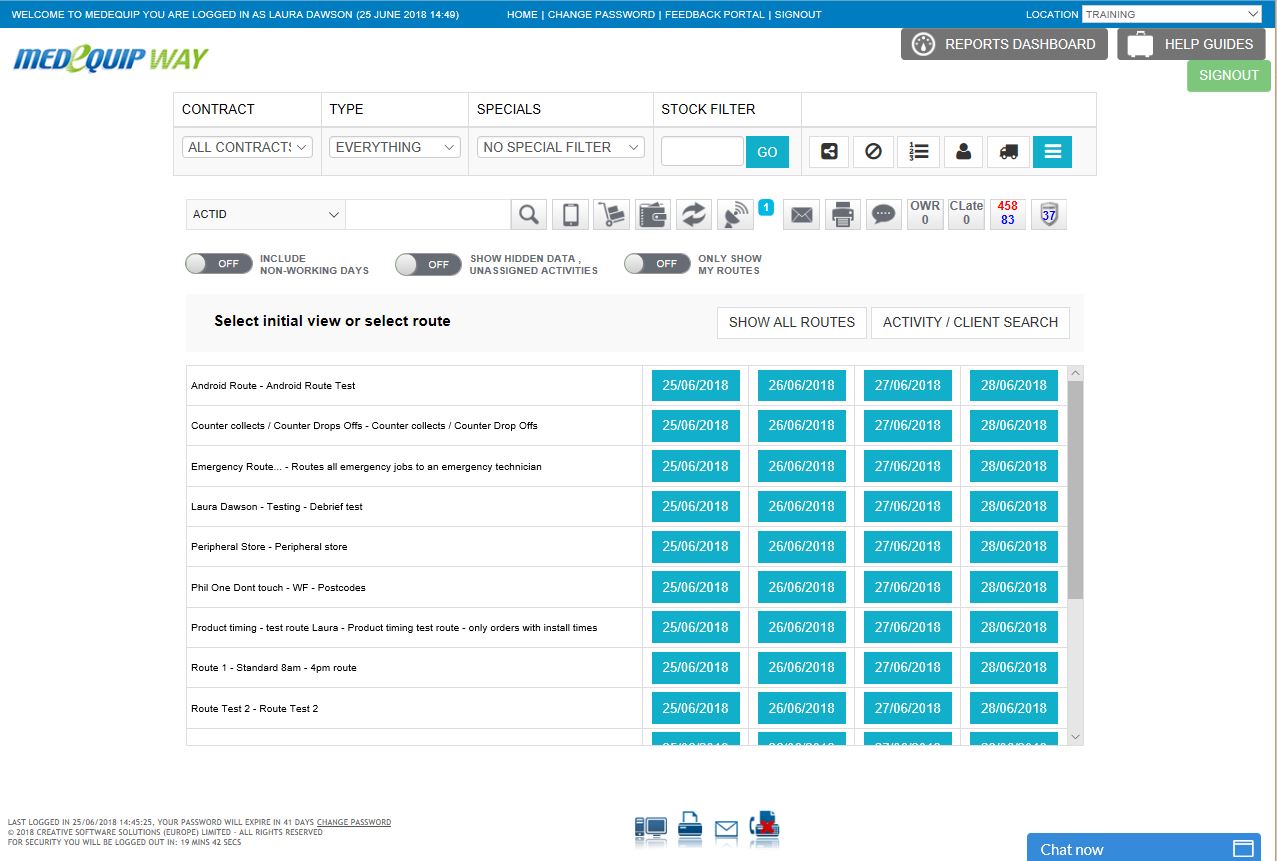
Once you have logged into the system you will see the homepage for the system.
This page contains lots of different section of the system, but for this manual we will be focusing on booking orders.
Next you have 2 options you can either select the route you are wanting to work with or you are able to select 'Show all routes'
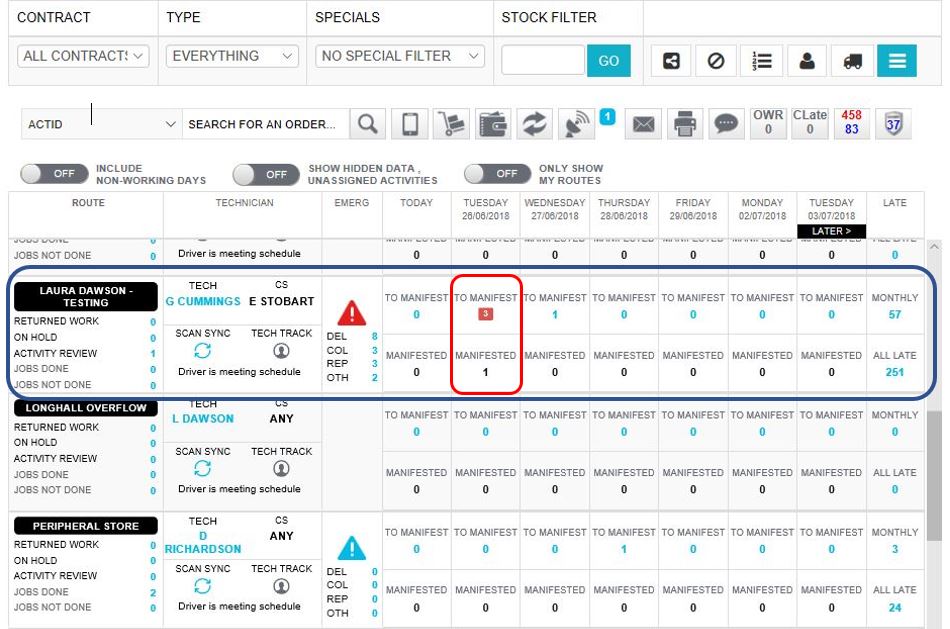
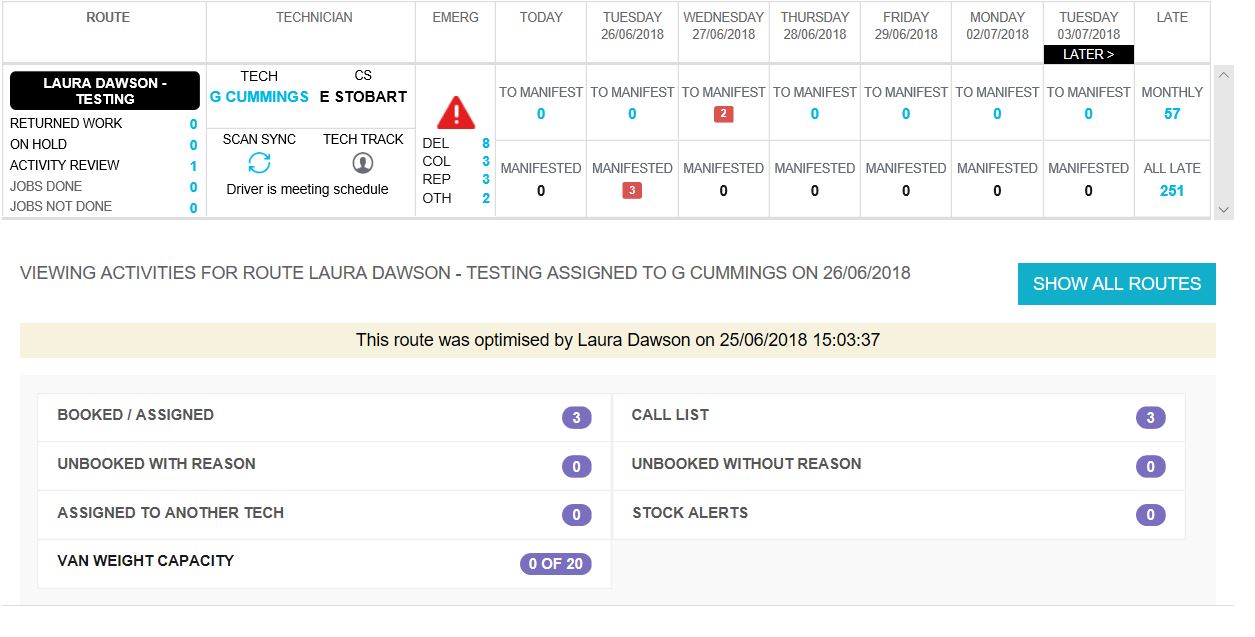
For this example, I will select 'Show all routes' This will show you a breakdown of each postcode area and the workload currently in each route for the next 7 working days.
Laura Dawson - Testing is the route to focus on for this example. Because we arrange all orders a minimum of 1 working day before, you will see that there are still 3 orders to manifest for tomorrow. Select the 3 to manifest.
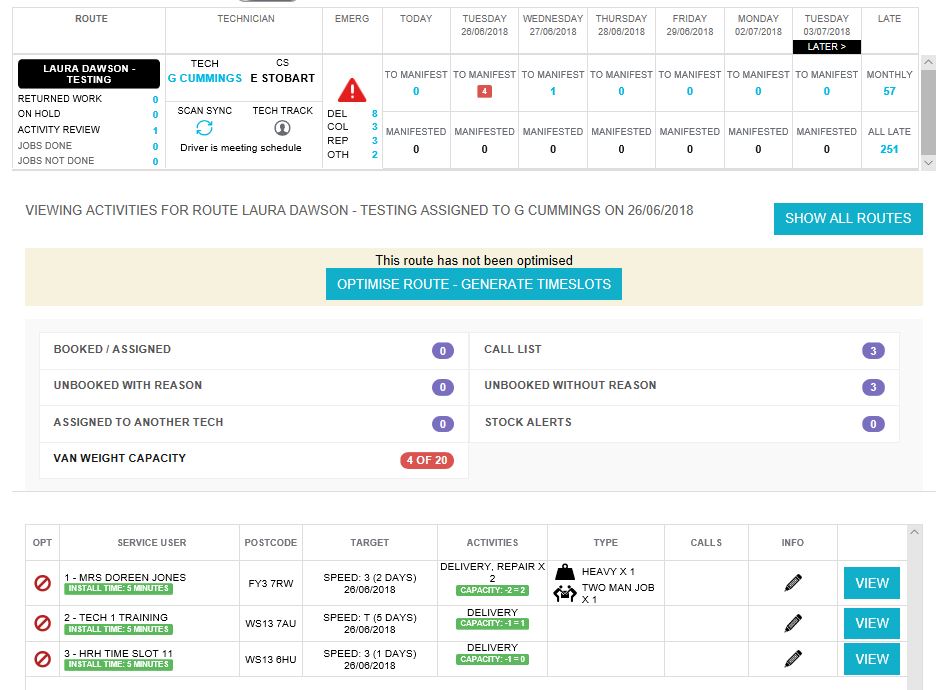
Before you begin booking the orders always click 'Generate Timeslot’s If this message does not appear please refer to the Routing document in the side menu to how you can make this button appear.
Now the route has been optimised, you can focus on the 3 remaining orders which need to be arranged.
Select the first service user, which is Doreen Jones for this selected route.
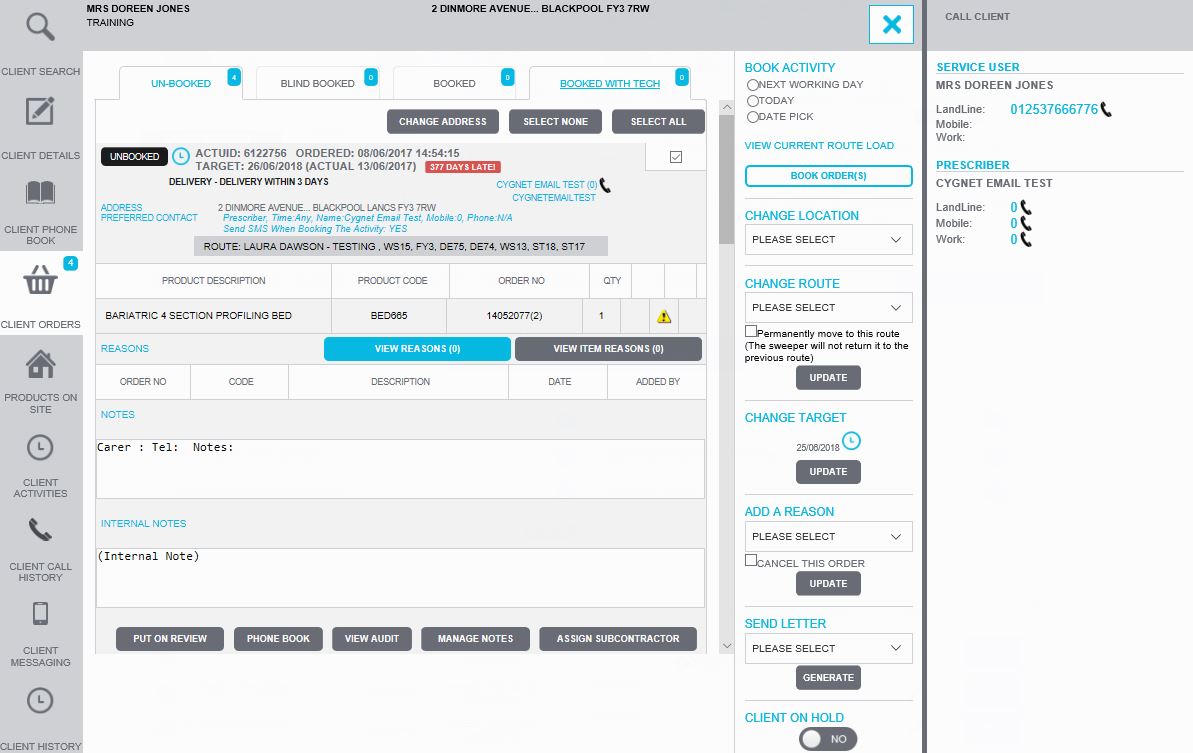
Now you will be presented with the client screen. From here you can see the full details on the order from the products orders to the delivery speed.
To call the service user click the number at the side of the screen. This will dial via the Soft phone,
Please click here to view the Softphone Application guide.
Once the order has been arranged you can use the book activity section to arrange the order.
If you are unable to gain contact with the service user, you must try and call this service user again at a different point in the day. Once you have tried to gain contact with the service user you are able to move this order onto another date. To do this use the 'Change target' section of the page to select a different date for when you try to call this service user again. If you are not able to gain contact with a client and you have more than 4 reason codes on an order this order is then able to go onto review. Please click here to view the placing orders on review guide.
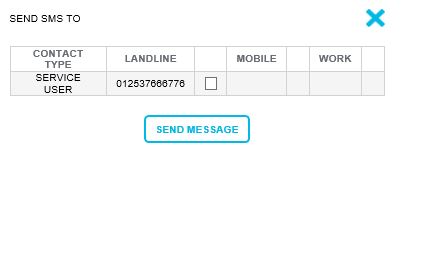
If you select to book activity, the order will then book and present you with a send SMS screen. If the service user wishes to receive text message updates on their order, tick the box next to the number you wish for the text messages to go to and select send message. This will start the automatic chain of text message updates including the service users 4/2-hour timeslot on the morning the order is due to be delivered.
Please note text messages can be sent to more than one number and also to landlines. If the service users opt out of receiving the text messages, click the blue 'X' in the top right hand corner.
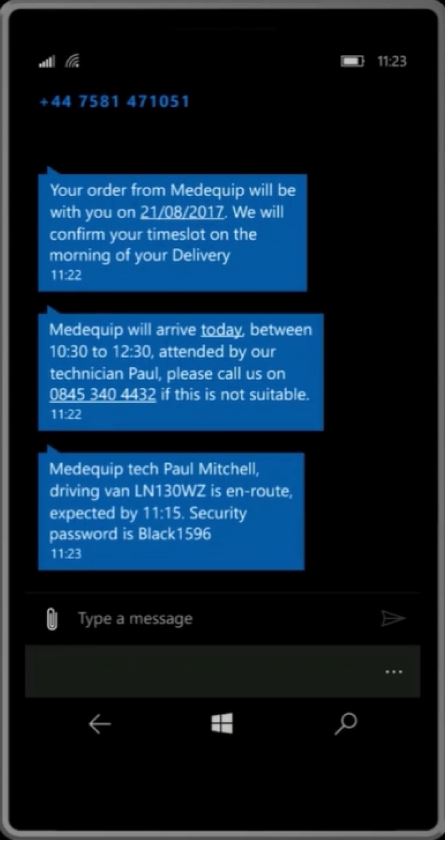
Below are the 3 text messages a service user will receive throughout the course of their order.
The first SMS is sent at the point the order is booked, confirming the date of delivery.
The 2nd is sent at the point the route is released to a technician, this will include there 2- or 4-hour timeslot.
Finally, the 3rd message is sent when the driver is on route to the property. This is triggered at the point the driver finishes the job before.
Once you have followed all the previous steps on all outstanding orders within your route, the 'To manifest' section of your route should now be at zero.
It is important that all orders in your route are at zero before the end of every working day.
There are many different section regarding booking an order. Continue reading the rest of the documents to ensure you fully understand the system.
If you are having any issues with the system, please contact Livechat.
Updated almost 7 years ago