
Softphone Application
Softphone Application
The Softphone is an application which allows you to take inbound and outbound calls via the computer using a headset.
To start you need to log into Quemetrics, this enables the system to know you are available to receive calls and make outbound calls.
First of all, go to the webpage - http://medequip.voipfoehn.net/queuemetrics/autenticazione.jsp
Here you will be asked to log in, your log in details will be provided by IT, if you do not know your log in details please speak to your manager.
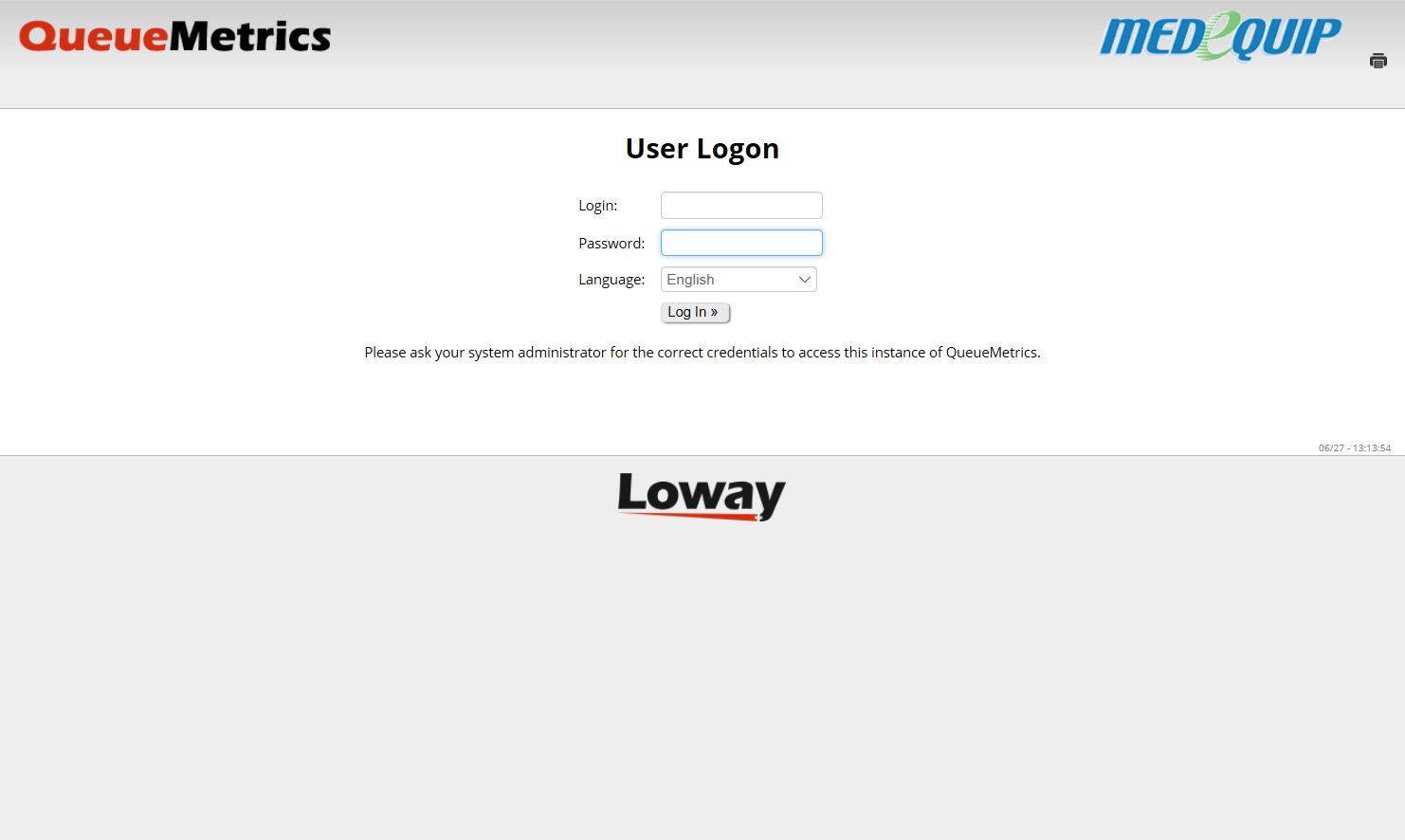
To log into a phone queue, you need to select your depots available queues for both inbound and outbound calls. Once you have selected the queues needed select the arrow to log in, to enable you to take inbound and make outbound calls.
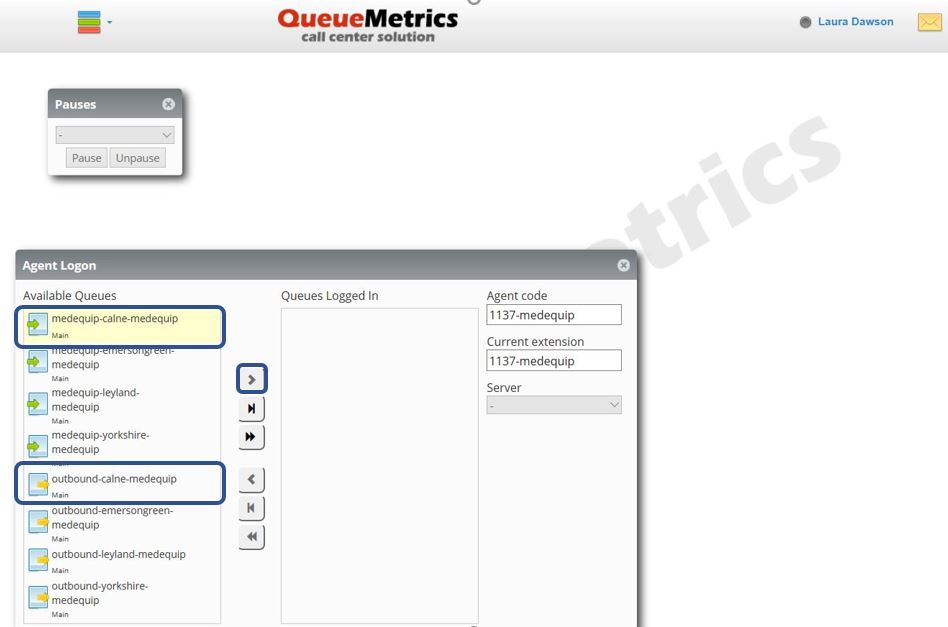
Once you are logged in, if you need to leave your desk you can place yourself on pause. This will stop any calls going through to yourself while you are unable to answer.
To do this look for the pauses box at the top of the page, select the drop-down arrow and then select the reason why you are unable to answer calls. Once a reason has been selected then click pause. Once you have returned to your desk simply select un-pause to continue with calls as needed.
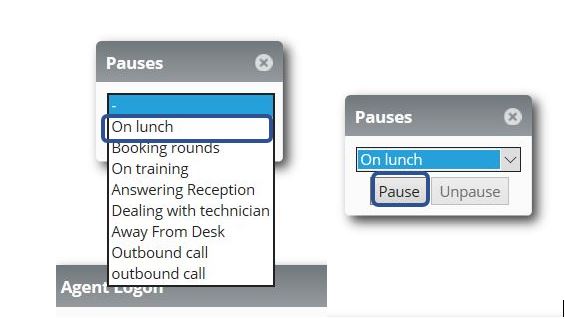
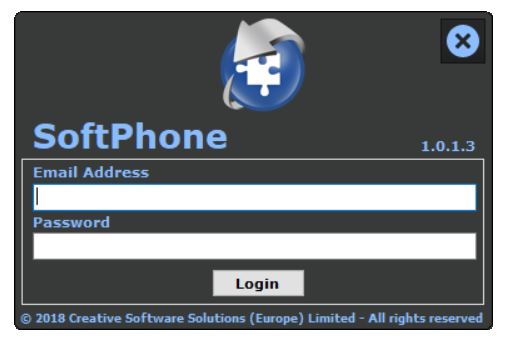
Now you are logged into the correct queues for your depot you also need to log into the Softphone application. The softphone icon will be on the desktop of your computer. Once you have selected the softphone icon you will be asked to log in. The log in credentials for this software are the same as your MedequipWay/MedequipOne.
Now you are logged in you will be presented with all of the phone options. From here you are able to answer calls, disconnect calls, transfer calls to different departments and also place people on hold.
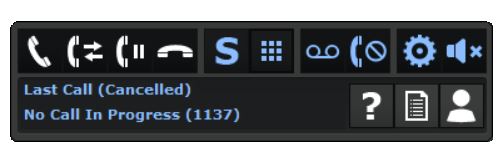
To dial numbers, you must click and dial numbers within the MedequipWay system, this allows all calls to be recorded against the correct service user’s profiles and for calls to store in the correct places.
During each working day do not close the internet page for Queue metrics or close down the softphone as this will stop you from being able to receive/dial any calls.
If you have any issues with the systems above, please contact Livechat.
Transfering calls
The below screenshots will show you how to transfer a call to another phone number.
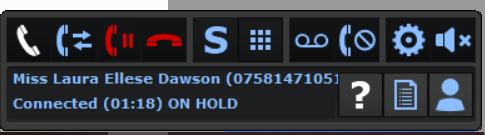
While you are on the phone to a service user, firstly you need to place the call on hold.
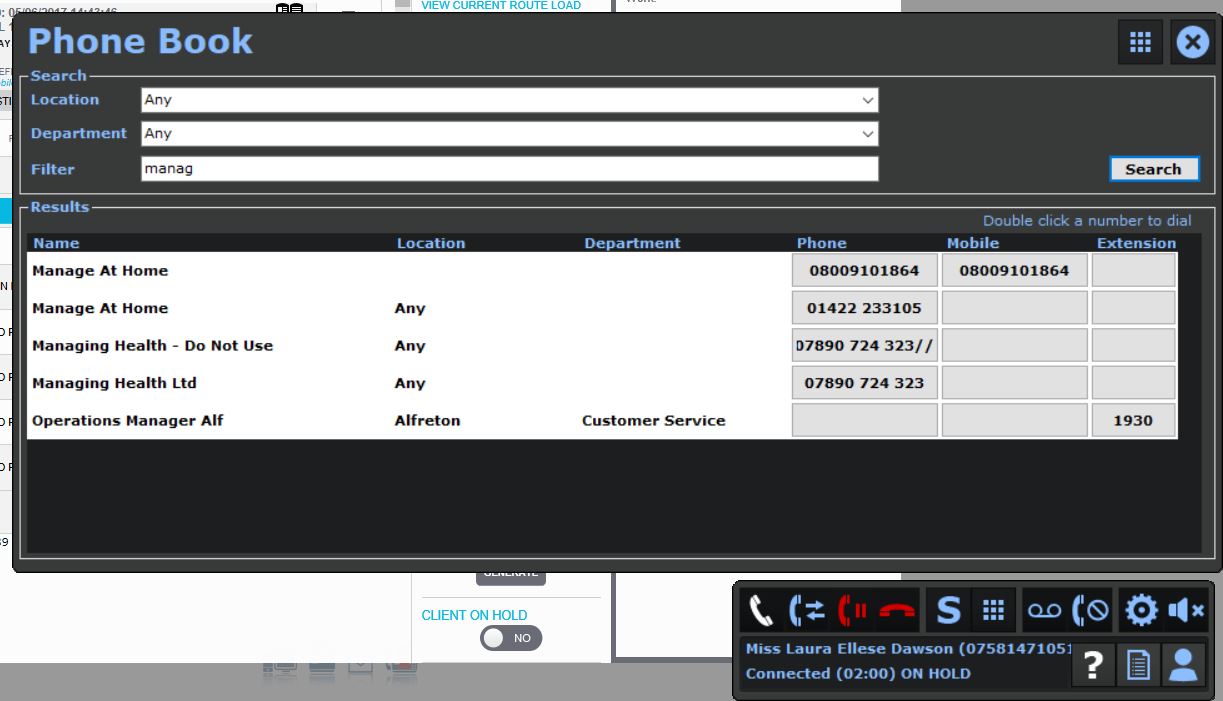
Now your call is on hold you can select the transfer button, which is the phone sign with the two arrows next to it.
Then if you know the extension number you would like to pass the call through to you can select the keypad icon and dial the extension needed.
Or if you are unsure of the extension you can select the phonebook and search for the person in question. For this example, I have changed the location to 'Any', Department to 'Any' and filtered using a key word 'Manage'. Now I have been presented with a list of numbers which will suit these inputted criteria. Double click on the phone number you would like to dial. Wait for the person on the other line to answer, let them know the information in regard to the call. Once they are happy, by selecting the end call icon you will successfully transfer the call as needed.
If you transfer the call without waiting for the other person to pick up this may lead to a call failure. It is always important to make sure you get through to the other line before hanging up.
If you have any issues with the systems above, please contact Livechat.
Updated over 7 years ago