
360 Video - Scanners
By Rhian Allen V1.0 CSS 246
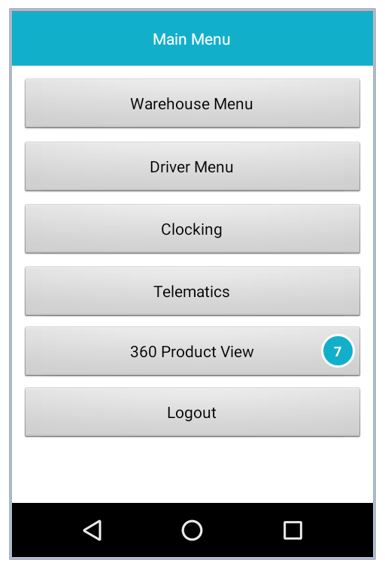
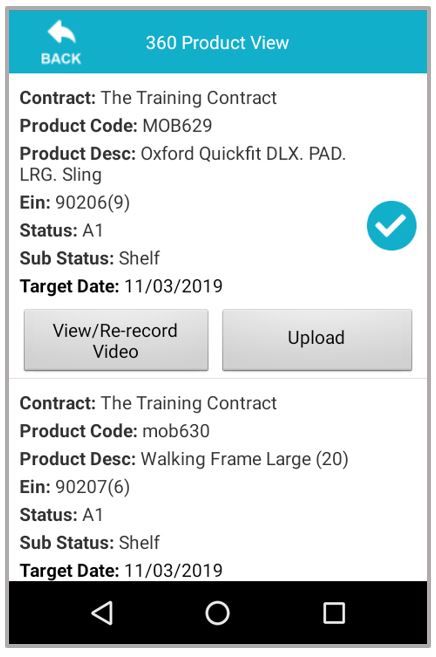
From the MedeMobile app, select 360 Product View.
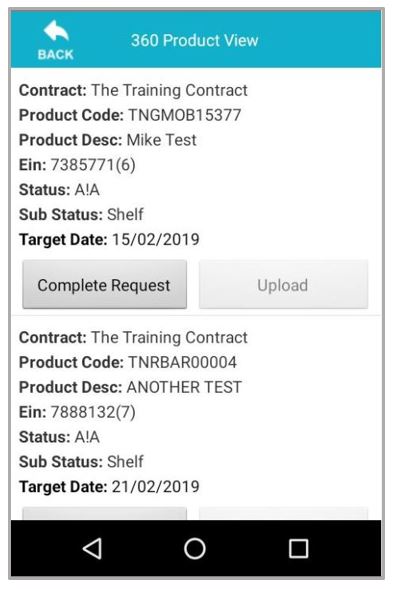
A list of all pending video requests will show for the location that the scanner is assigned to. To work with a specific request click Complete Request.
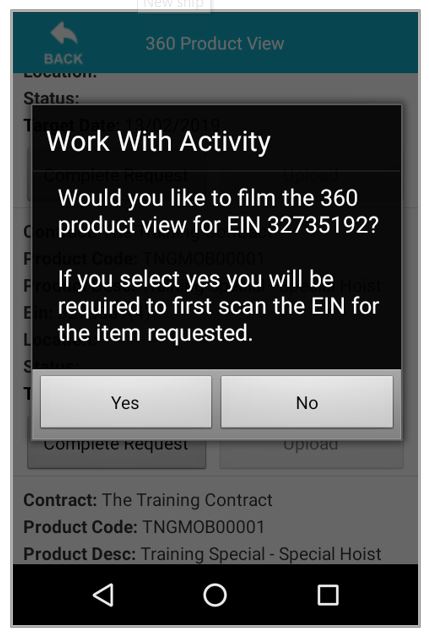
To start recording the 360 video for the product, first of all scan the EIN for the requested item.
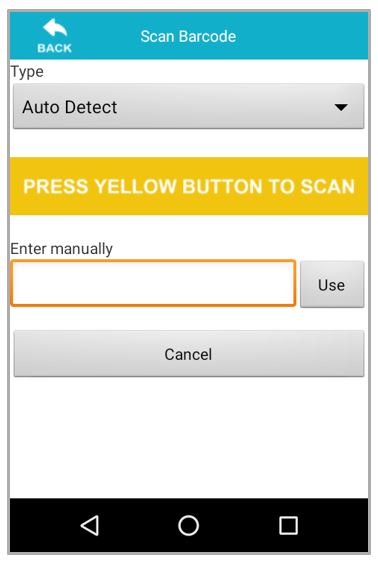
Press the yellow button to scan the EIN or enter the number manually.
The application will then allow the video recording to start.
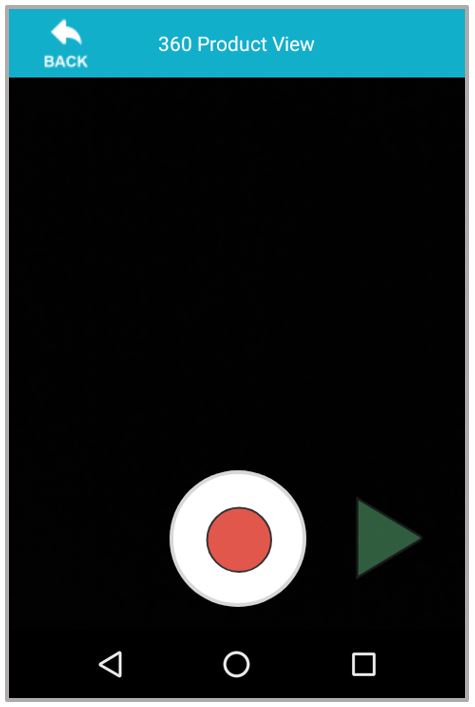
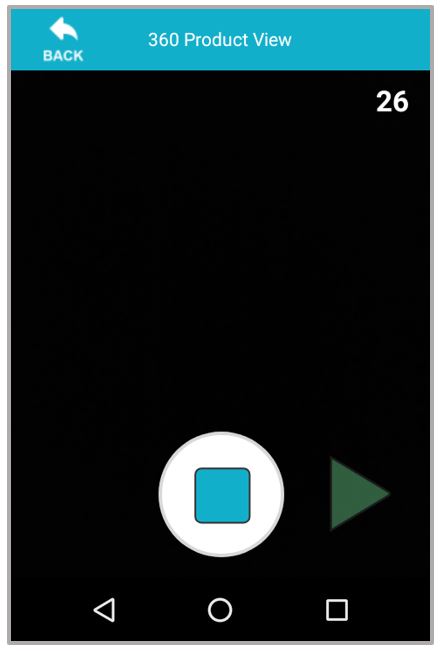
The scanner will start a 30 second countdown timer whilst recording. When it reaches 30 seconds the recording will stop. The timer does not have to reach the full limit before it stops recording and can be stopped by simply clicking on the Stop button.
Important!!
The countdown timer may change from 30 seconds depending on the location/depot set up.
The video can be re-played to make sure that the footage is correct.
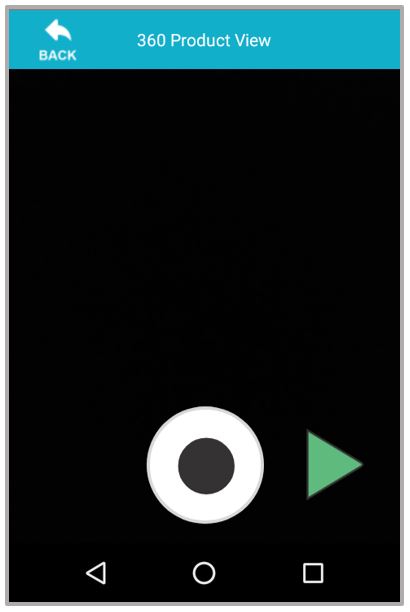
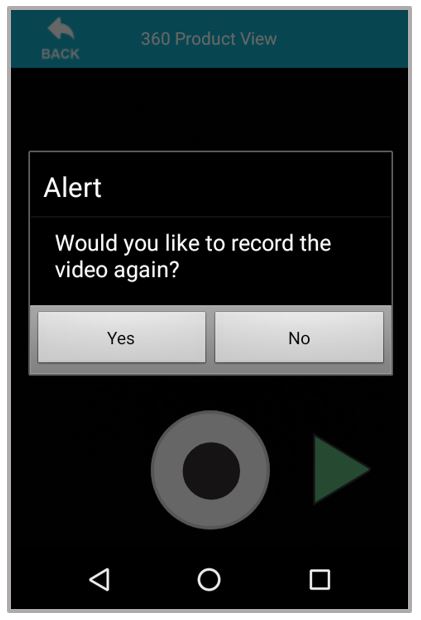
By clicking on the record button there is the option to record the video again. If a second recording isn't required press the back button.
Important!!
Once the video has been recorded click on the back button at the top left of the interface.
From this screen there are two options View Video which will allow a review of the video and then Upload which will upload the video onto TCES.
Working with Late Activities
To work with a late request, click Complete Request. The target date will show the activity as late.
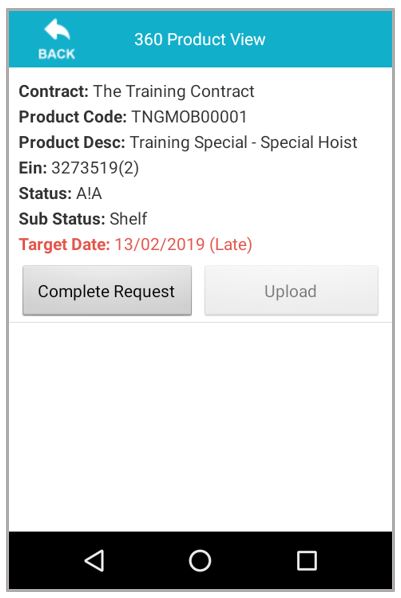
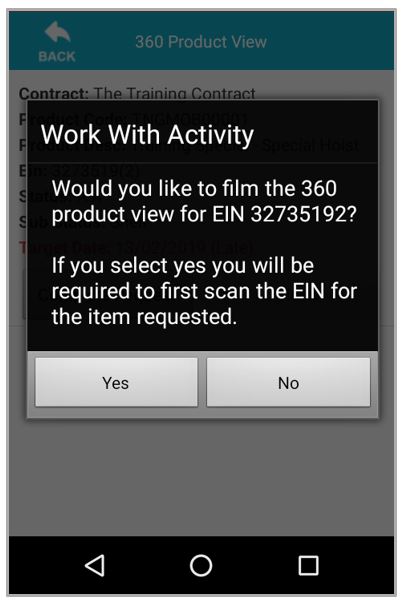
To start filming the 360 video for the product, first of all scan the EIN for the requested item.
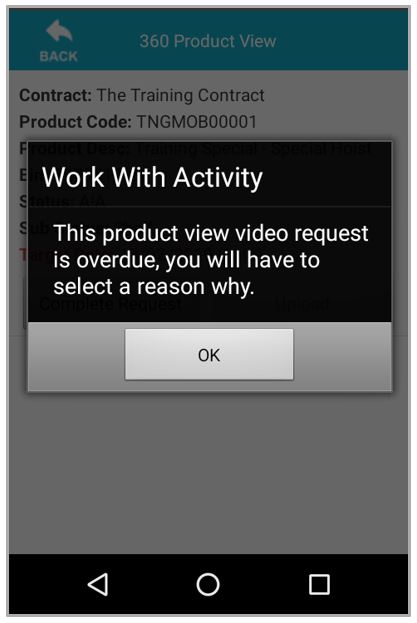
Because the video request is overdue, a reason will need to be selected as to why the video is late.
Select a reason from the screen below.
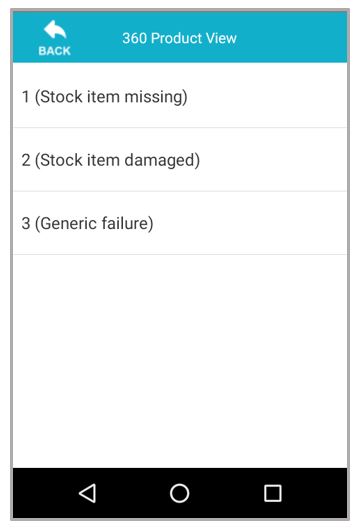
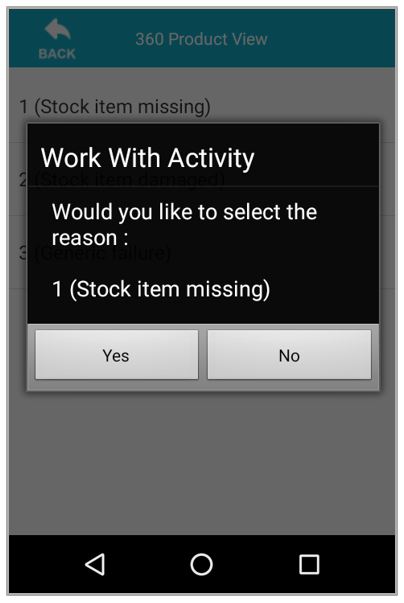
Confirm the selected reason code and then proceed with the recording like normal.

WE'RE ALWAYS HERE TO HELP SO DON'T HESITATE TO REACH OUT!
Call a support professional on 0844 879 4531 or email us at [email protected]
Updated about 7 years ago