
Placing Orders On Review
Places orders On Review
All orders need to be followed up by trying as many different avenues as possible to gain contact with a client before the order is cancelled.
After an order has a minimum of 4x A codes on an order this can now be placed on review, this is essentially when an order is placed on hold awaiting further information. Please note the reason codes must be applied over different days. All reason codes cannot be added on the same day to validate this order for going on review.
To see how many reason codes have been added onto an order find the relevant service user and look for the reasons section to see the history of the order.
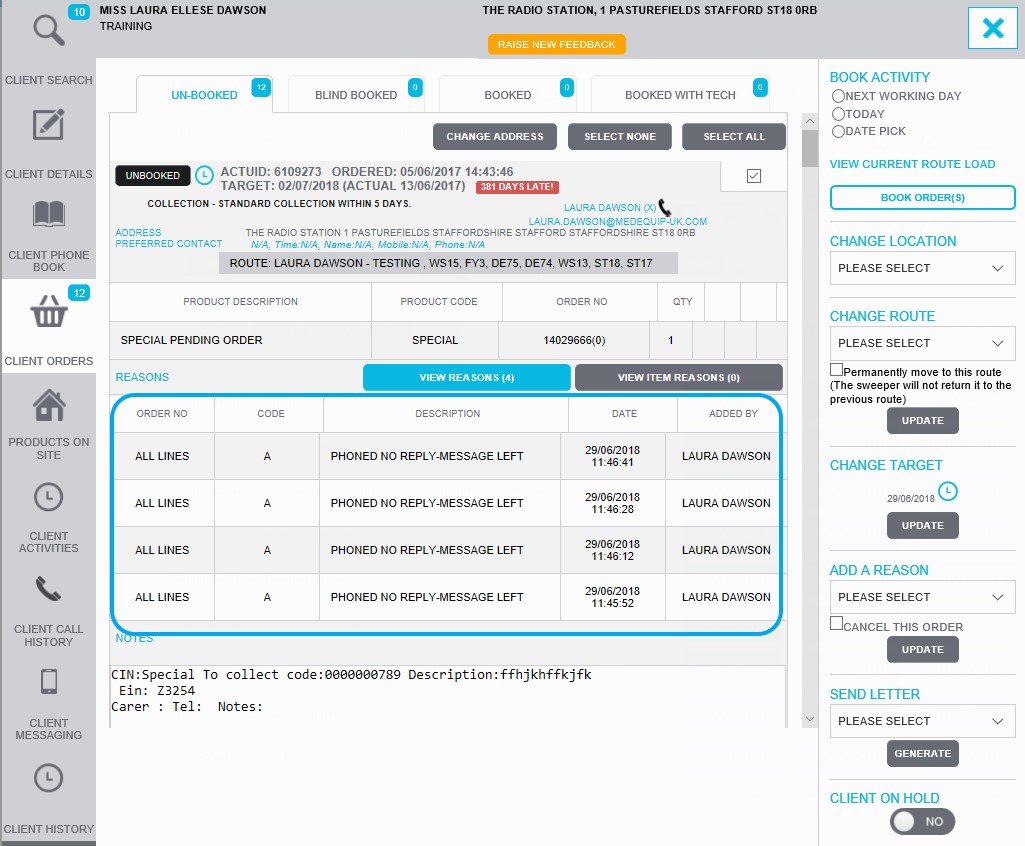
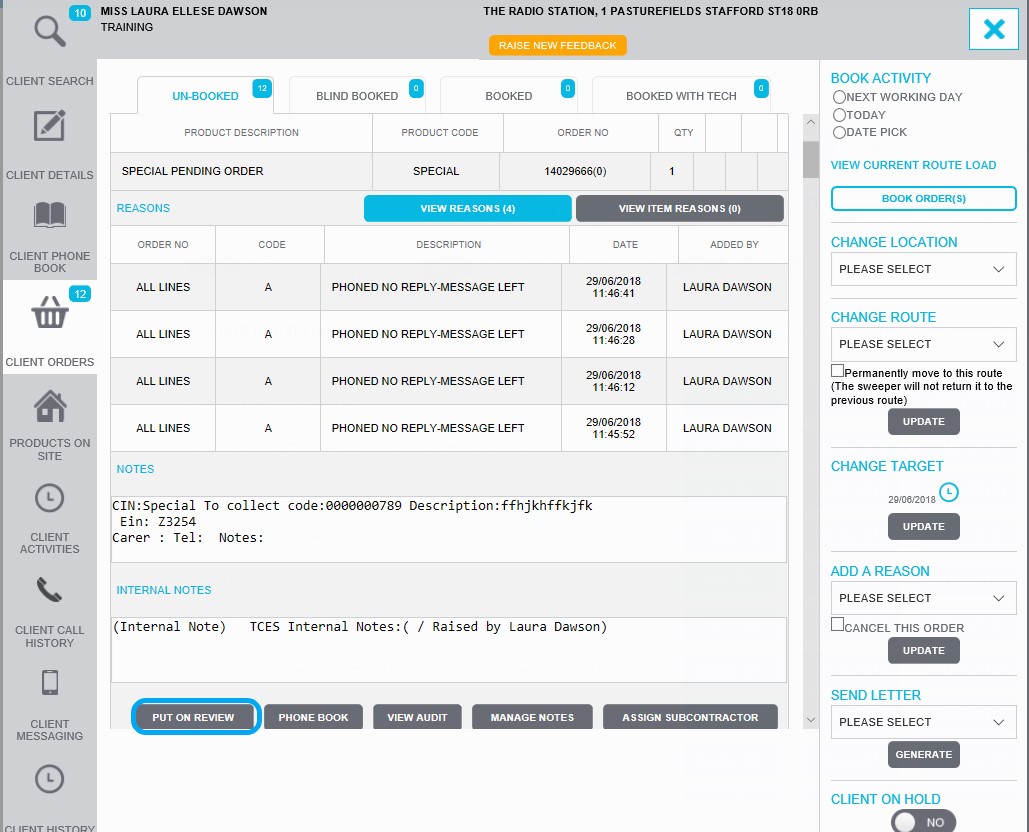
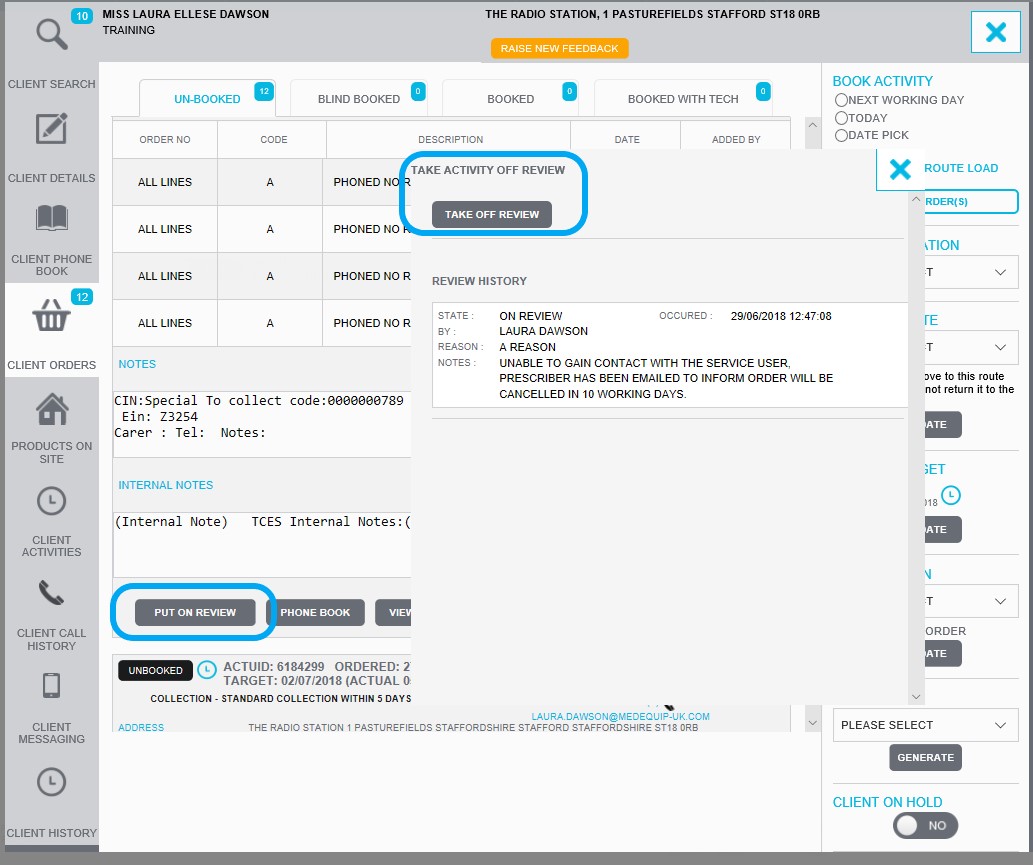
Further down on the client orders screen the button 'Put on Review' is how we place this order on review.
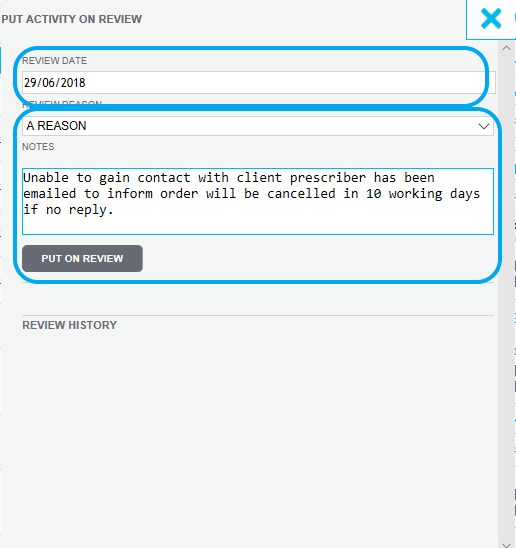
Once you have selected 'Put on review', you will first need to select a review date. Select the date and choose a date for in 10 working days’ time. This will ensure the order is removed from its current target date and move this into a date in the future for you to work with once the review period is over or the service user has gained contact.
Then you must select 'A Reason' from the drop-down box.
Lastly you need to add some notes for audit trail purposes, to enable other members of staff to know the process you have taken. Please copy any notes you have added and place this into the internal notes for this client also. This makes an order easier to investigate at a future date.
Once all the information has been inputted select 'Put on Review'
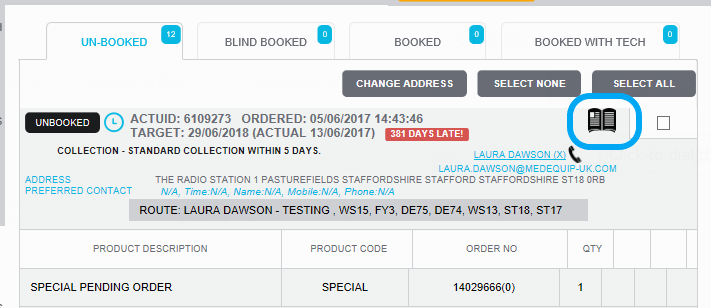
To identify what orders are on review, within the client orders screen you will see a book icon which shows each order on review.
Now the order is on review, the prescriber who raised this order needs contacting to inform them we are unable to gain contact.
Within the client’s profile select the tab 'Client Messaging', then select 'Send an email'
Then select who you would like the email to be sent to, in this instance select 'prescriber'. Once prescriber is selected you need to select an email address from the drop-down box. Ensure to select the email address of the relevant prescriber.
Now you can select the information within the email. Firstly, type your email subject, then select the relevant order you are emailing regarding.
Lastly you need select a reason for why you are emailing from the drop-down box. Then add your message this needs to include why the order is on review, how long the order is on review for and when the order will be cancelled if we receive no further information. Once you are happy with the information inputted select 'Send Email’.
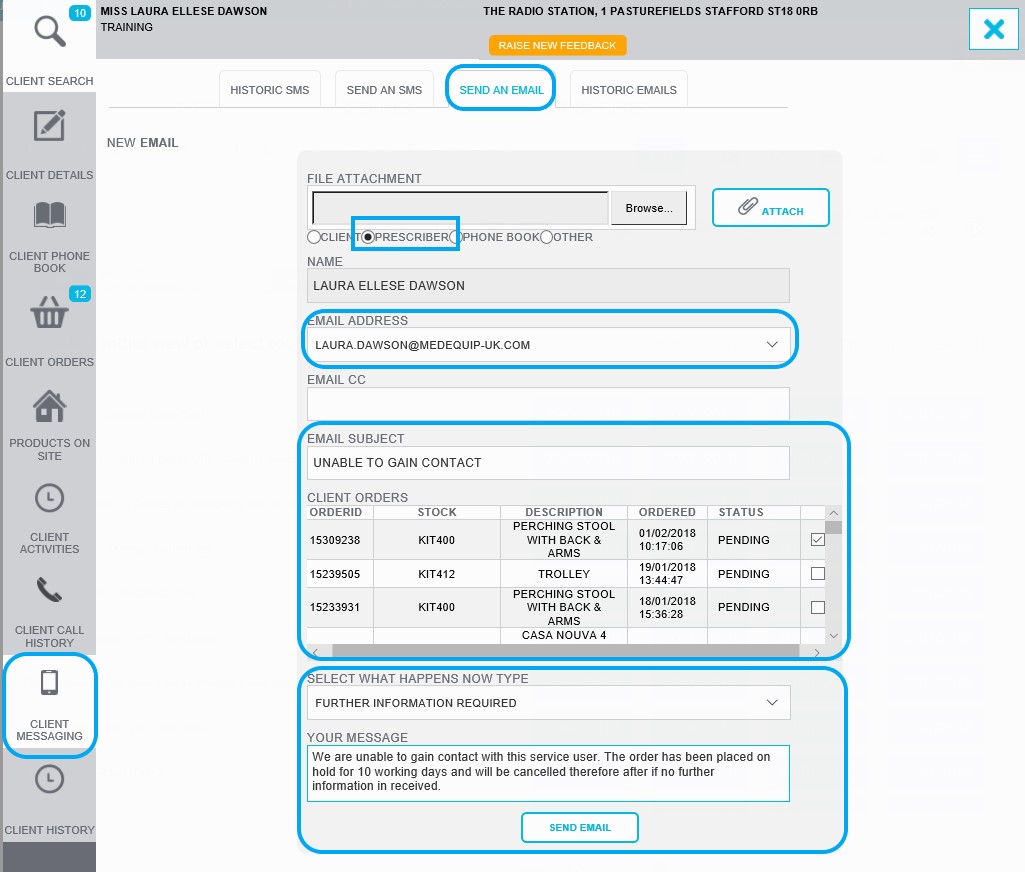
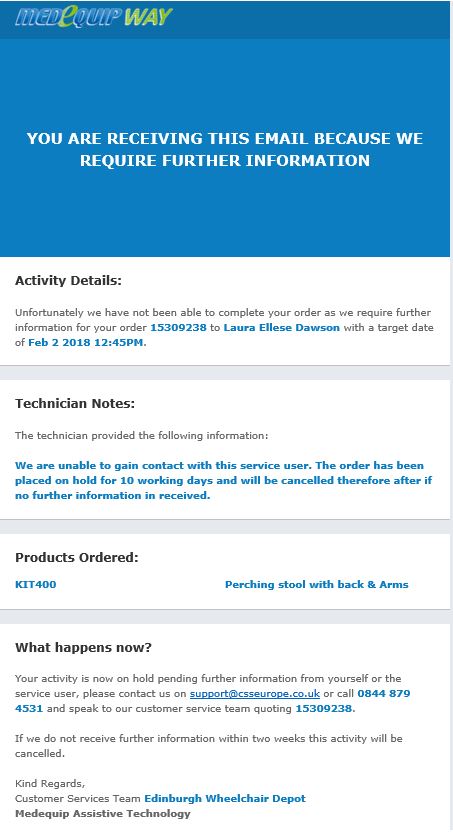
There is no need to greet the prescriber on your email as the system automatically creates a layout for the email. See blow.
If the service user or prescriber gains, contact within the 10 working days and the order can be taken off review. Within the client orders screen select the 'Put on review' button and then select 'Take off Review’.
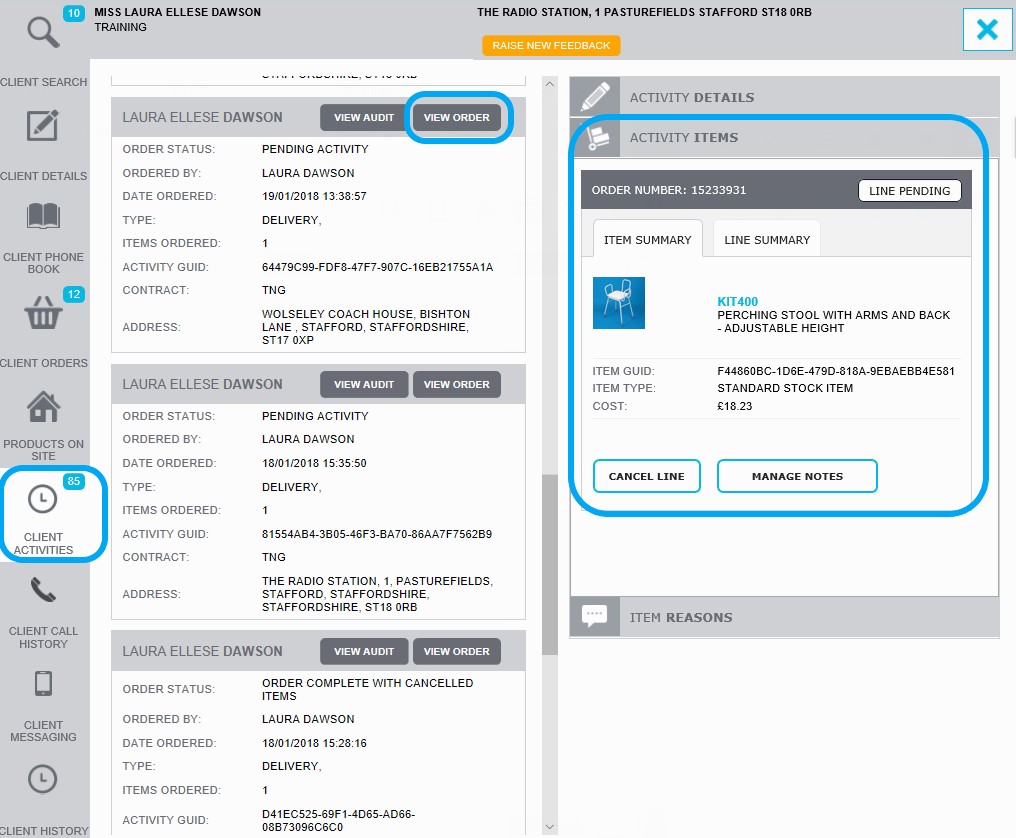
If no contact has been gained after the 10 working days, the order needs to be cancelled.
To do this select 'Client activates' within the client’s profile. Find the relevant order, select activity items and cancel the relevant order lines.
If you are having any problems with the system please contact LiveChat.
Updated over 7 years ago