
GRN Scanning
Scanning & Printing
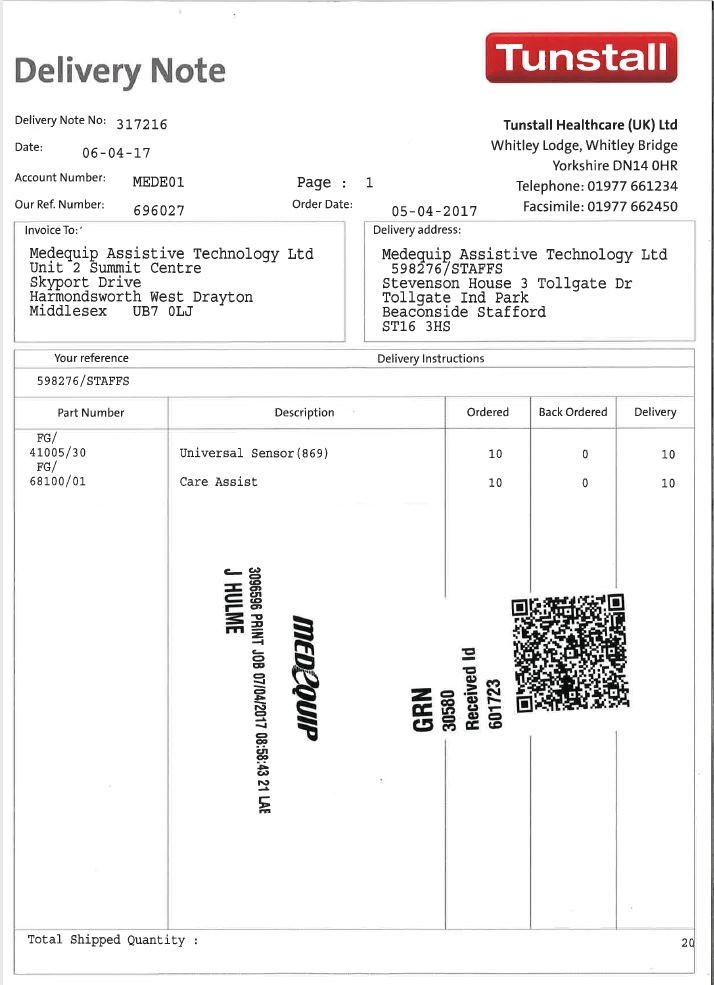
1, When receiving any orders within your depot, please ensure you stick your GRN label onto the selected delivery note. Ensuring the GRN label is as clear as possible.
2, Ensure the GRN label is not covering any important information on the document.
3, Keeps all delivery notes together and do not file until the further steps within this manual have been completed.
4, Depending on how you would like to do this, the next thing you need to do is scan into the system your delivery notes with the GRN Labels attached. Some depots prefer to do this as each order comes in or at the end of each day in one hit, this is totally down to how your depot would like to manage this.
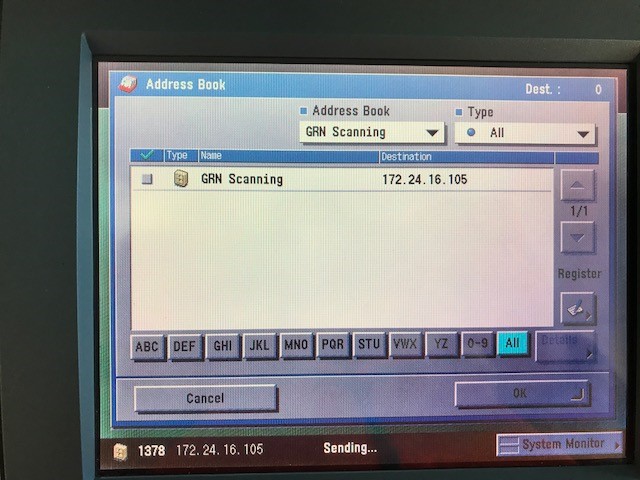
5, Go to your printer and select scan to, Address Book, GRN scanning and one by one scan each delivery notes into the system. See below
Useful Tips –
• To make matching your delivery note with the selected PO on the system easier, stick the booking in label with the information of the date and times this order was booked in for future refence.
• Currently you are only able to scan one document in at a time, please scan each delivery note, one sheet per GRN.
MedequipWay *
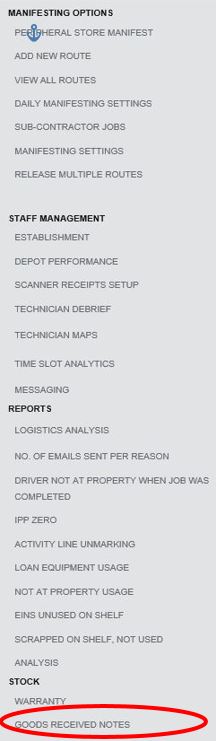
Log into - MedequipWay > Menu button > Goods received notes**
Useful Tip – If you are unable to see the button stating 'Goods Received Notes' please zoom out of your page and you will be able to see the section needed.
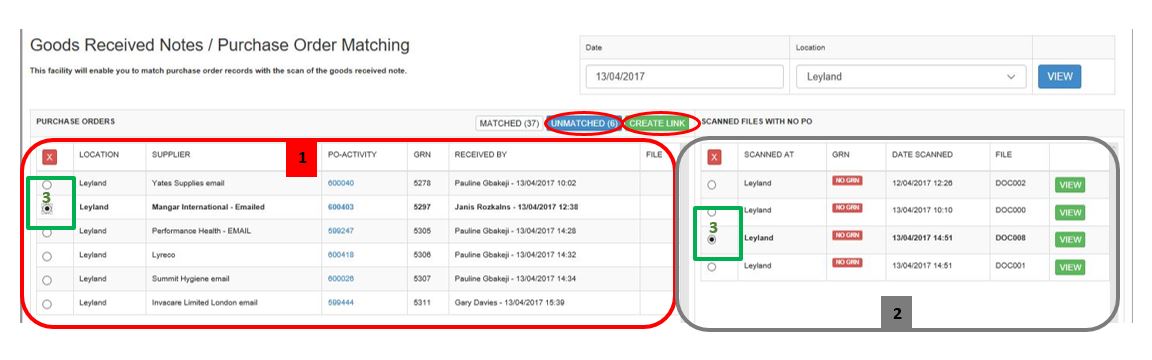
When looking at the goods received page you will see 2 main sections “Matched” and “unmatched”, first I am going to go into more details on the Unmatched section of the system. This means that orders have been booked in and POs have been received but the delivery note has either not been scanned into the system or the system is unable to automatically merge both the file and order together.
1, Looking at the “Unmatched” section as shown in the above screenshot you can see there are 6 outstanding orders which have been booked into the depot on the 13/04/2017, but they have not been matched to a delivery note which has been scanned onto the system.
2, This section of the system shows you any files which have been scanned onto the system, where it is unable to automatically read the GRN Label. This shows you the location the item was scanned into, if there is a GRN that the system can read, Date and time the delivery note was scanned onto the system and the file name. The “View” button allows you to view the document which has been scanned.
3, If when you have looked at your unmatched orders against your scanned files and you can see a document which matches an order listed you then need to manually create a link to the file and system. To Do this select the tick box next to the file and purchase order and select “Create Link” – See below page for further information.
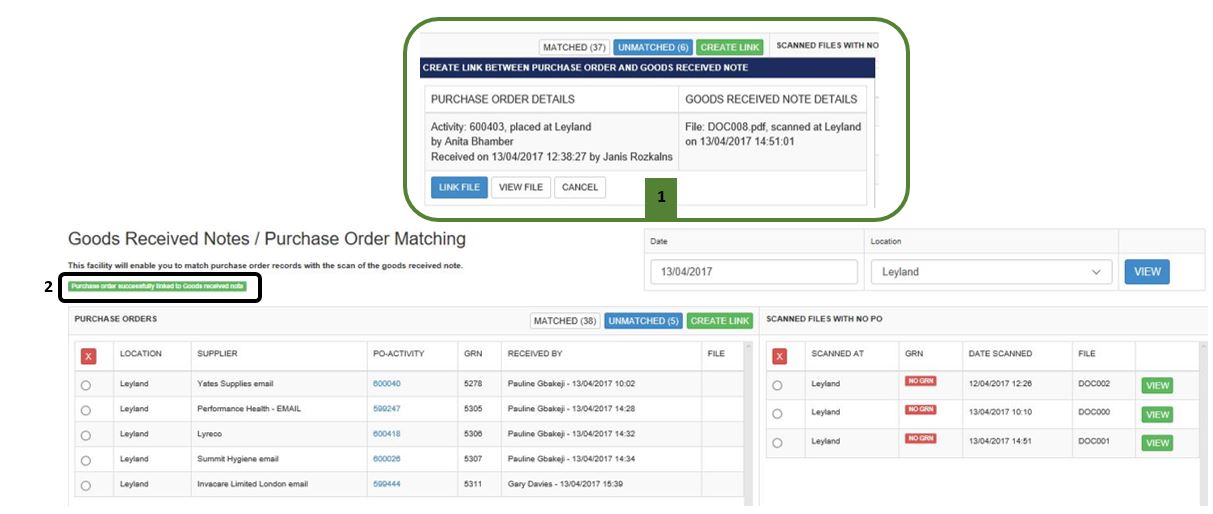
1, Once you have select “Create Link” This above message will pop up confirming you would like to create the selected link, double check this is the right document which you would like to attach to the selected purchase order and once you are happy select “Link File”
2, Once you have successfully created the link you will then receive a confirmation message like this section of the screenshot. You will also not notice that the unmatched section is now only showing 5 orders unmatched instead of 6. This is because the order has been linked together with a document and will now be showing in the “matched” Section, which is explain further on page 4.
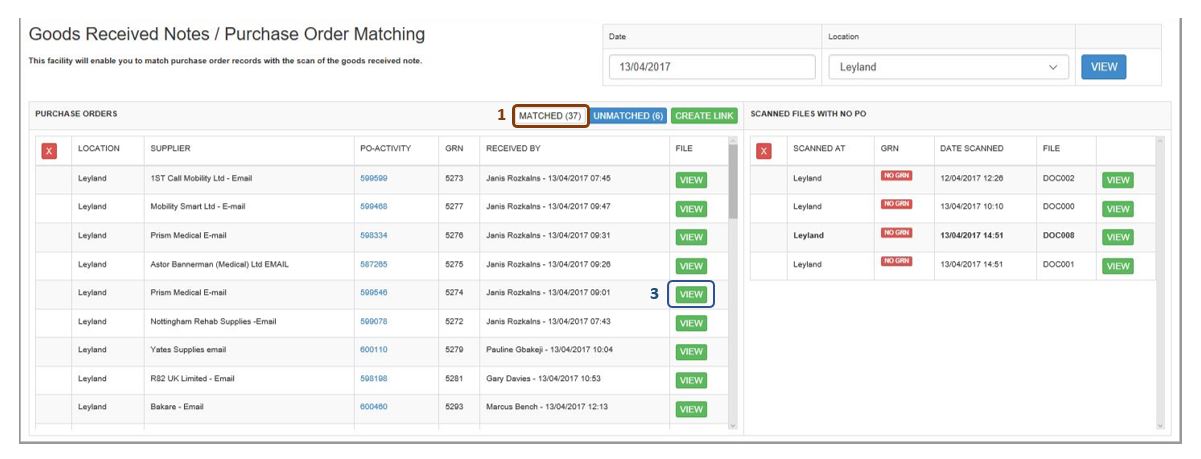
1, By clicking the “Matched” section of the system you can see there are 37 orders which have been booked in on the 13/04/2017, the system has automatically matched the document you have scanned to the suitable purchase order on the system. The matched section on the system is purely for reference purposes so you do not need to worry about these purchase orders.
2, The “Matched” section of the system is good to reference previous deliveries if ever you need to look back at a goods received note which has been scanned onto the system.
3, To view previous files all you need to do is select the View button and this will allow you to download and open the relevant document to that order.
If you are having any issues with this system, please contact LiveChat.
Updated over 7 years ago