
Adding parts - TC25 Scanners
This manual will show you how to add parts on the TC25 scanners when completing a repair.
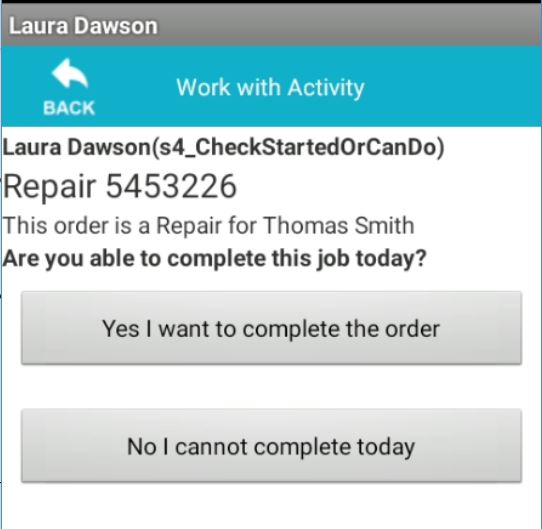
When working with a repair on the scanner you will be asked "Are you able to complete this job today?".
By selecting "yes I want to complete the order" you are confirming you can complete this job as needed.
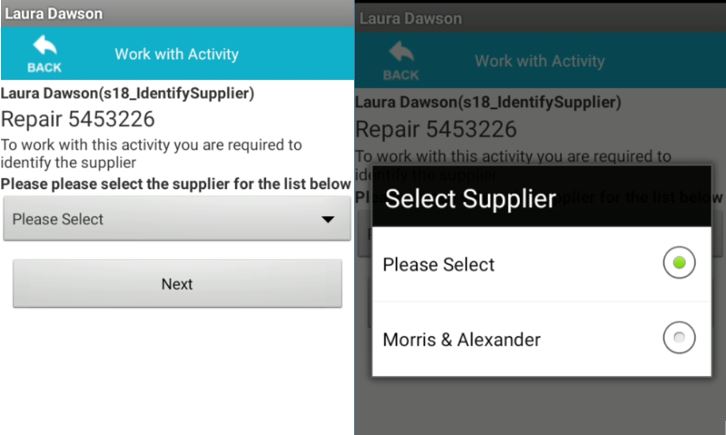
Next you will be asked to select the supplier, select the drop-down box and select the supplier matching the product you are repairing.
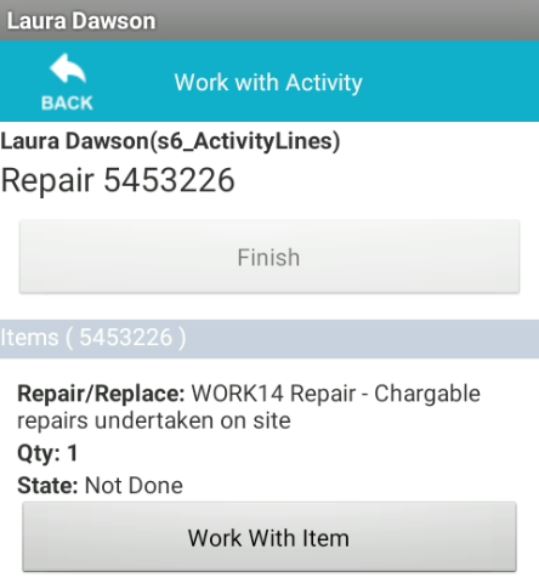
Now you can select "Work With" to start the repair.
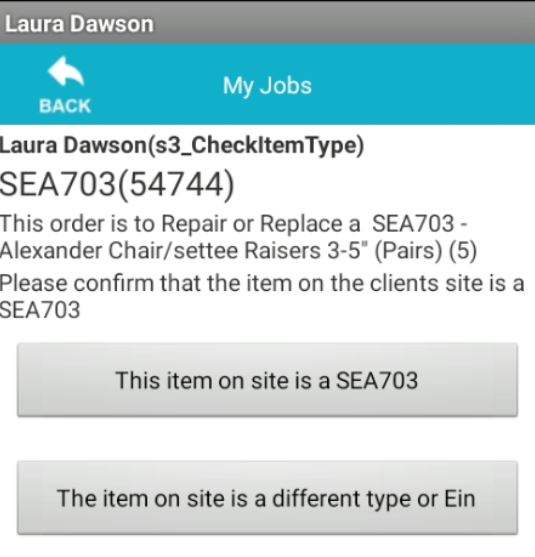
Now you will be asked to confirm if the item you are repairing is the same as the scanner states.
If you confirm the item is the same as on site, you can then continue with the job.
Item is not the same, you will be asked if you can continue with the repair or not.
Now you scan the relevant EIN label. Or add a loan label if the item does not have a visible EIN.
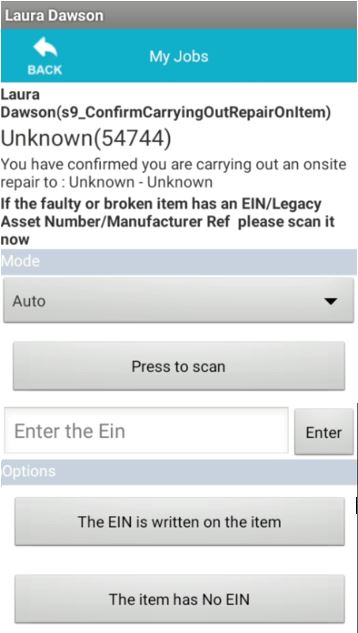
Once you have entered the EIN you will be asked if you would like to take an image of the item and the reason for the item needing a repair.
Now you can add any parts used to complete the repair
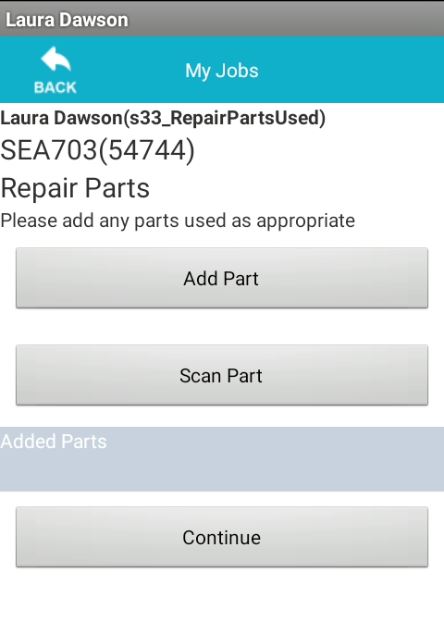
By Selecting "Add part” you will be presented with a list of parts which are suitable to use with the selected product. You can also search the parts using the filter.
"Scan Part" Allows you to scan any parts with EIN numbers to add them onto the repair
Is the part you are looking for not showing ?
If the part you are looking for is not showing on the list, please make a note of the below information.
- Supplier
- Standard Stock Code
- Supplier Part Code
- Part Name/Description
- Price
- Job Number
Once you have obtained all this information please leave the job open. When you’re debrief is completed at the end of the working day, please let your manager aware that you were unable to add this part. This information then needs to be emailed over to purchasing or email Storme on [email protected]. The spare part will then be added onto the system within 24 hours, once this has been added onto the system you can then close the job with the correct information.
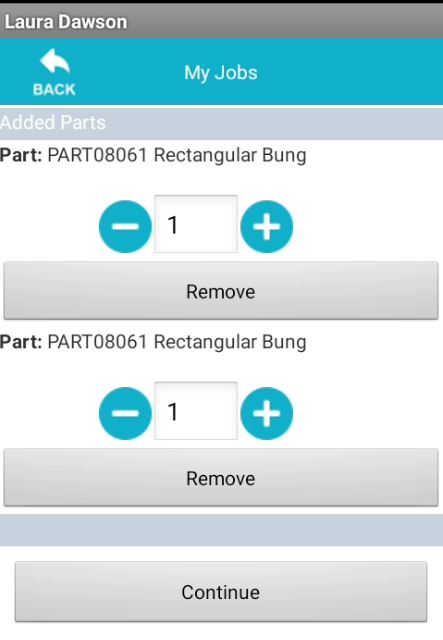
Once all parts have been added you can select "Continue".
You can then select how long the item has taken you to repair this. By using the + and - signs.
Then click "continue"
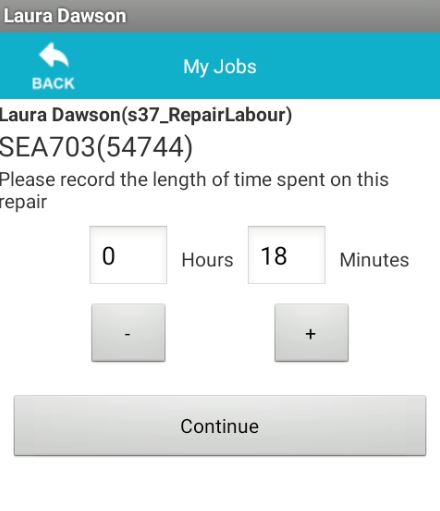
Once all the relevant part and labour information has been added to the order. This can then be closed as normal.
Updated about 6 years ago