
Manual Marking – MQ Way (mirrors the scanner)
This manual will explain how to manual mark an order using the MedequipWay system.
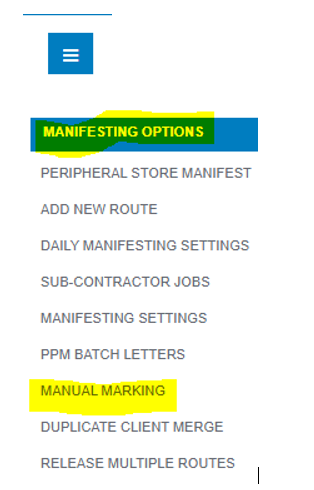
From the Menu Options, click on icon below and select ‘Manual Marking’
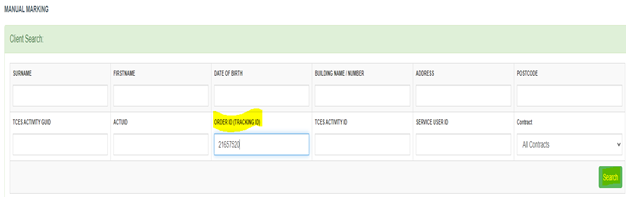
Type in order number and click search
Click View
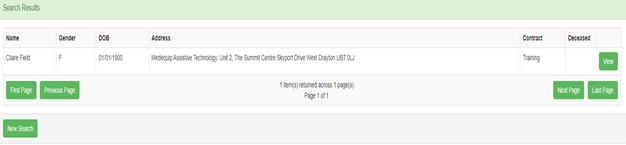
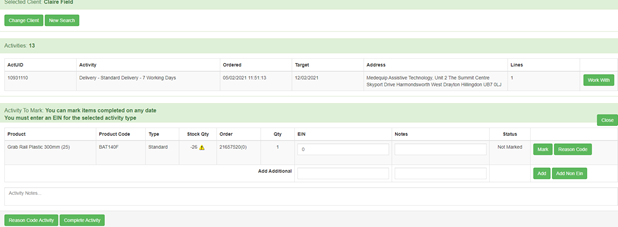
Results will show in Blue and click Work with

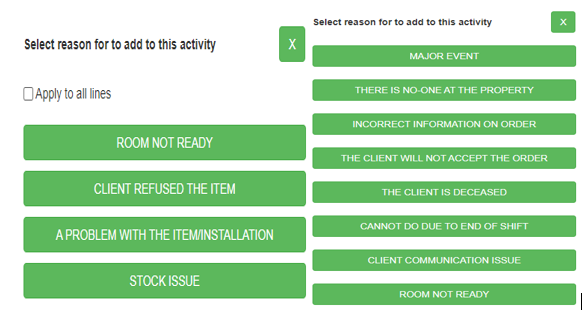
You can enter a reason code before you click ‘Mark’ please note these are the ones matching the scanner as per below – click reason code
Reason Codes available:
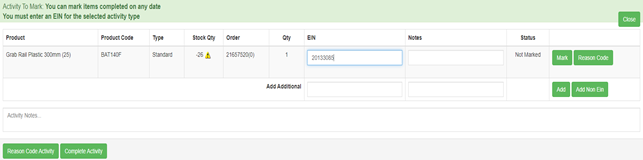
Enter the EIN of the item and then click ‘Mark’
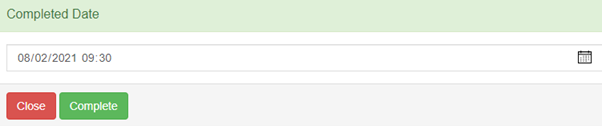
Enter the completed Date manually or via the calendar and click complete
Marking a Repair -
Follow above steps until you get to ‘Mark’

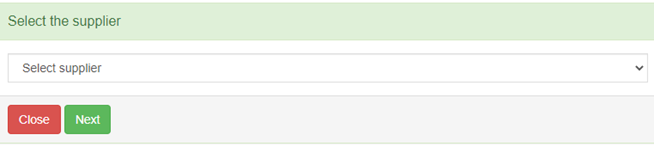
You can bypass the supplier and click ‘Next’
Confirm this is the item and click ‘Next’
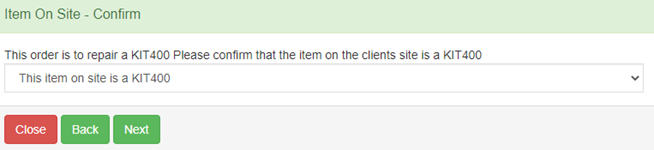
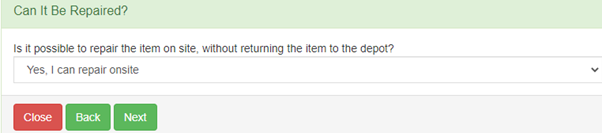
Confirm if you can repair from the drop down and click ‘Next’
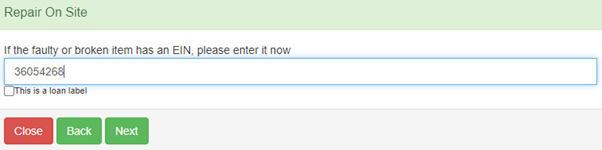
Type in the EIN you are repairing or add a loan label EIN and click ‘Next’
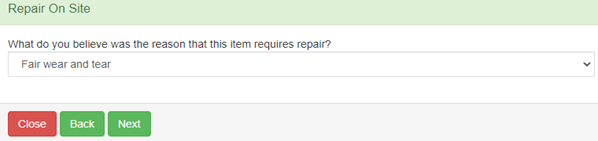
Select from the drop down the reason for repair and click ‘Next’
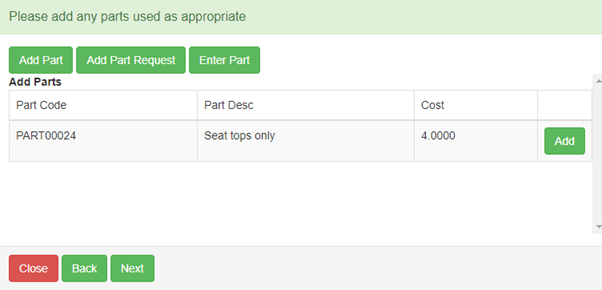
Select any parts if needed
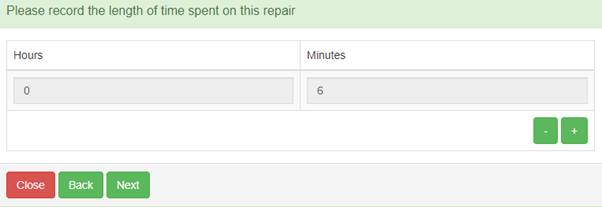
Add any Labour
Add any notes related to this order
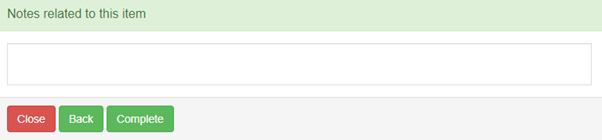
Click Complete Activity

Updated about 5 years ago