
Completing repairs & adding parts
This guide will talk you through the different ways to complete a repair within the system.
Completing a repair and adding parts
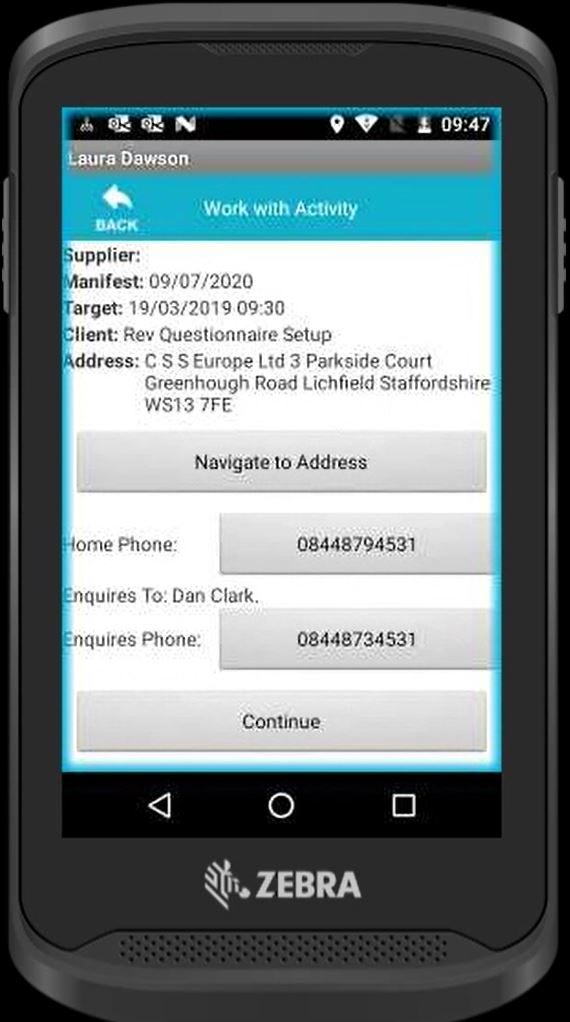
When first working with an activity, you will be presented with the service users’ details. From this screen you also can navigate ability to navigate to the address. This will pull up a sat nav screen for directions to the selected property.
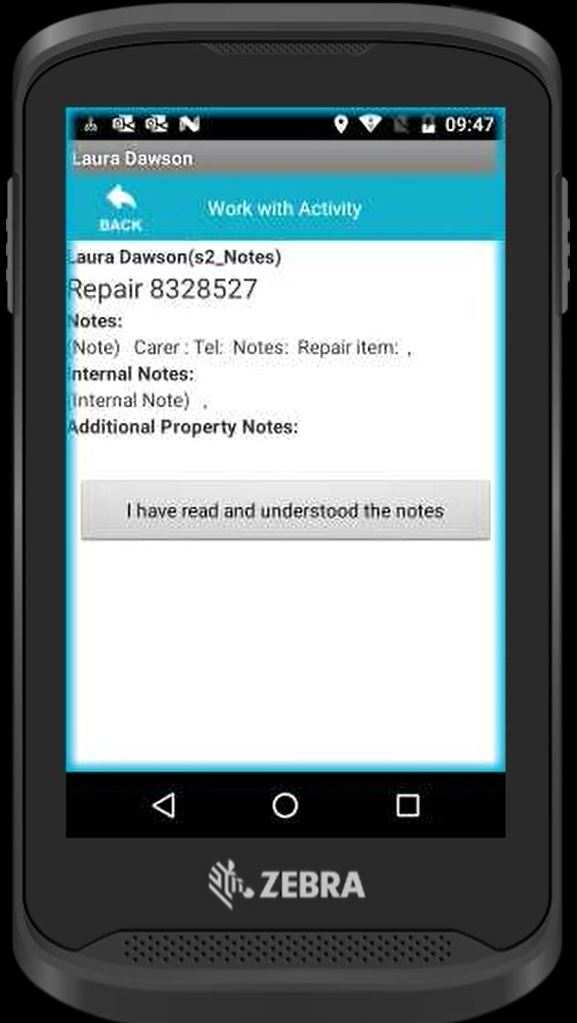
If there are any notes regarding the activity, they will appear on this screen. Once you have read everything click "I have read and understood the notes".
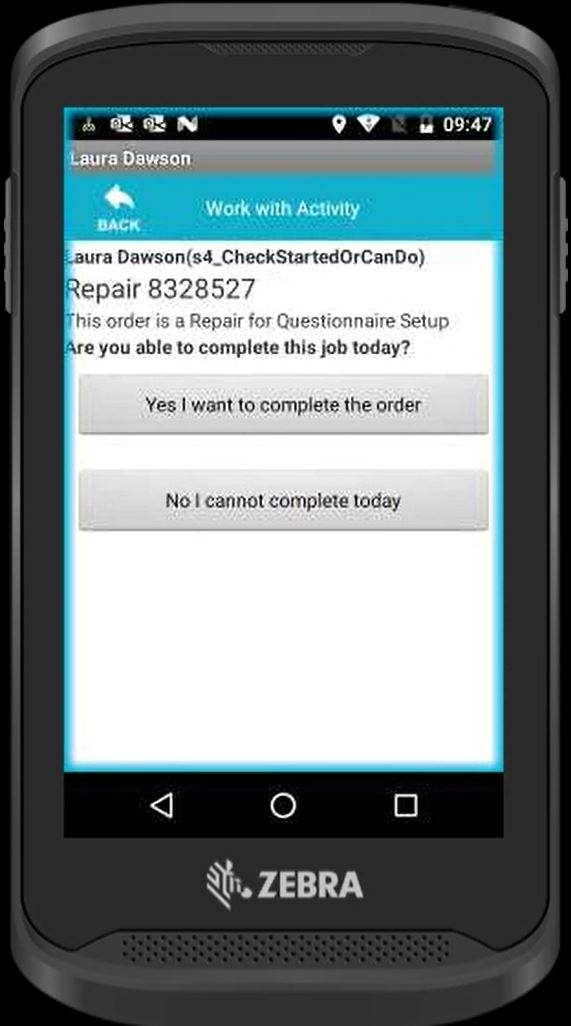
To complete the order successfully you need to click " Yes I want to complete the order"
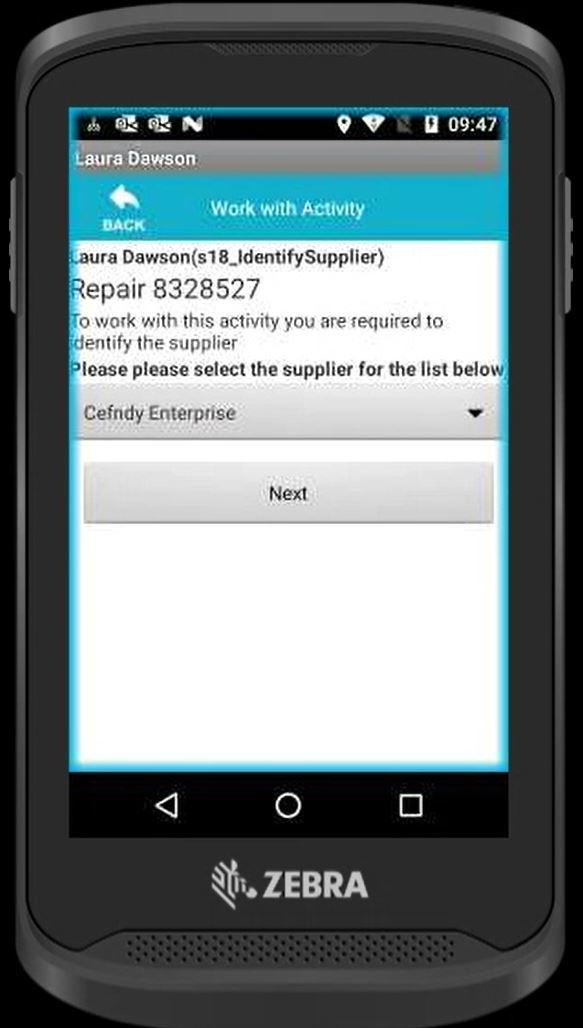
Select the supplier of the item you are repairing.
Now select "work with item"
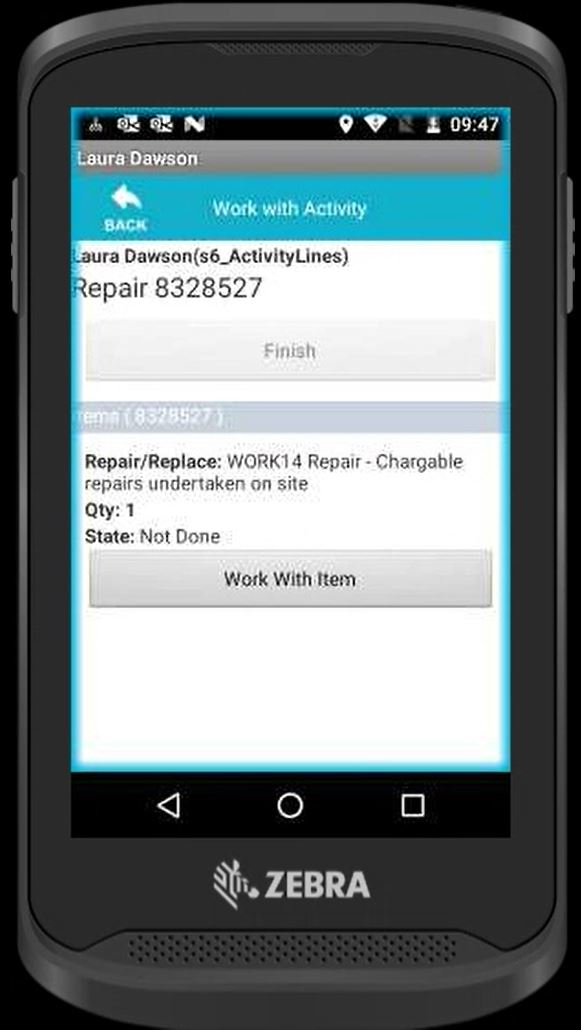
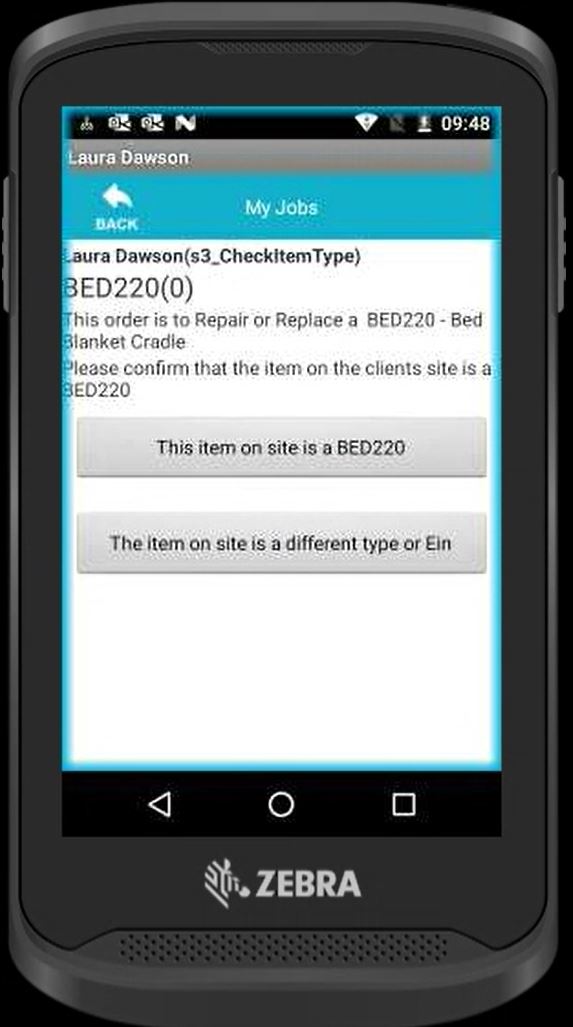
Now select if the item you are repairing is the same as the one raised within the activity. If so, click "This item on site is a BED209". If not select " The item on site is a different type or EIN". In this example "The item on site is a BED220" has been selected.
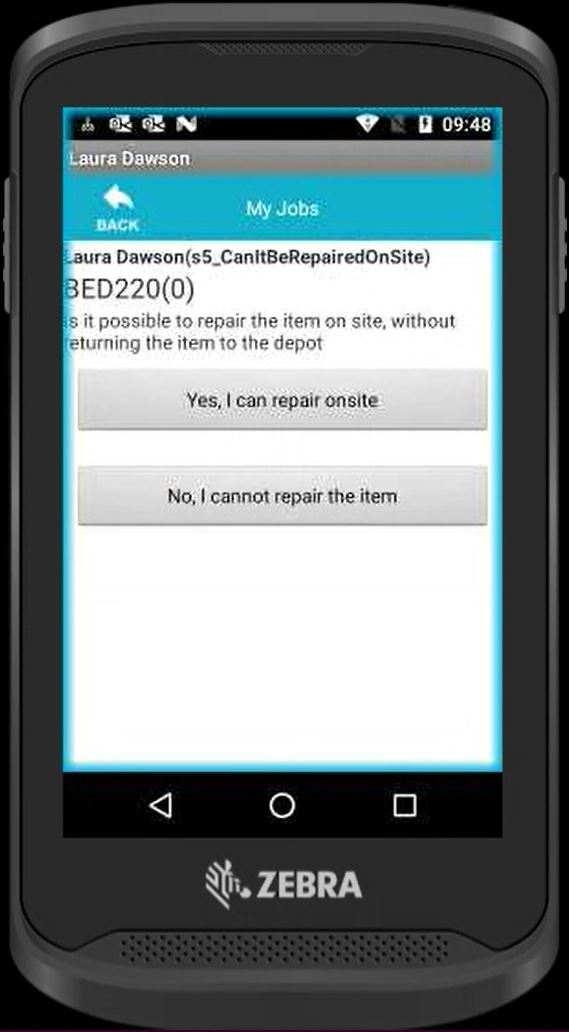
Select if you can complete the activity. In this example "Yes, I can repair onsite" has been selected.
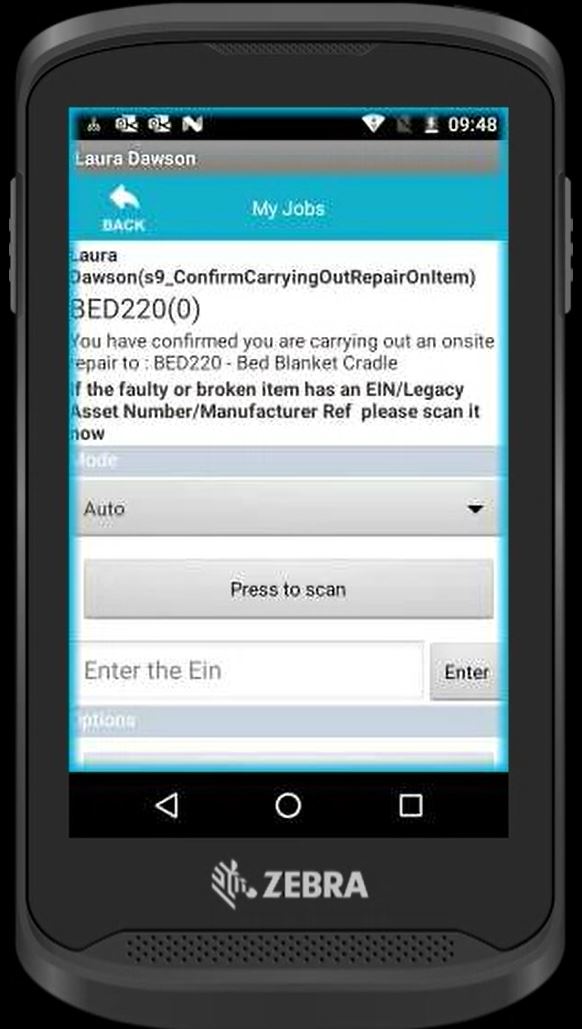
Scan or manually enter the EIN you are repairing.
Select the reason as to why the item needs to be repaired.
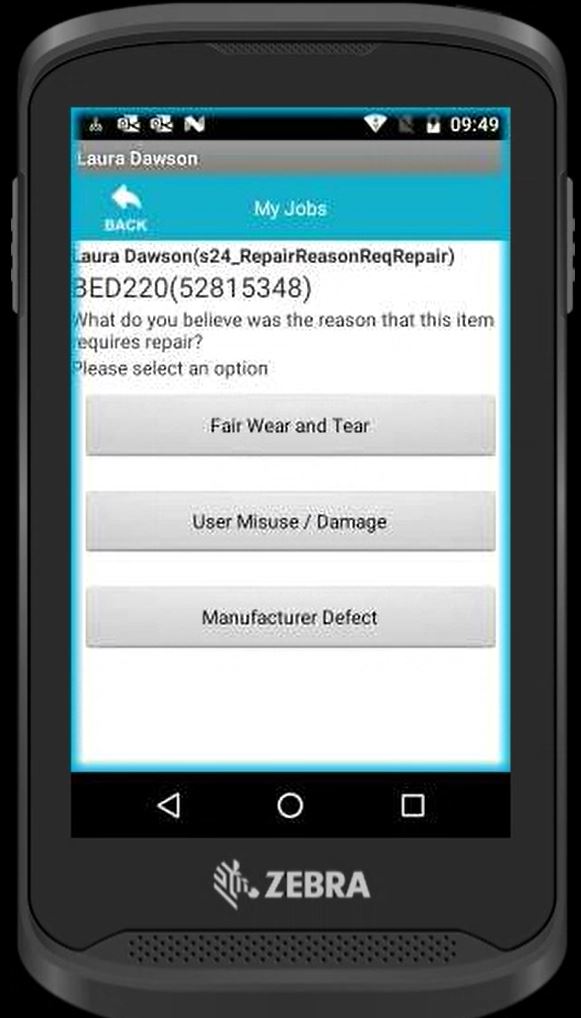
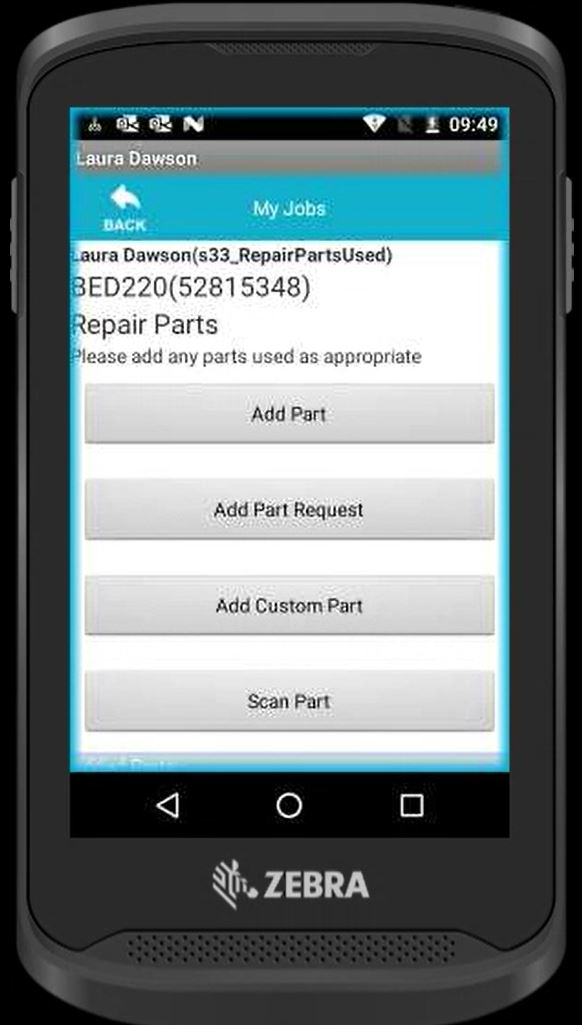
Here you can add any parts used to complete the activity.
Add Part - When selecting this option, you will be presented with a list of common parts used to complete repairs on this item. You can search and select anything which has been used to complete the repair.
Add Part Request - Allows you to input the information of a common part which is used but may not be listed within the "Add Part" option.
Add custom part - Is used when a new part has been ordered for a repair and you need to manually input the part information.
Scan part - is used if a part has an EIN attached to it, this allows you to scan the part and add it to the repair.
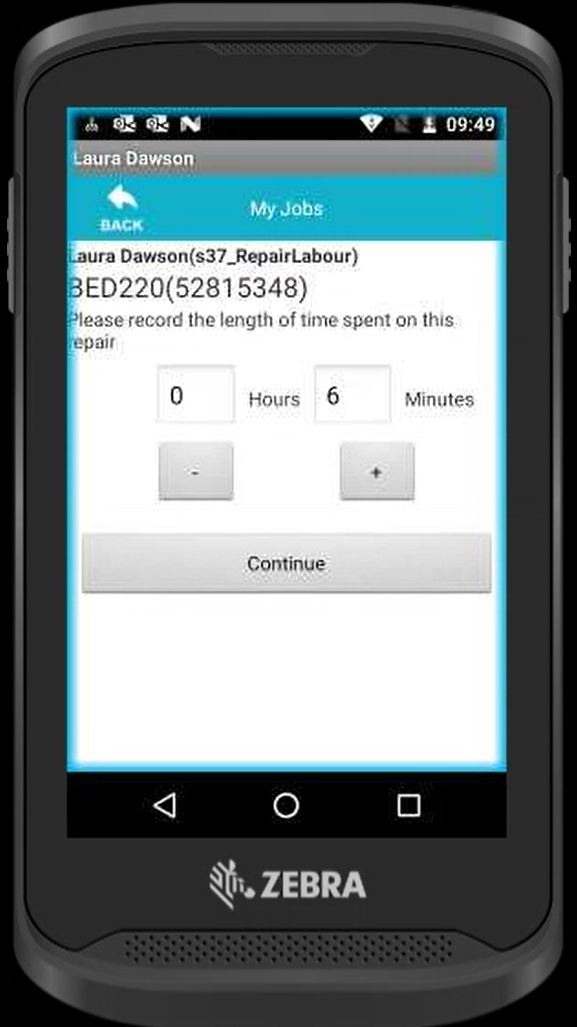
Now add how long the repair has taken to complete.
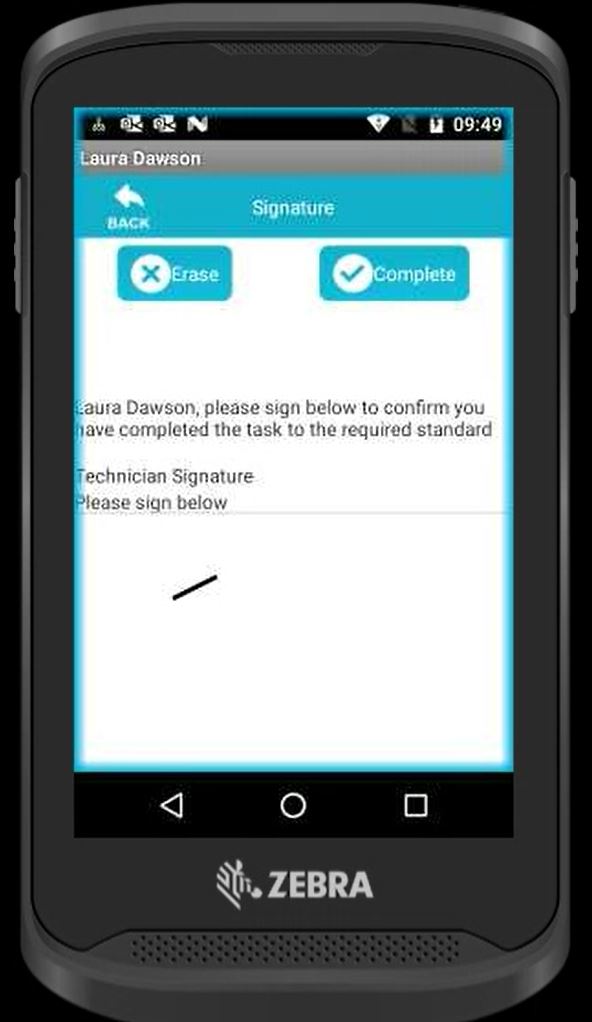
Sign to confirm you have complete the order.
Once you are happy with all the information inputted, select "finish".
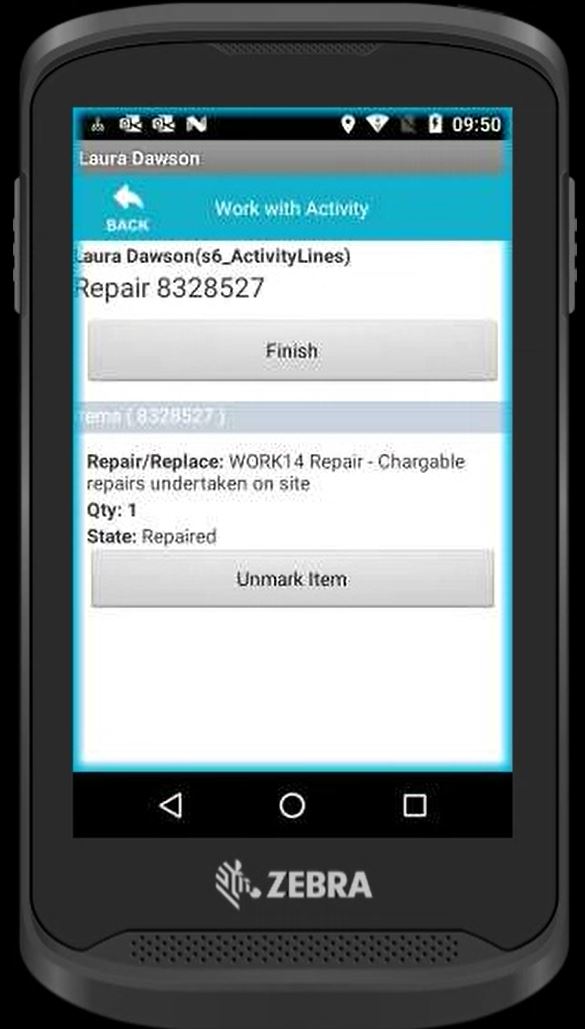
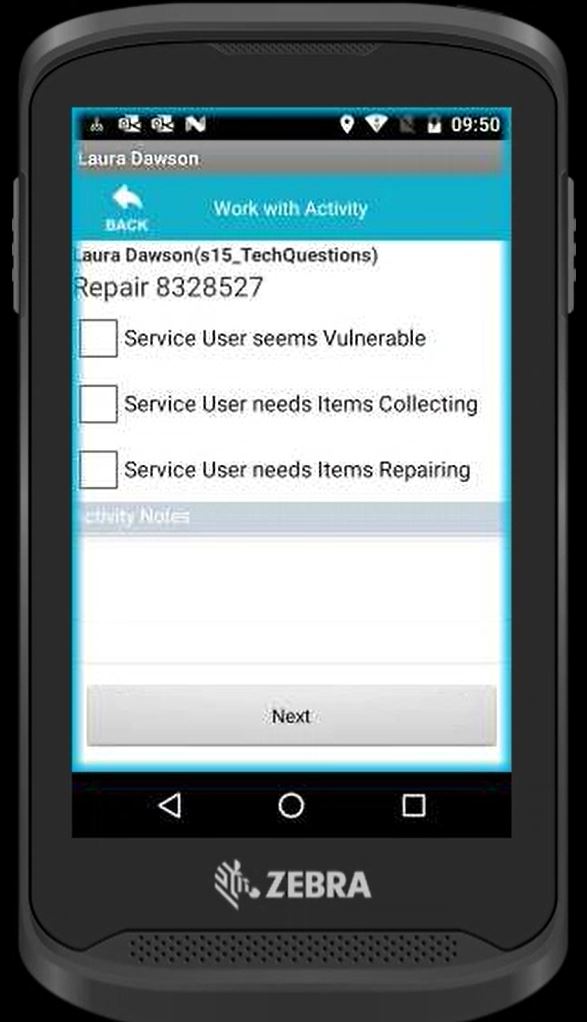
Select if you feel the service user is vulnerable, an item needs collecting or repairing. You can also add any notes regarding the service user is necessary. This information will move across to your technician debrief so It can be discussed further with your manager/team leader.
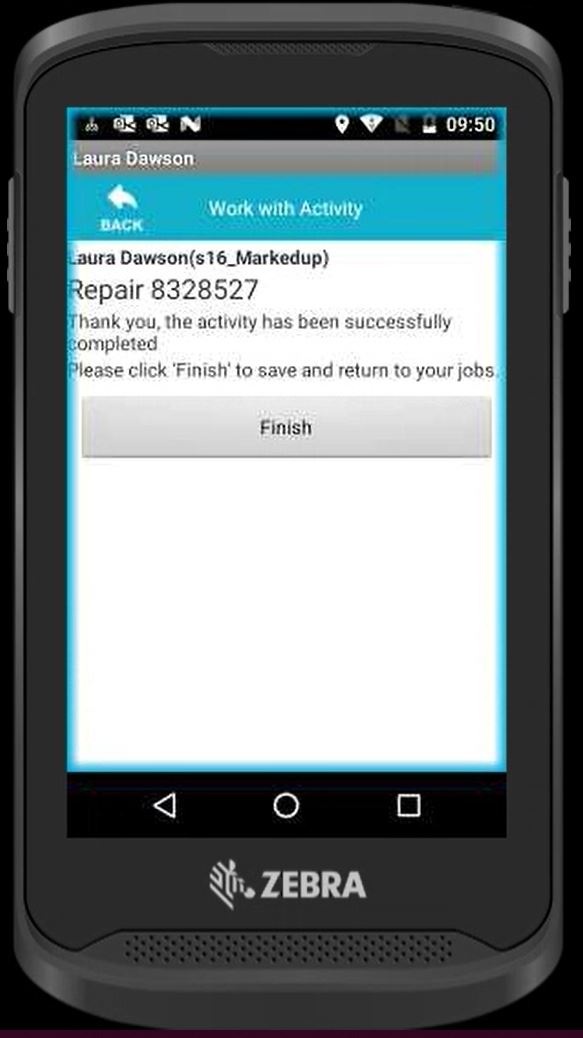
Confirm you are finished working with the order.
Updated almost 6 years ago