
Ceiling Track Hoists
How to manage and complete a ceiling track hoist order using Medequip systems.
A prescriber will raise a technician activity on TCES, this is a TEC101. Once the order has been received the ceiling track engineer must attend the property to survey and obtain all the information required for a quote.
The engineer will also close the TEC101 activity on their scanner when attending the property.
The tech is required to include a drawing and a breakdown of what is needed to complete the installation in each survey.
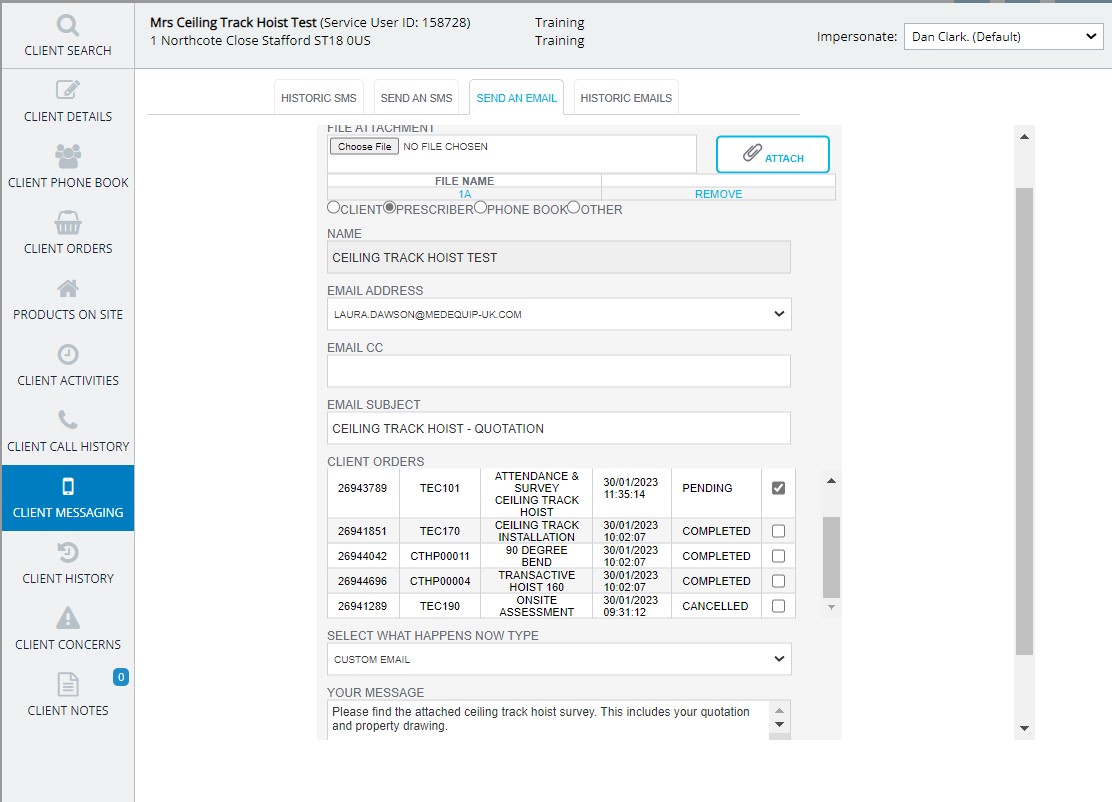
Once this information has been obtained on MedequipWay, find the service user, then select client messaging.
Once you have clicked send an email you must select to prescriber and pick the relevant prescribers email address who raised the TEC101.
Then add the drawing and quotation to the Email. You can CC yourself into the email if you would like to receive a copy of this also. Then you can add an email subject as normal, before you add your message you must select the order you are emailing in regards too. Find the TEC101 order and tick it, then select from the "select what happens now type" drop down and select Custom. Now add your operationally agreed message to the prescriber and click send.
Email Attachments
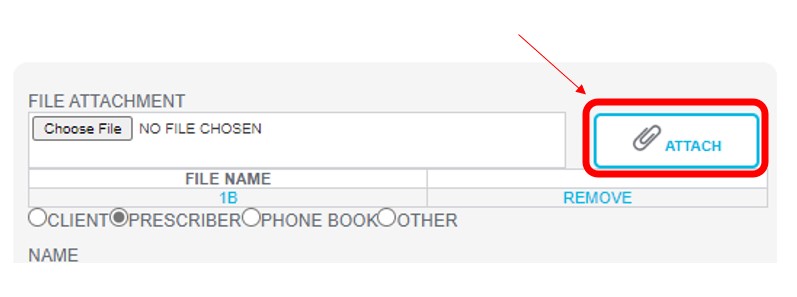
When you are adding an attachment on MedequipWay, make sure that when you have selected the file you want to attach you click "ATTACH". Or your email will be sent without the attachments.
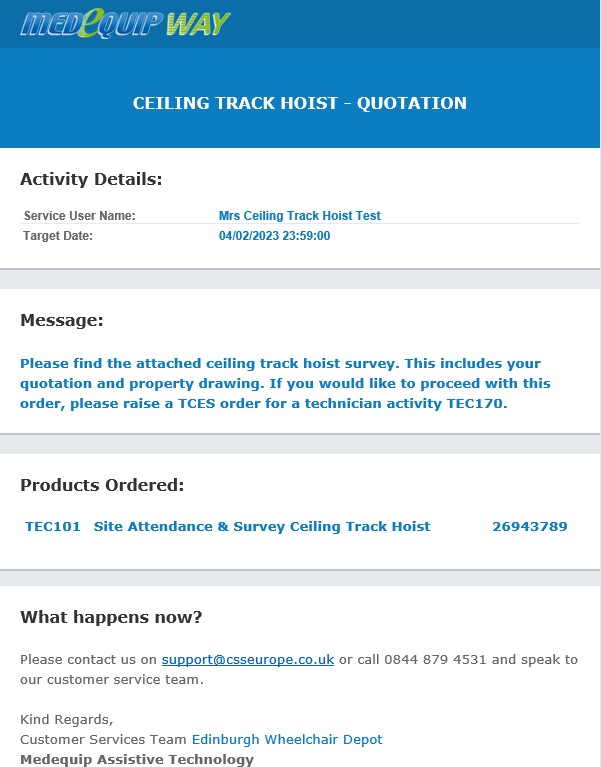
The email will be in a similar format to the below screenshot.
If the prescriber is happy with the obtained quote and drawing, they will now need to raise a secondary order on the system, this will be for a TEC170.
Once the order has been raised on the system, we can now begin to build the quote on MedequipOne.
MedequipOne > Operations > Ceiling Track Order Builder
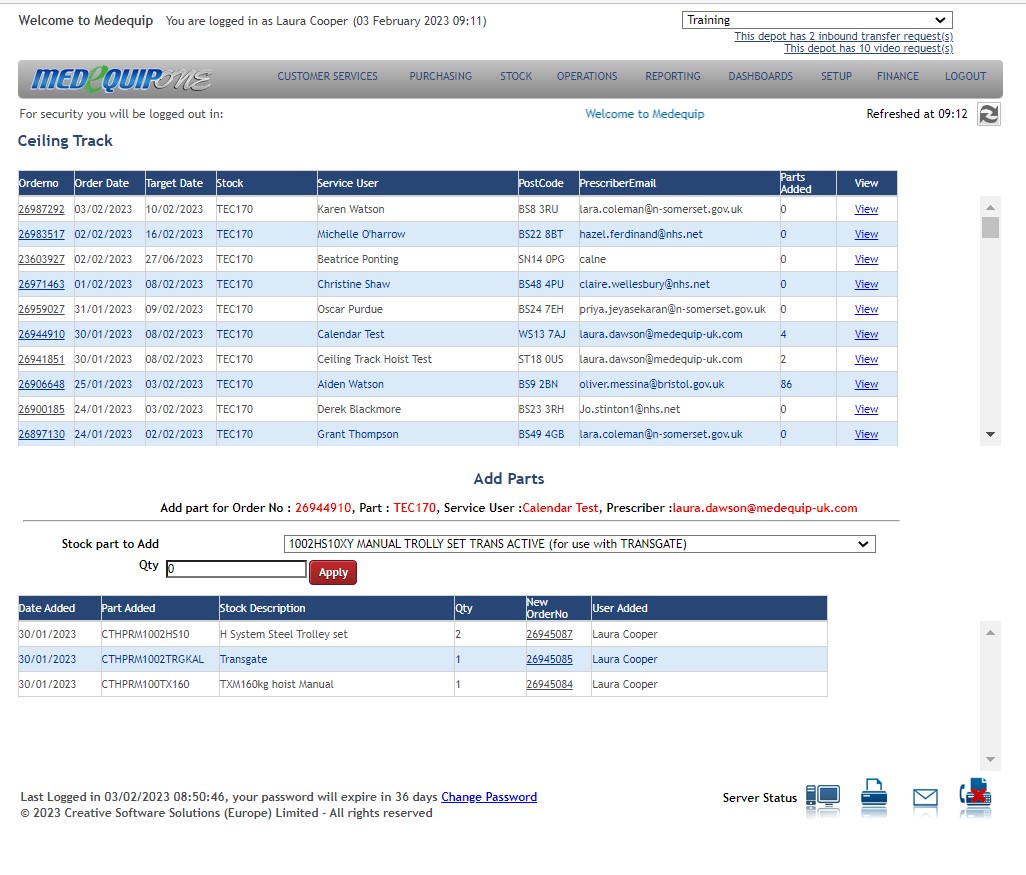
Find the order you are looking to build the quote on. Select View.
Now from the drop down you can add any parts which are required to build and add a quantity as to how many you wish to add, then select Apply.
Once you have gone through and built this order with all the relevant parts required, this order is ready to be manifested onto the technician’s scanner for completion along with the delivery.
This order should now be manifested using the standard MedequipWay manifesting and releasing process and then closed on the scanner like any other job to complete the process after the installation is complete.
Updated over 3 years ago