
Routing
MedequipWay Routing process
Each route needs to be set up correctly to ensure the routing system is being used to its full potential allowing technicians to follow there selected routes and reach all timeslots.
1. Daily manifesting settings
MedequipWay > Menu > Daily Manifesting Settings
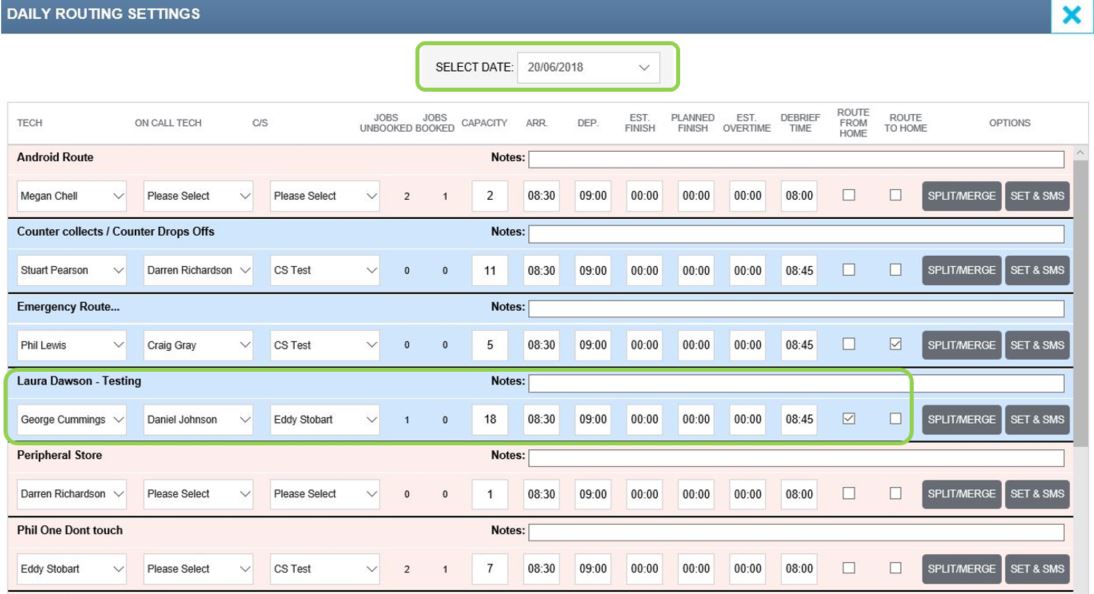
Daily manifesting settings need to be set daily, this needs to be completed 5 days in advance. This way when arranging the routes, the system can easily see the capacity of the selected technician.
Each route needs to be set up with the correct information, from technician names to the selected times. All timeslots are generated with a start time which is the same as the departure time which is set in the daily manifesting settings. If the departure time is set up for 9am, but the technician does not leave the depot until 11am, the timeslots will already be 2 hours late. Causing the rest of the route to be late before the day has begun.
After the times have been inputted you need to select if the technician is starting or finishing from home, before this is selected please contact LiveChat to ensure the technician is set up with the relevant postcode to enable the routing system to work correctly. To select where the technician needs to start and finish from simply tick the relevant box. If the technician is starting and finishing from the depot, please leave unticked.
Once you are happy all the information inputted is correct select 'Set & SMS'. This will then send a text message to the selected technician informing them of all the information gathered.
2. Optimising Routes
Optimising each route for the next working day, it is important the routes are optimised before service users are called for the selected day. This allows the system to work out the best geographical route and generate the timeslots for the orders. The route needs to be optimised twice before the work is released to the technician. Once needs to be completed manually by customer services and the second time is done automatically upon the route being released. The second time the route is optimised, the system will look for any orders which have been removed or added to the selected route.

To be able to optimise each route you need to ensure the correct number of orders are in the selected route for the selected date. Each route has a minimum capacity, to see this simply hover over the route and a box will pop up providing the minimum capacity level. The maximum number of orders which can be in any route before the system will allow you to optimise is 35.
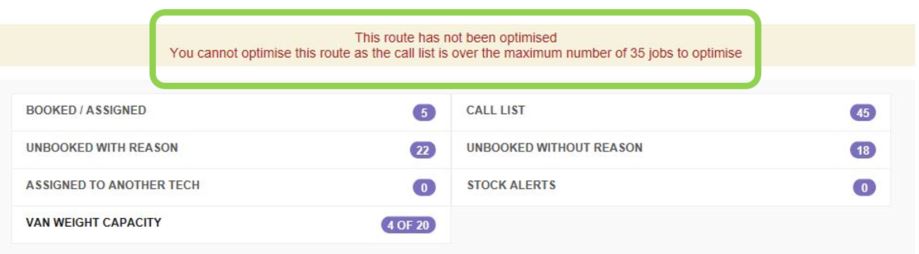
If the route is over capacity, you will see the above message.
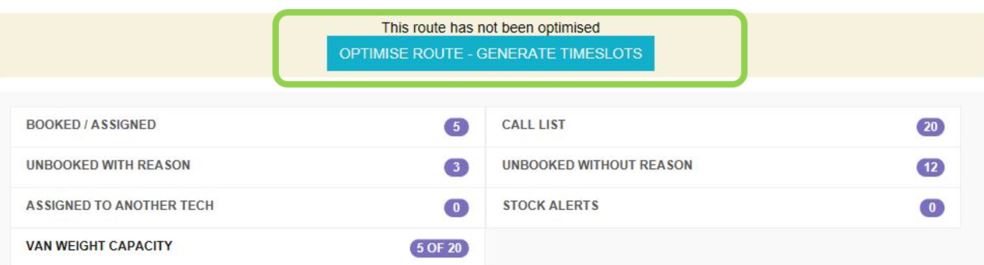
Once the correct number of orders are in the route the 'Generate Timeslot's' button will appear. By selecting this your route will then become optimised.

Ensure the conformation message appears at the top of the route before beginning to call all service users.
3. Calling Service Users
When working through your route for the next working day, all service users need to be called twice in one day, if no answer the first time. Once a service user is called twice you can then manually change the target date for the selected order and move this into the route for another day to attempt again. If two calls are not made to a service user in one day then the system will apply the 'U' Code, which is under performance meaning the order will then be late.
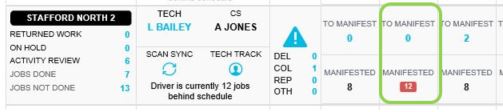
By the end of every working day the to manifest section in each route must be at zero. This will allow the sweeper to only sort the relevant orders into the suitable days and routes.
4. Van Capacity & PTBR
Each route also takes into consideration the weight and room on the technician’s van and also the Install/Collection times for each order.
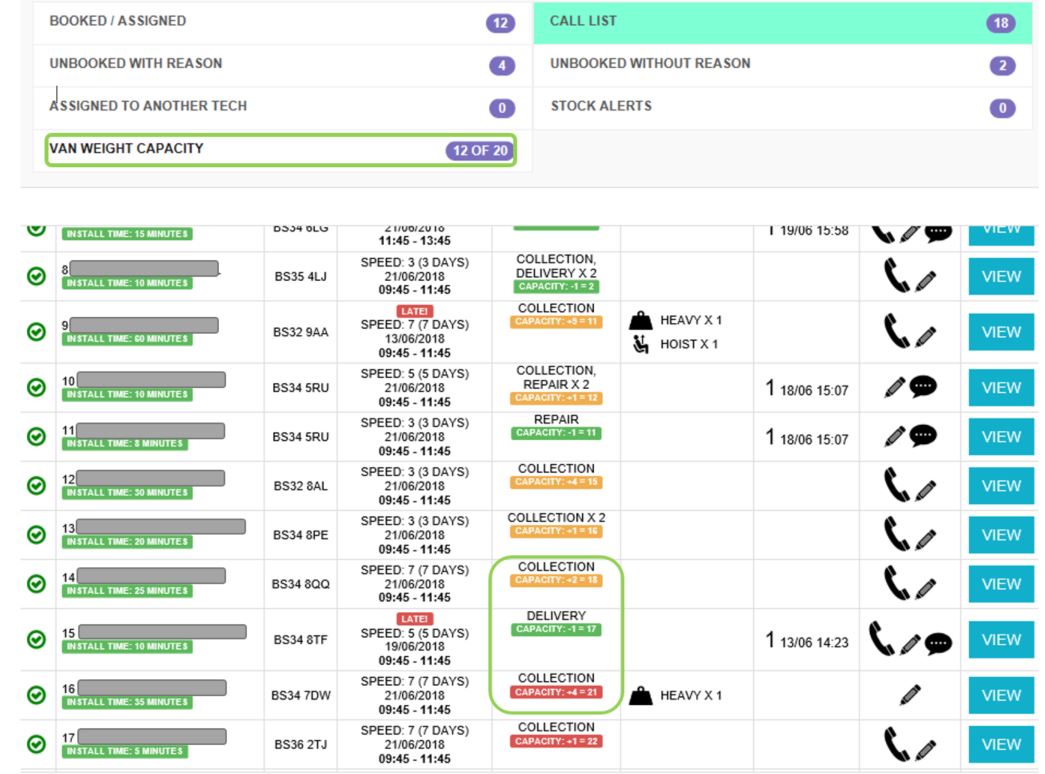
When looking at the call list for a selected route you will be presented with a couple of different things to take into consideration.
Van weight capacity - This can be seen at the top of the route, this will inform you how full the technicians van will be when they leave the depot each morning.
Van Capacity Calculation - The coloured blocked under the specified job type. Enables you to see how the van capacity will change for the driver throughout the day. If the blocks turn Red this means the technicians van will be full or over capacity when reaching this order throughout the day.
How the van capacity works -
Each van is set to an automatic capacity of 20, this can be increased or decreased depending on the depots request. To change the van capacity on a route please contact LiveChat.
Depending on the size of the ordered item depends on how the van capacity will change. For example, a bed may be classed as a capacity of 3, meaning the initial van capacity will change from 20 to 17.
Ensure the capacity for the van is always under the selected van capacity for that route. If the van capacity goes over by 10 then the system will route the technician back to the depot to unload stock.
PTBR (Product Timing Based Routing) - Under each service users name, you can see a green box which contains 'Install Time' This is a guide to how long the selected order will take the technician to complete. This change’s depending on what items are ordered. If an install time is incorrect and you wish for this to be changed, please contact LiveChat.
5. Releasing Routes
MedequipWay > Menu > Release Multiple Routes
Or
MedequipWay > Menu > Technician Debrief
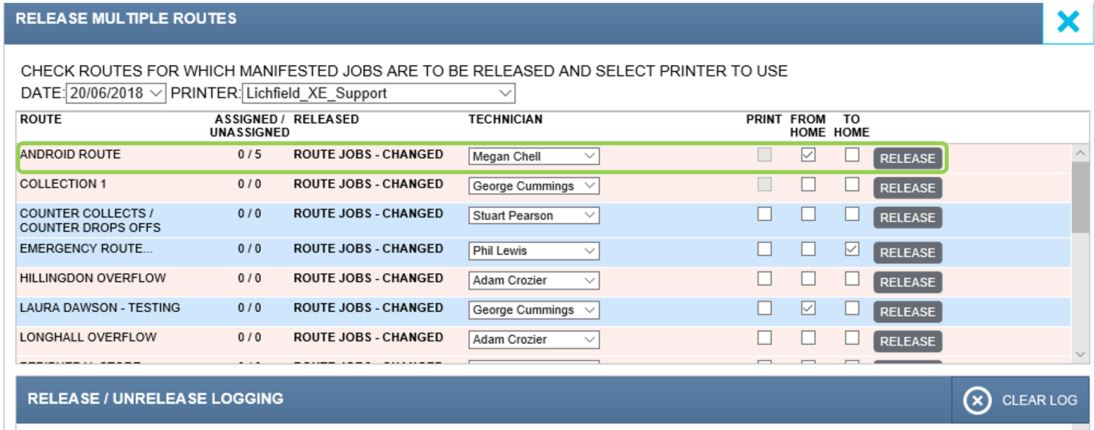
When you are on the release multiple route page, you can then find the route you wish to work with. From here you can then select the technician you wish to release the route to. Then you can select if you would like the techs route to start or finish from home. If you would like the tech to start and finish from the depot, please leave the boxes unticked. You can also release for the next day if the tech is starting from home by changing the date in the drop-down box at the top of the page.
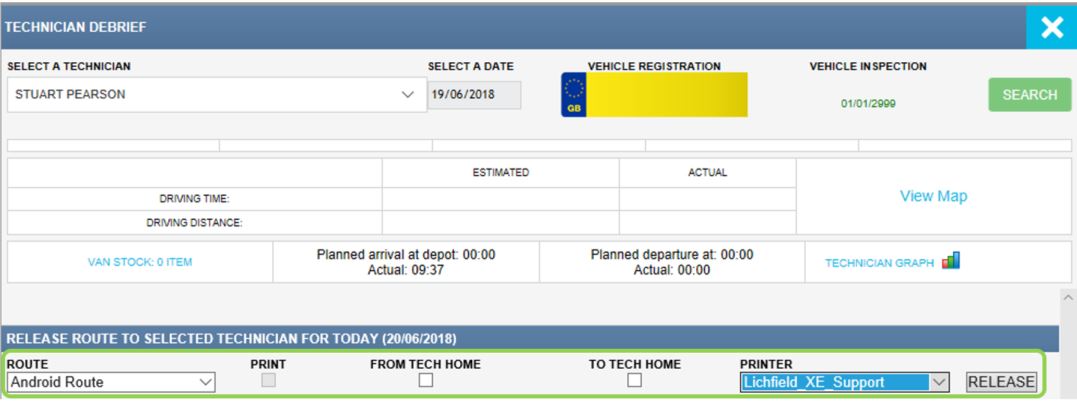
To release after the technicians, debrief is completed, you need to follow the same instructions as above. Apart from this time you need to select the route you wish to release to the technician you are currently debriefing
6. Text Messages To Service Users
Three text messages are sent to each service user at different stages of the order process.
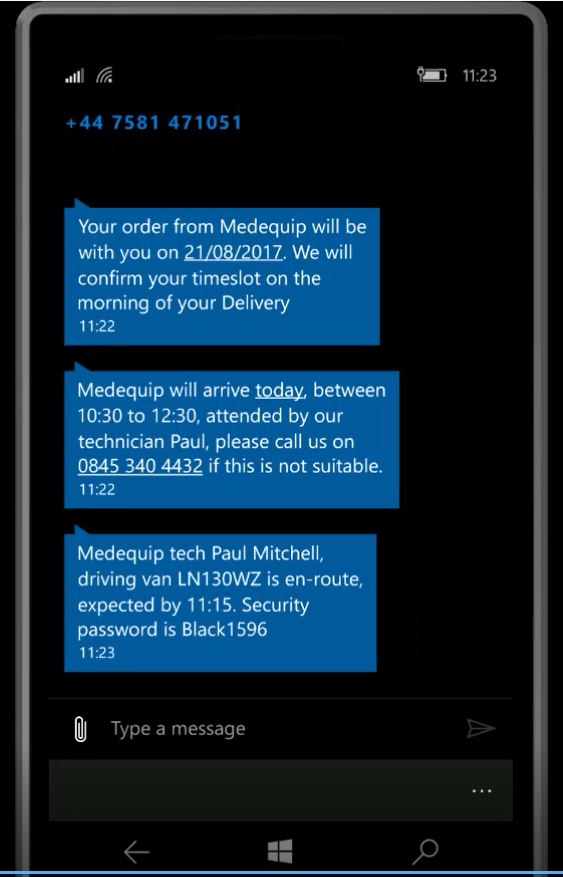
The first text message is sent at the time the order is booked in by customer services.
The second text message is sent at the time of the route being released. This will contain the selected timeslot, including the technicians name and a contact number for the relevant depot.
Third Text message is sent at the point the technician completes the order before. For example If the technician is currently on drop 3, as soon as drop 3 is closed as completed, the final text message will automatically get sent to drop 4. This message also contains an exact time the technician is due to arrive at the property.
Included in the 3rd text message is also a security password which is generated for each service user. This is also available for the driver to see on the Medemobile, so if a service user is nervous regarding opening the door they can ask for the password. The text message also contains the technician’s registration number again for security reassurance of the service user.
Due to the way the SMS messages are generated it is important all technicians follow the route provided by the system.
If a driver needs to deviate a selected route, ensure all relevant service users have been informed to stop any confusion over the enhanced SMS system.
7. Stock Picking & Van Loading
All stock must be picked for each selected route before it is released. This will stop any order from being unable to be completed once the technician is out on the road.
All technicians must have loaded their vans within 45 minutes to ensure all timeslots are achievable.
8.Technician Routes
MedequipWay > Menu > Technician Maps
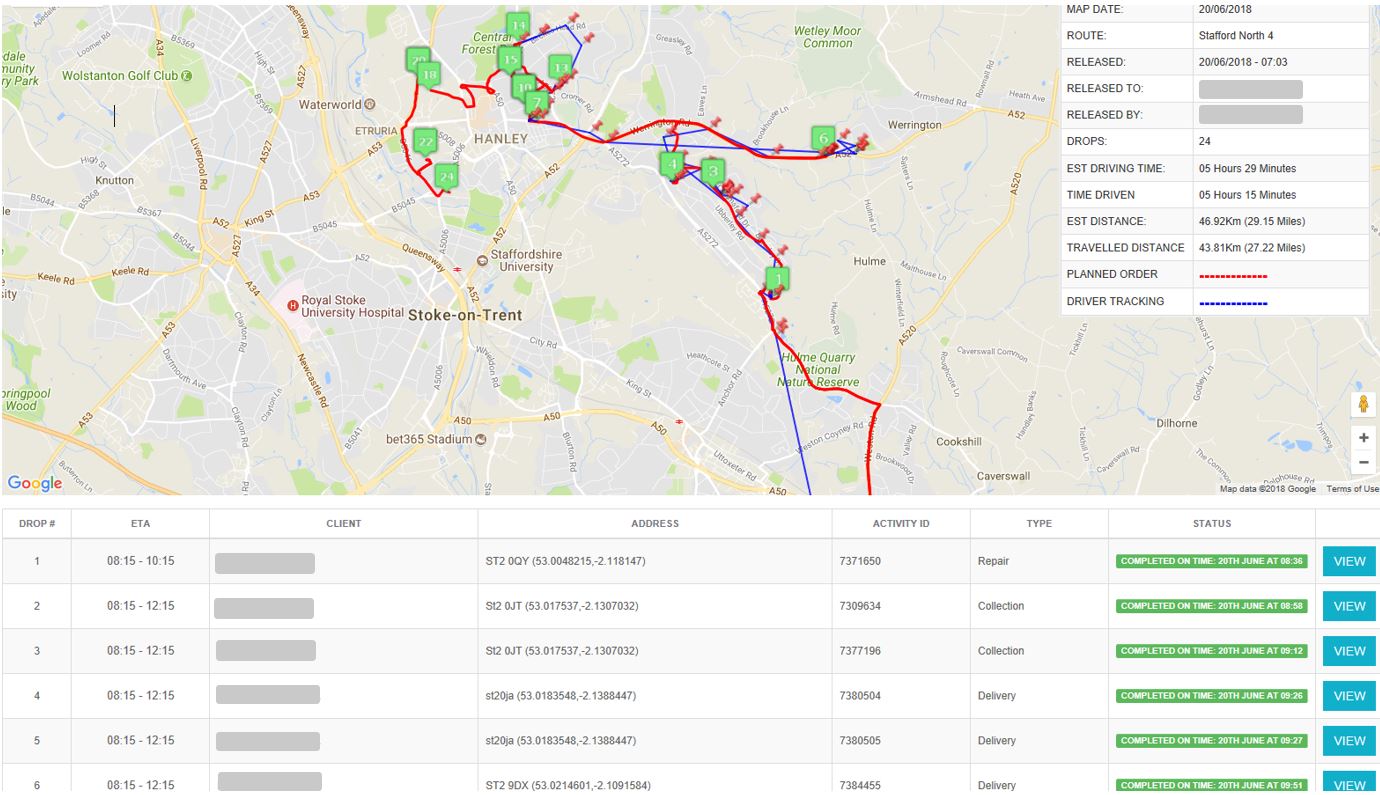
Ensure all technician routes have been looked at before the driver leaves the depot. This way the technician can ensure they are comfortable with the system provided route. If the route is not suitable to follow and all the previous steps have been followed correctly please contact LiveChat.
The technician routes are also a good tool to investigate a selected route to see if a technician has followed the route provided and also if time slots have been achieved.
The red line on the map is the route the technician should have followed, and the blue line is the route the technician took throughout the day.
9. Technician Debrief
Ensure all technician debriefs are completed correctly. All notes need to be checked and amended as required. Once all of the relevant checks have been completed. Please ensure to select 'Release emails to clinicians'. This will then automatically send any notes via email to the prescribers.
All technicians need to be using the Bluetooth printers to supply the service user with a receipt. Also providing feedback cards at the same time.
If a technician is having issues with the Bluetooth printer, please contact Livechat.
Remember its against company policy to use Bluetooth handsfree in the vans. The Bluetooth printers must be the only thing connected to your Medemobile via Bluetooth. Please refer to the driver handbook for further information in regard to this.
10. Who to contact
System issues - Contact LiveChat
Routing queries - [email protected] or [email protected]
Updated over 7 years ago