
Client Searching & Raising Orders
Client Searching & Raising Orders
This document will show you how to search for a service user and raise a collection or repair.
First you need to search for the service user you wish to work with, to do this select the highlighted icon.
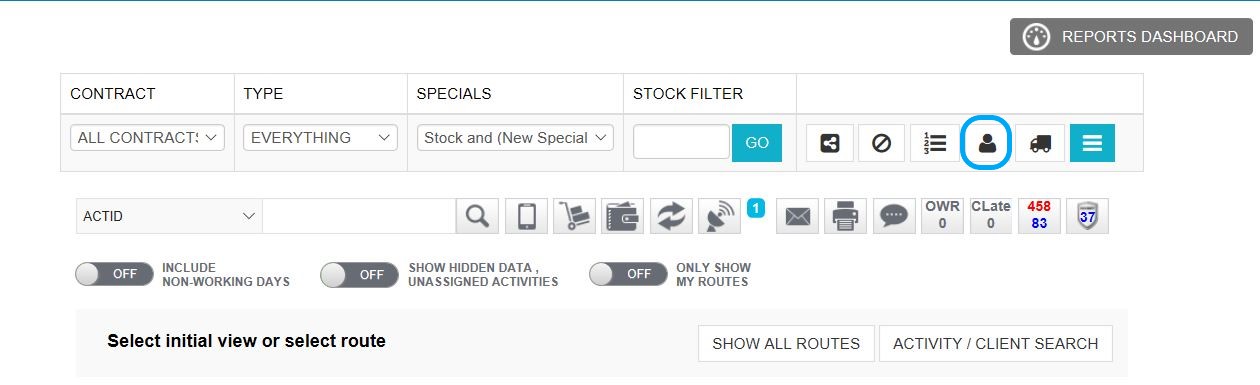
You will now be able to search for the service user via any information provided. For this example, I have used the second name and first letter of the first name. Once you have filled in the information needed select 'search' This will then show you all relevant service users which match the information given. Once you have found the profile needed select 'use’.

Now you have found the correct service user you can raise any order needed. Select 'Products on site’.
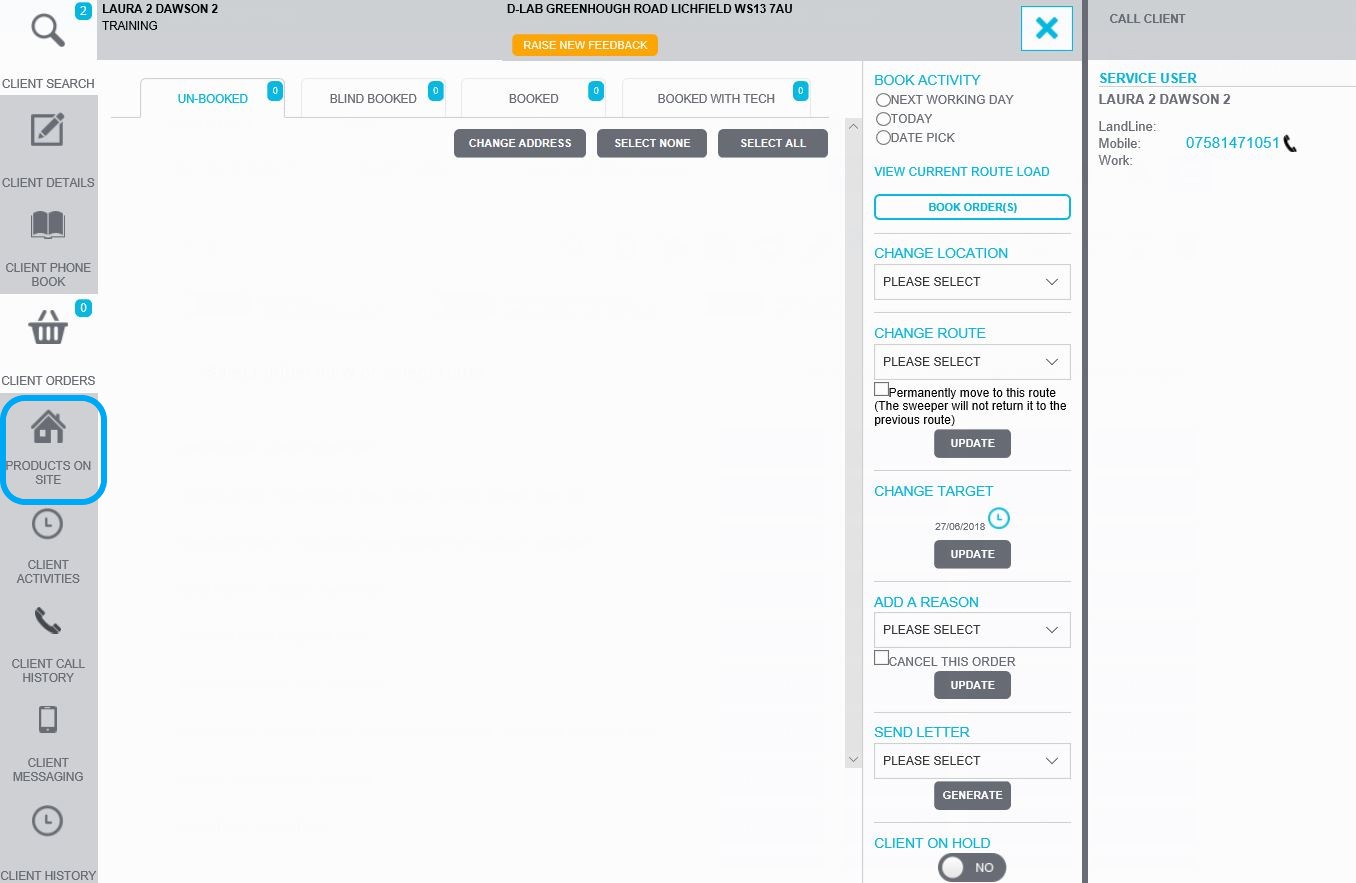
Before you can raise an order, you need to impersonate a user.
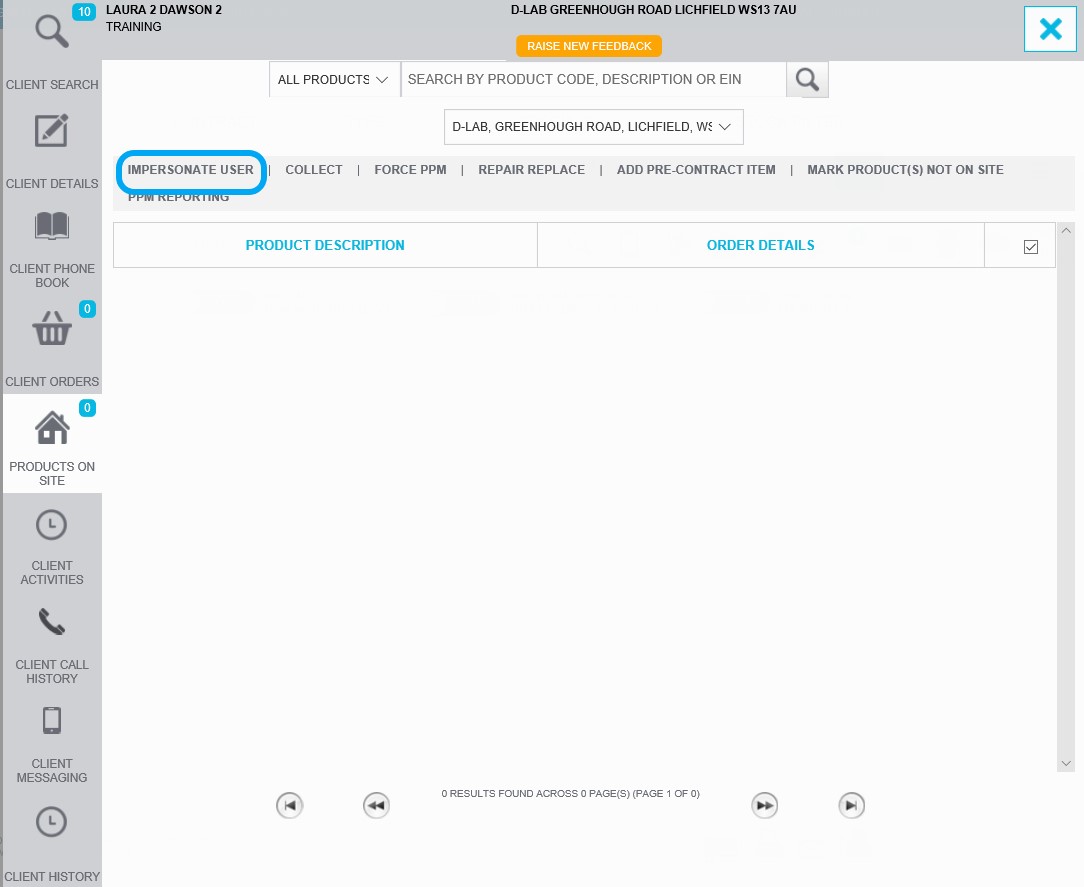
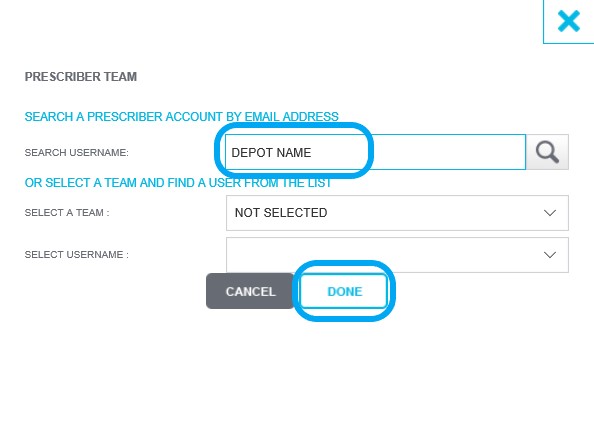
Once you have selected 'Impersonate user' you will then need to search for the team you wish to impersonate. The main team used is your depot name. If this does not work, please speak to other members of your team for advice on the impersonation name.
Once you have typed in the Impersonation name select the magnifying glass icon, then select 'Done'
Now you have impersonated a user you are able to raise the order as needed. from this screen you can raise a collection, force a PPM or repair replace.
For this example, I am going to raise a repair replace.
Next you need to select the item you wish to work with, if you are raising a collection and all equipment on site needs collecting you can select the top box as highlighted below which will select all items on site.
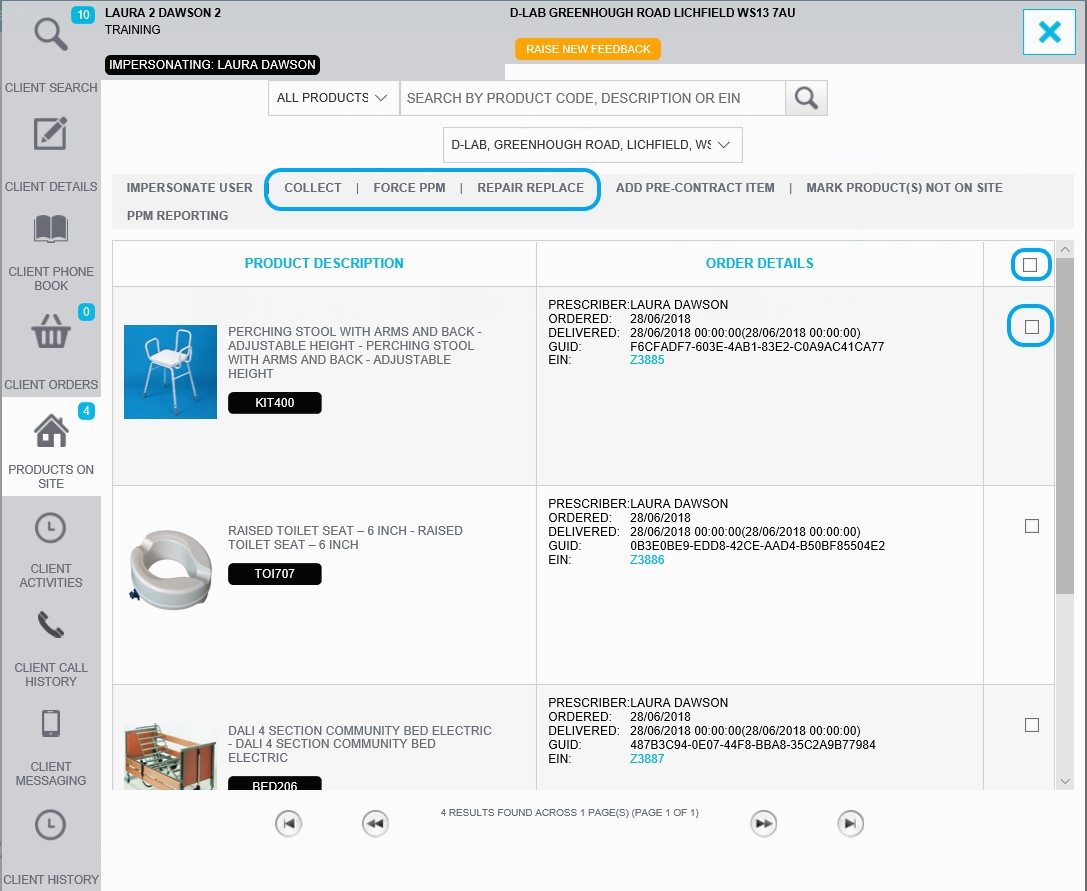
Once you have ticked the items for the order, select the order type you wish to raise. Which is repair in this example. Then you will be able to input the correct information for the order.
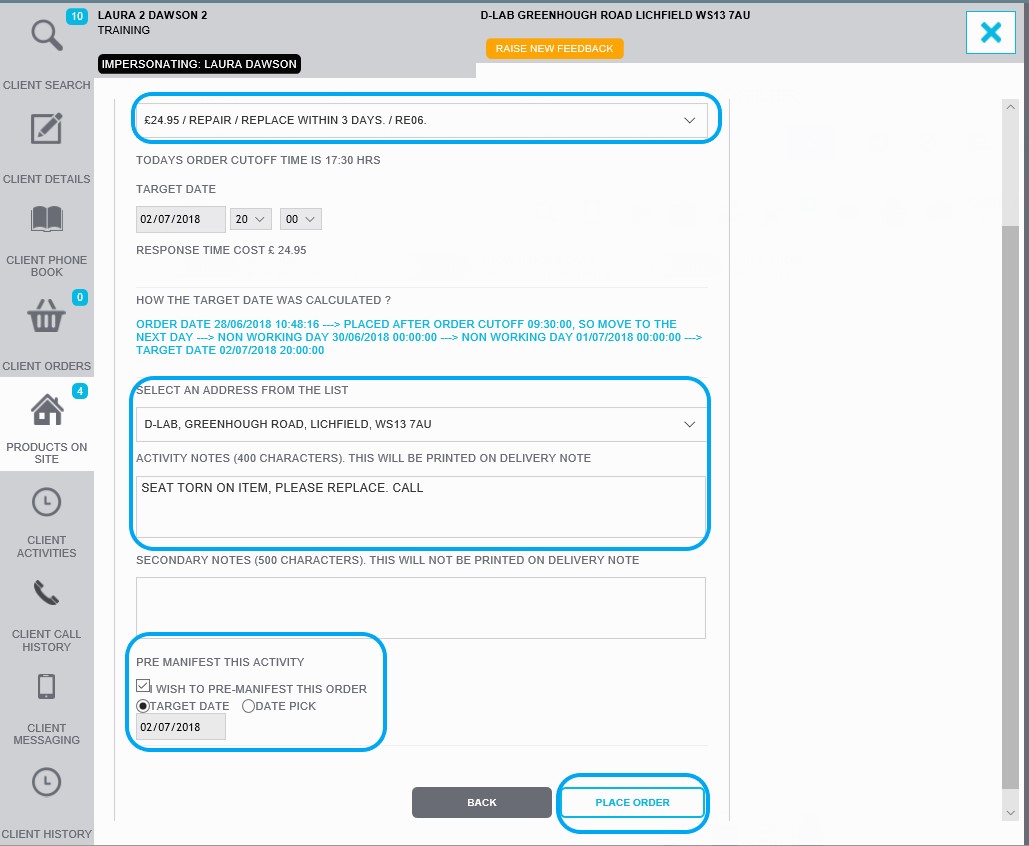
First you will be asked to pick a speed of response, because there is no urgency for this item to be repaired I have selected a 3-day speed.
Next you need to confirm the order address, then you can add any notes needed for the order. It is important to gather as much information from the service user as possible.
We are then able to pre-book the order, this means that you can confirm a date with the service user of when we will attend. Once you have selected pre-manifest this activity, you will be given 2 options to either book for the target date or date pick. This allows you to select any day to suit the service user.
Once you are happy with all the information inputted select 'Place order’.
Now you have raised an order you will be able to see this in the service users 'Client Orders' screen.
Please note it can take 5-10 mins for an order to generate and show in this section of the system.
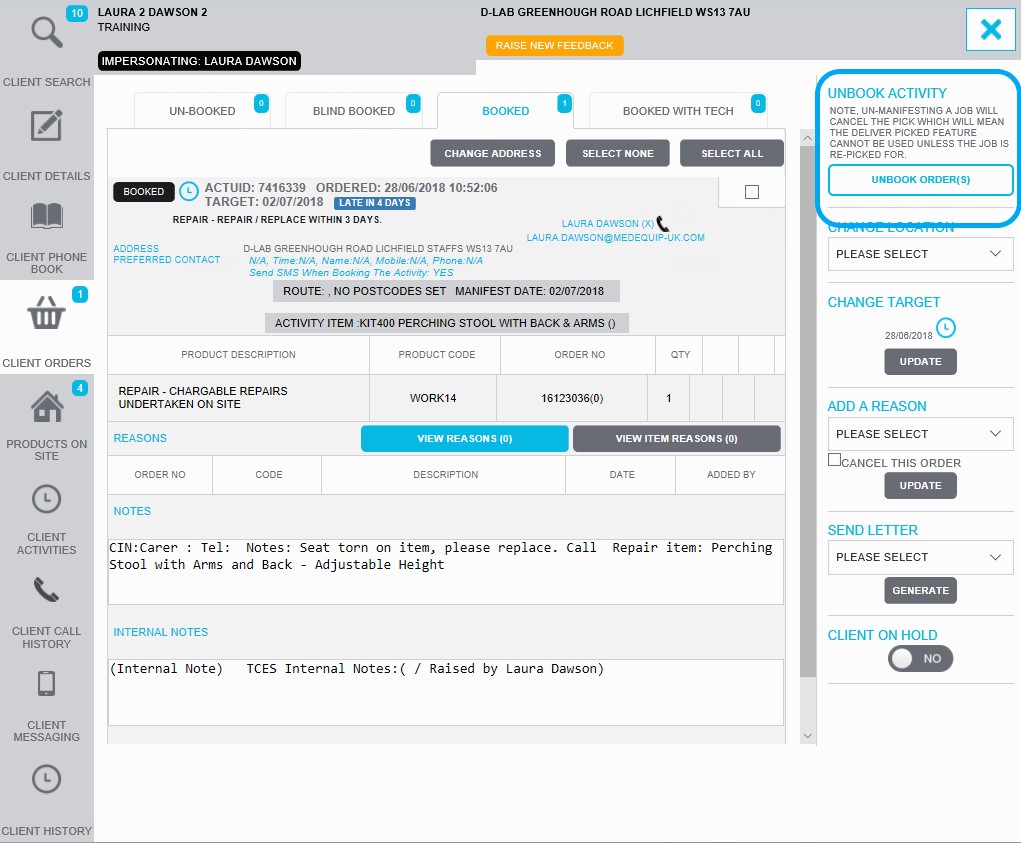
If you wish to unbook a pre-manifested order you can select 'Unbook activity'
If you have any issues with the system, please contact LiveChat.
Updated over 7 years ago