
Recycled Specials - iPad
Processing recycled special items using the iPad software.
1. Logging in
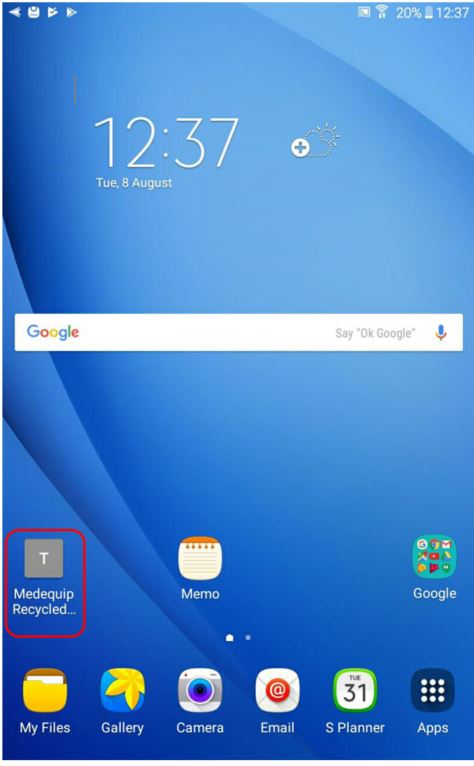
On your selected tablet you will see a Medequip recycled special button, select this.
This will then load to a log in screen, here you need to log in with the same log in information as you would use for MedequipWay/One. Once you have entered your log in information select “Sign In”
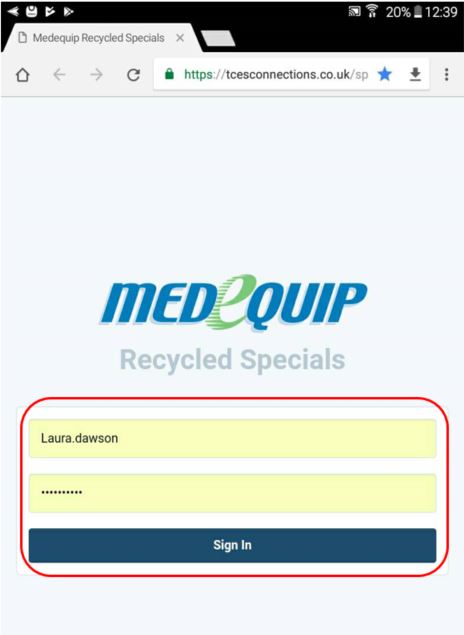
If you have forgotten your password, you can reset this on the MedequipWay logging in screen, by clicking “forgotten password”
2. Search Options
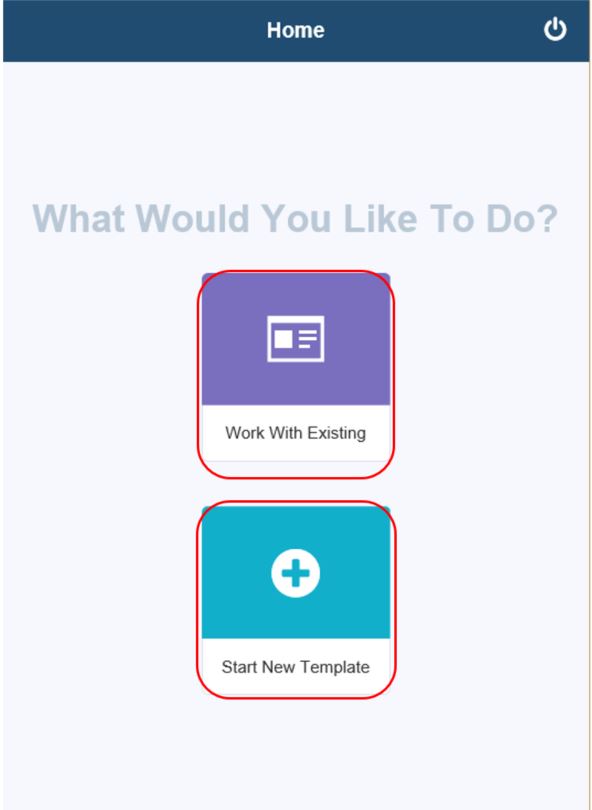
Work with existing: If you have previously worked with a special item and are awaiting an update, any updates or further information will show here.
See sections 3-7 for further information.
Start new template: If you have a special item which needs to be completed to show on the catalogue, then you will need to start the templating process here. See sections 8-15 for more details
3. Work with exisiting
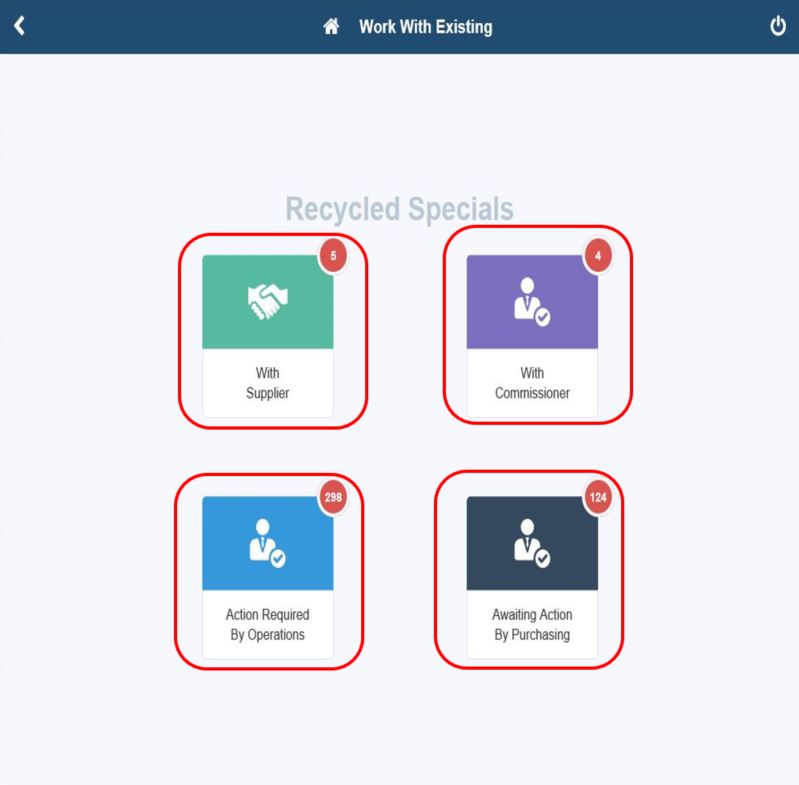
The work with existing section of the system allows you to keep track of all EINs which you were unable to complete the templating process on.
With Supplier – Allows you to see track all items which have been sent to the suppliers. See section 4 for more details
With Commissioner – Enables you to see all items awaiting authorisation with the commissioner. See section 5 for more details
Action required by operations – This allows all items which have been sent back from any of the other 3 sections to be completed within the templating software. See section 6 for more details
Awaiting action by Purchasing – All items which are with purchasing awaiting template creation appear here. See section 7 for more details.
Action required by operation needs to be checked daily by warehouse staff to ensure all items are kept up to date.
4. Work With Exisiting - With Supplier
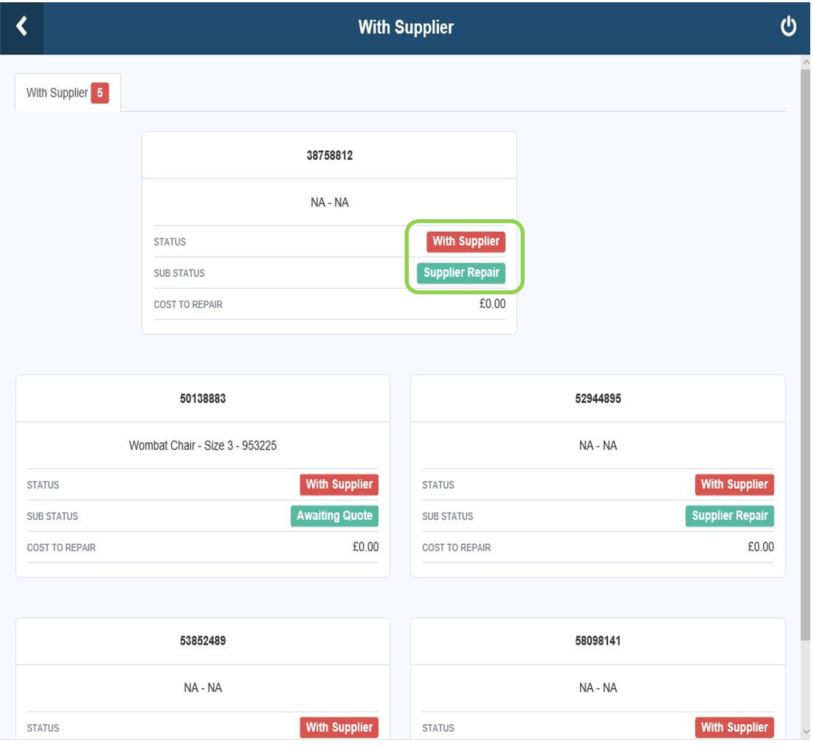
By selecting ’With supplier’ you are now presented with a list of all items which are currently with the supplier awaiting a quote creation. The section highlighted in green shows you the status of an item. As an example, if you we take the first EIN – 38758812 this is in the section ‘supplier repair’, which means the item has been signed off for being repaired and the supplier is currently repairing the item.
While the items are showing in this section you are unable to work with the items. This is only a reference page, so you can keep a track of all EINs within your stores.
5. Work With Exisiting - With Commissioner
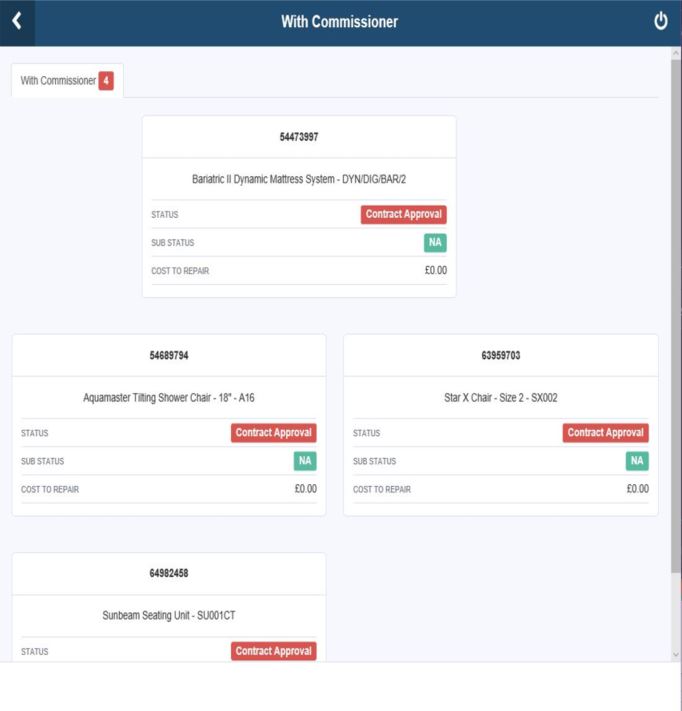
This section shows you all items which are currently awaiting commissioner approval, this could be for a quote or to scrap an item.
The commissioners or selected team members can log onto their own specials portal and authorise/decline whichever EINS chosen.
While the items are showing in this section you are unable to work with the items. This is only a reference page, so you can keep a track of all EINs within your stores.
6. Work With Exisiting - Action Required By Operations
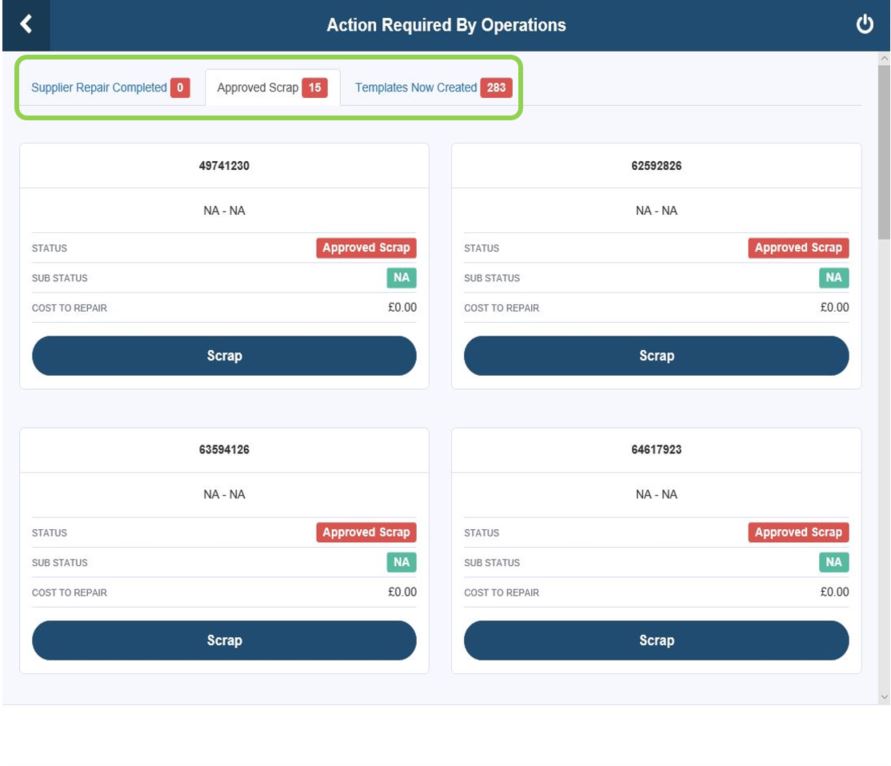
Supplier Repair complete – If an EIN is showing within this section of the iPad this means the item has either been successfully repaired or the item is to show in the catalogue with the repair quote attached. Once they are showing in here you can work with the item and complete the templating process allowing the item to show on shelf and within the catalogue.
Approved Scrap – Approved scrap shows all items which have been signed off as okay to scrap. If you select Scrap on the EIN this will then automatically scrap the item.
Templates now created – If an EIN is showing within the Templates now created section then this means the template has been created by purchasing and you can now assign the EIN to a template. To do this, find the EIN you would like to work with and select continue the iPad, this will then automatically load up the EIN information, so you can complete the process as needed.
While the items are showing in this section you are unable to work with the items. This is only a reference page, so you can keep a track of all EINs within your stores.
7. Work With Existing - Awaiting Action By Purchasing
All EINs which appear in this section of the system, show any EIN which is currently awaiting purchasing to create the template for.
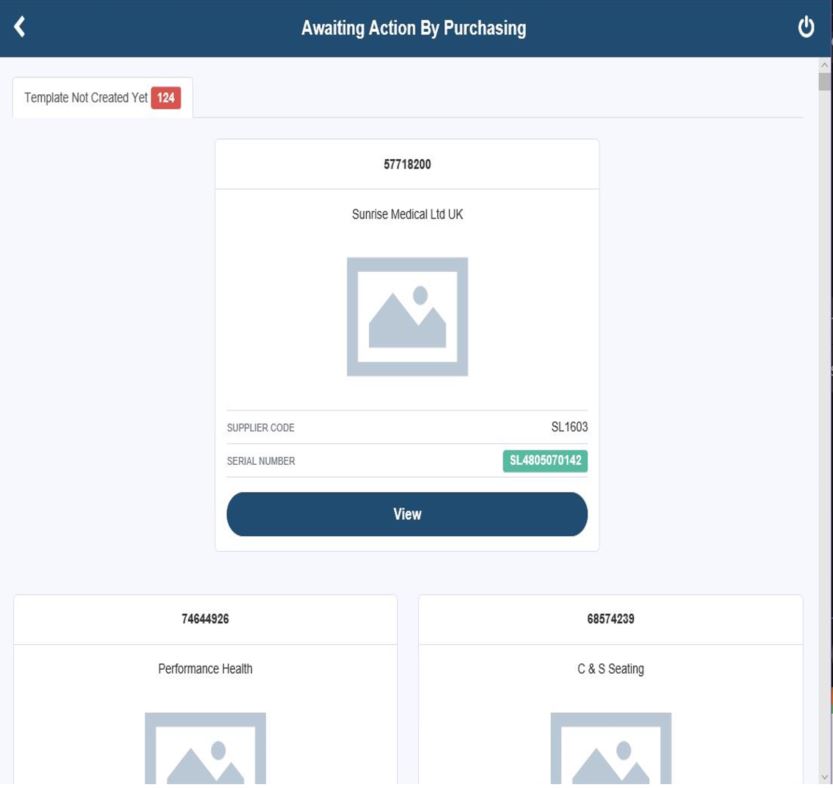
While the items are showing in this section you are unable to work with the items. This is only a reference page so you can keep a track of all EINs within your stores.
8. Starting A New Template
If you wish to start the templating process on an EIN you need to go back to the first page which states ‘What would you like to do?’ from here if you select ‘Start new template’, you can then follow the next steps to complete the process.
Scan barcode: By clicking this option the camera will automatically load and enable you to take a photo of the Medequip label on the item.
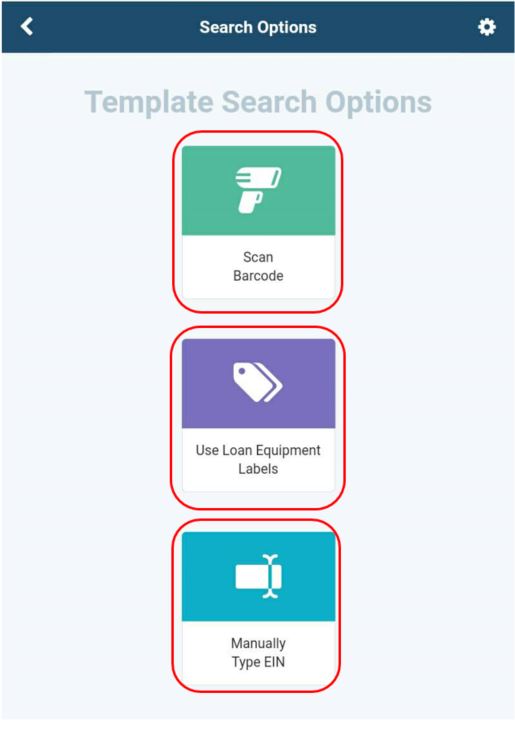
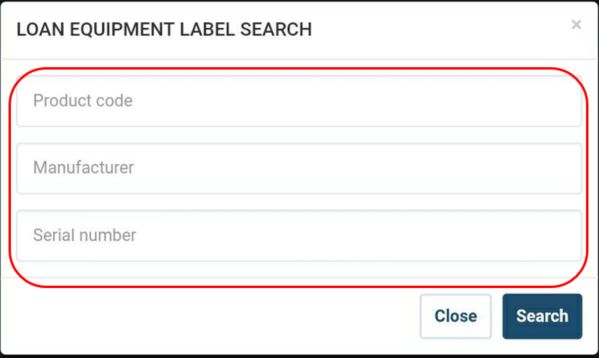
Use Loan Equipment Labels: If the item has a loan label attached, identity the product. Once “Use loan Equipment Labels” is clicked you need to identify as much information on the item as possible. By looking around the item you should be able to find some, or all the information listed.
Manually Type EIN: Here you can simply manually enter the EIN in question and click “Search”
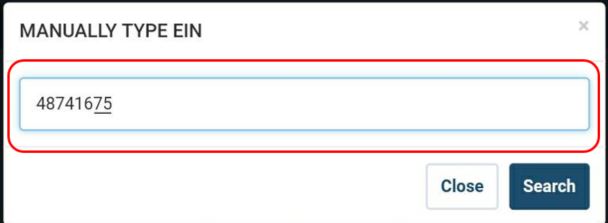
Always double check any EIN manually entered. If the next screen shows you no results, you may have entered your EIN incorrectly.
Scan barcode – Ensure the photo taken of the label is fully focused and shows the full EIN label clearly.
9. Selecting Template
Once you have identified the EIN you wish to work with you will then need to select a template of the matching item.
If no templates appear to select, but you know exactly what the item is you can search for the relevant template. For example, if the item is an R82 Chair Size 1, you can search “R82” and select the chair in question.
If templates have appeared the most relevant item will show as the first result. Double check the items are the same by comparing with both the item and selecting “details” on the template. This will give you a full product description to use as a comparison. If you are happy that the items are the same click “select” and then ‘next’.
If no templates appear which matches the selected item, you can select “No Template Available”.
see below for further details.
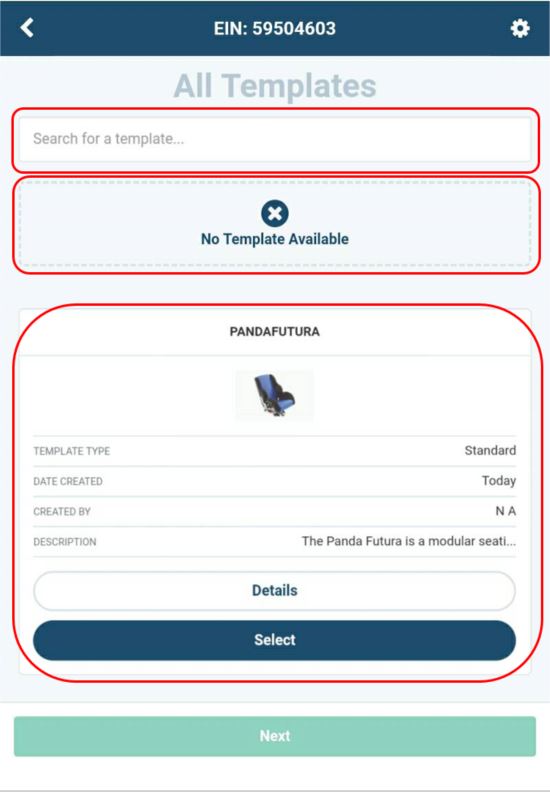
Once you have selected “No Template Available” you will be presented with this screen. Fill in the sections with as much information as possible. Once all the information is filled in you will need to take a picture of the item. This information then gets sent over to purchasing who will then create the template needed. Once the template has been created the item will show in the “work with existing” option shown in sections 4-7, for you to then continue moving the item into the catalogue.
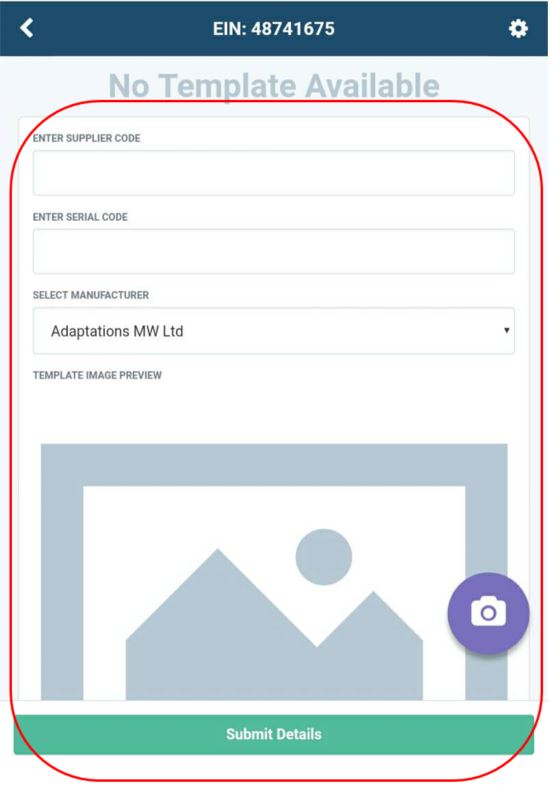
Always double check the information on the template you have selected is the same as the physical item. By adding the incorrect template, the further steps will not work correctly.
10. Global Tags
Each item needs tags; these are the key words which will be used by a prescriber for searching for the items in the catalogue. Each template will have tags already set against it.
The first highlighted area shows you all the tags which are currently applied to an item. If any of the tags listed are no longer correct, select the “X” to remove them.
If there are no tags already selected or you feel some are missing you can select further. For example, select ‘Standard’ this will then bring up further options of tags you can add under that category.
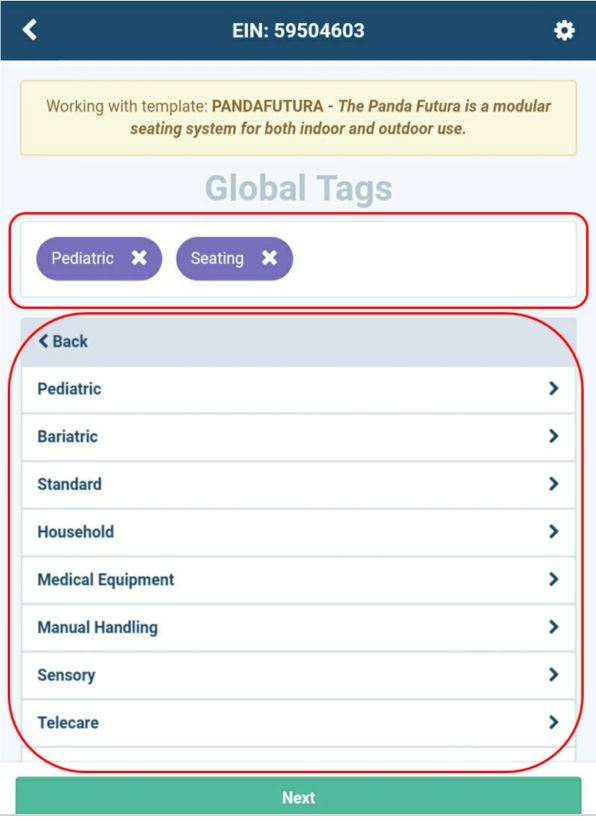
All items must have tags, if there are no tags prescriber will not be able to find this item in the catalogue.
11. Is The Equipment Fit For Reissue ?
The next stage of the templating process is to decide if you feel the equipment is ready for reissue and can go onto shelf in its current state.
By selecting ‘Yes’ you are saying you are happy with the state of the product and can recognise its ready for reissue and to show in the catalogue as is.
‘Request a Quote’ if the item requires a quotation for further parts. Select ‘Request Quote’ this will bring up a further notes section. Here you need to input as much information regarding what parts or quote may be needed. Once complete select submit, this will then send all product information and the quotation information needed straight to the supplier.
‘Scrap’ if you select scrap the item will either be automatically scrapped, or the product information will be sent over to the commissioners for scrapping authorisation. For example, if the item is only worth £10 and your depot scrap threshold is set to £50, you will automatically be able to scrap the £10 item. But anything over £50 will need commissioner authorisation.
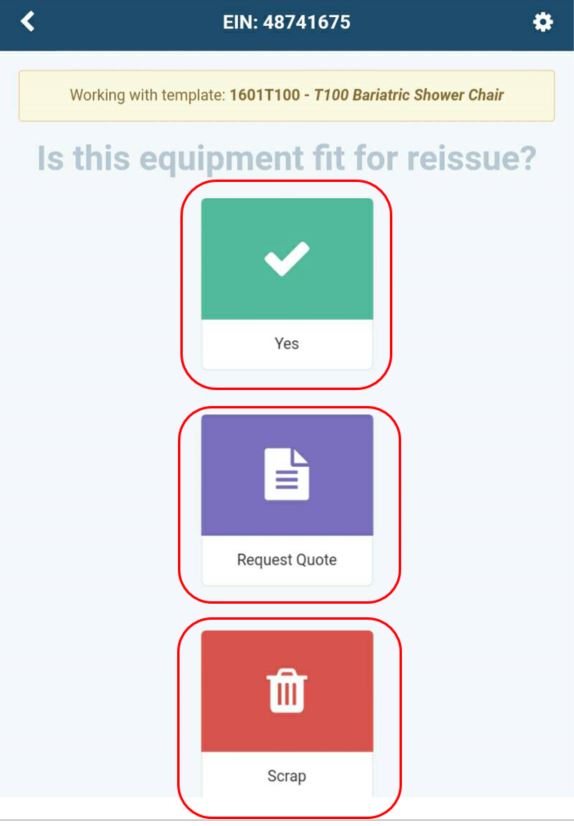
All items which have other been selected for a quote or scrapping will automatically be checked to see they still are within the warranty period. If they are then the items will move into the warranty bay.
12. Template Accessories
If an item is delivered as a new special with extra accessorise you need to confirm if all the accessorise are still on the item, if they are not then they need to be removed or further accessorise may need to be added.
By clicking “Add accessory” you can either scan a current label on an accessory. Or if the accessory is non- EIN you can select Manually type Ein. This section is not only for typing in the EIN rather than scanning, but also you are able to search key words, such as ‘Lateral Support’. The system will then show a drop-down list of all accessories which the system links to the item in question. For example, if you are working with a JCM chair only JCM accessorise will appear which contain those key words.
If the system has seen this item originally went out with accessorise they will all be listed here. From here you can scroll though the accessorise and make sure the items listed are still on the item. If they are no longer on the item, click “remove”.
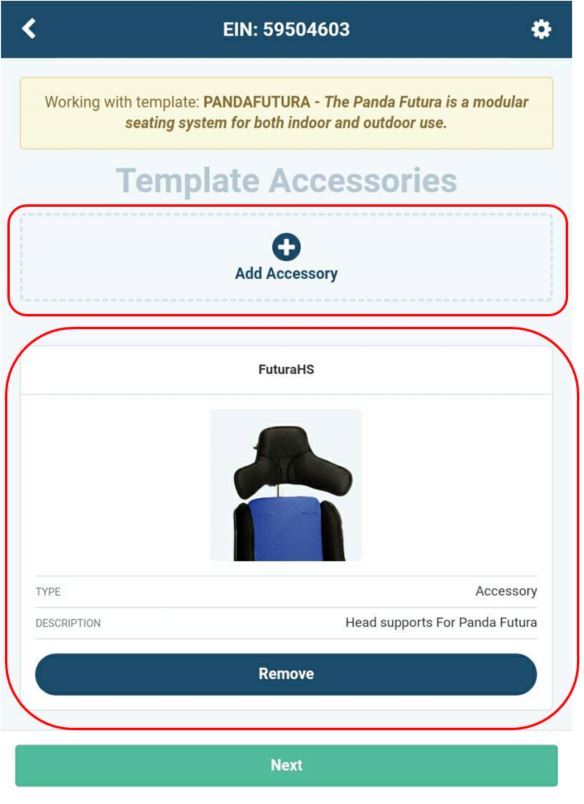
If none of the accessorise match the item ensure the EIN is correct and you have selected the correct template.
13. EIN Tags & Notes
EIN tags: These are additional tags to the global tags section on the system. For example, here you may want to add a new tag regarding the condition of the product or the colour. To add further tags, click “Add Tags” and type in the tag you wish to add.
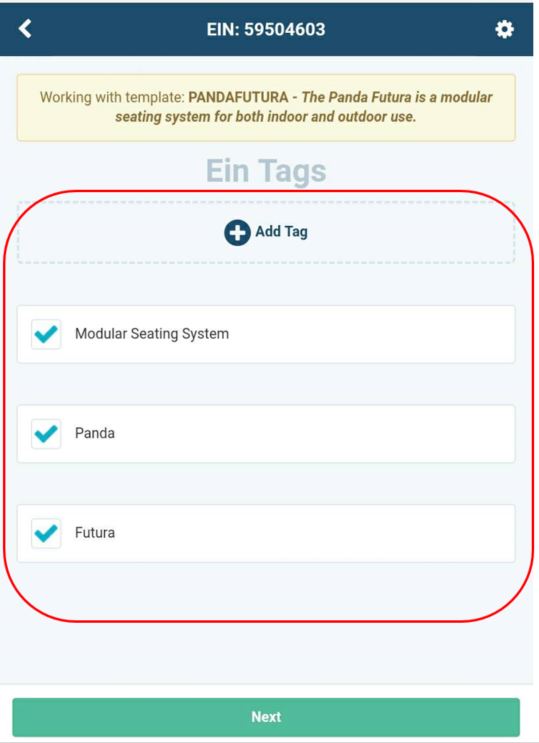
You may wish to add notes to an item; for example, the seat may be torn but the item is in full working order.
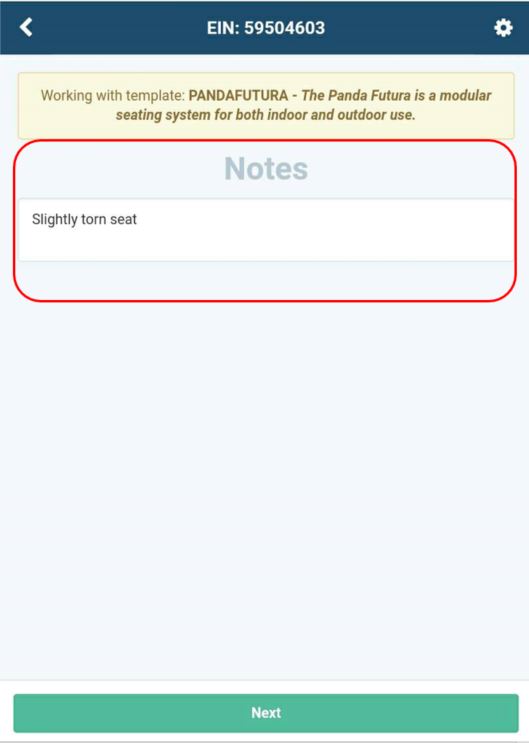
You don’t have to add any notes if there are no further comments to add. The more information added, the better.
14. Adding Media & Preview Temp
All recycled specials must have up to date pictures and media attached
If you have a document or picture saved on your tablet, select ‘add media’. Here you will be able to upload any documents required.
Any previous media taken of the item will show here, if you wish to remove any of the media select “remove”.
By clicking this icon the camera will automatically load and enable you to take any extra media of the item in question.
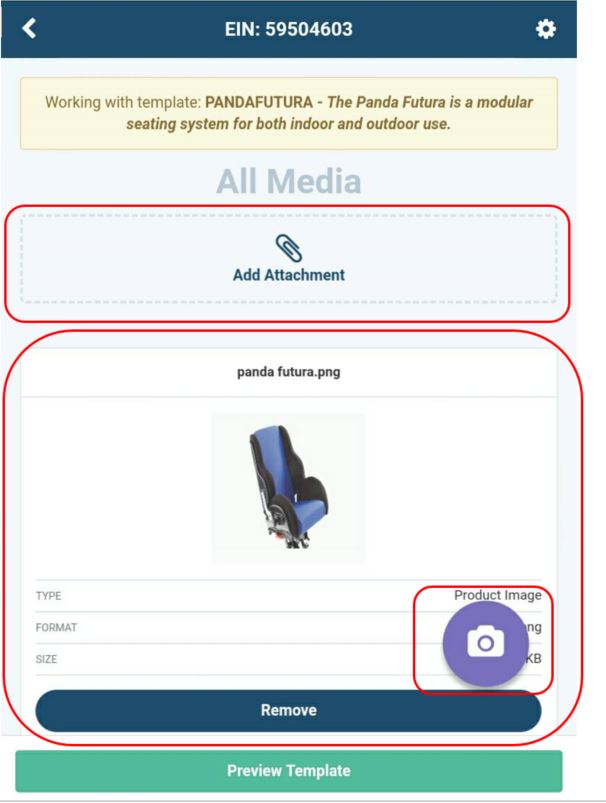
When taking a photo of the item, ensure the camera is fully focused on the item. All photos should be taken in the designated area of the warehouse with good lighting and a plain background.
15. Shelf Locations & Printing
Once your templating process is complete, you can then select the shelf you wish to move the item to. Select the status you wish to move the item to and then select the sub status.
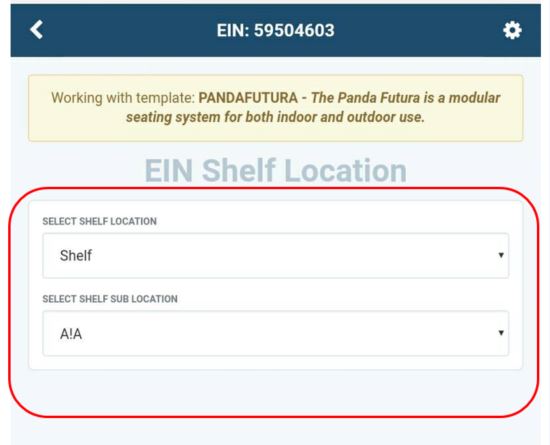
Once the EIN has moved to shelf, you can then print off the items new label. Select the printer you will to retrieve the label from.
If the template you have applied to the item is registered as having a manual attached, you can print off the manual. Remember to select the printer you wish to retrieve the document from.
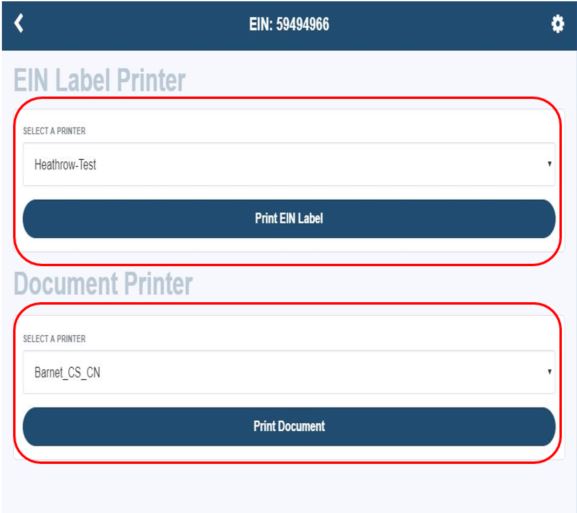
If the manual printing option does not show, this means there is no manual attached to the template.
When you print off a label to an item if this is a new special code or a loan label, once you have printed the label this will automatically generate the new recycled code.
16. Who to contact
System issues – LiveChat
iPad Process questions – [email protected] or [email protected]
Templates or quote questions – [email protected]
Updated over 7 years ago