
Warranty
Before you are able to process your item through the warranty system, first of all you need to move your item to the relevant location within the warehouse. The item location must be set at Warranty Claim.
(1) Select Move Stock
(2) Choose the location you would like to stock moved too, the location you need to use is Warranty Claim.
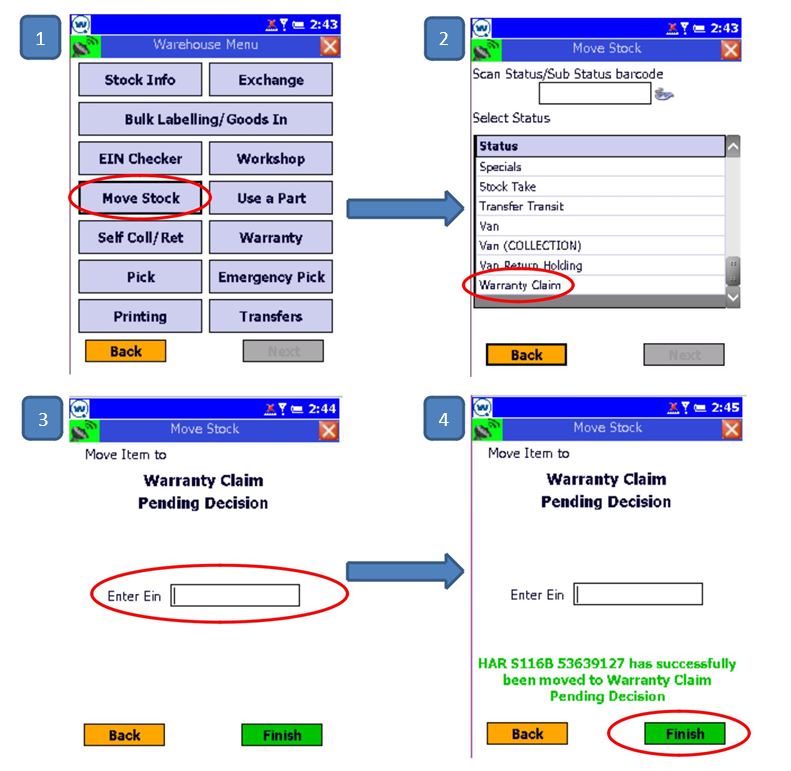
(3) Now you can enter the EIN of the item manually or you are able to scan this using the barcode.
(4) When the item has been moved successfully you will see a similar confirmation message as listed in the above picture. Once you are happy the item has moved across you can then click Finish.
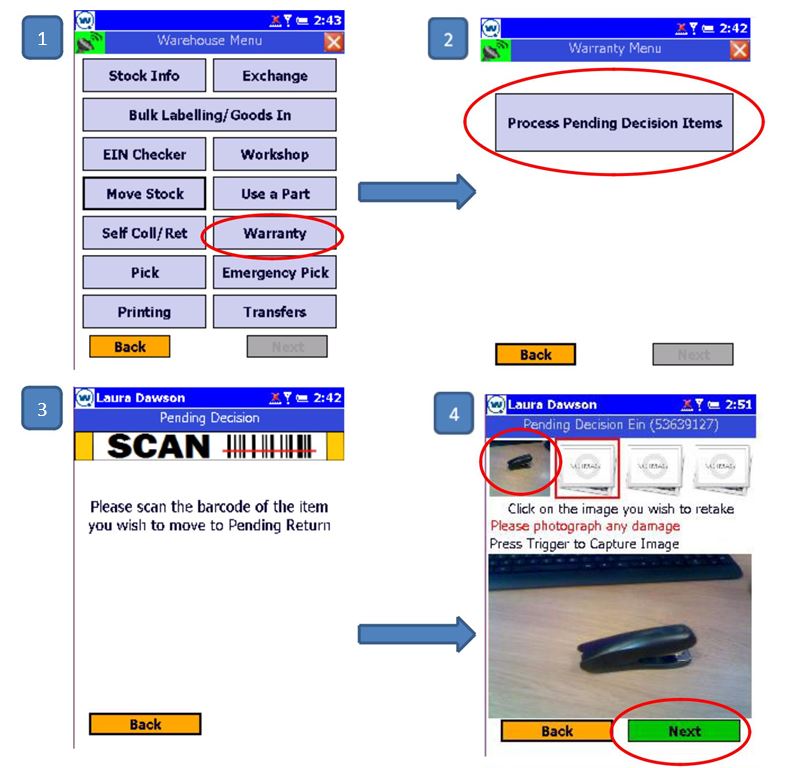
Once your item is in the correct location within the warehouse you can then process your warranty claim through the first stages on an MC70/75 Scanner, by adding all notes and pictures which may be needed for your claim to go through successfully.
(1) Select the Warranty section within the warehouse menu on your scanner.
(2) Select Process Pending decision items.
(3) Scan the barcode of the item you wish to move to Pending Return.
(4) Click to take images of the items, then select Next.
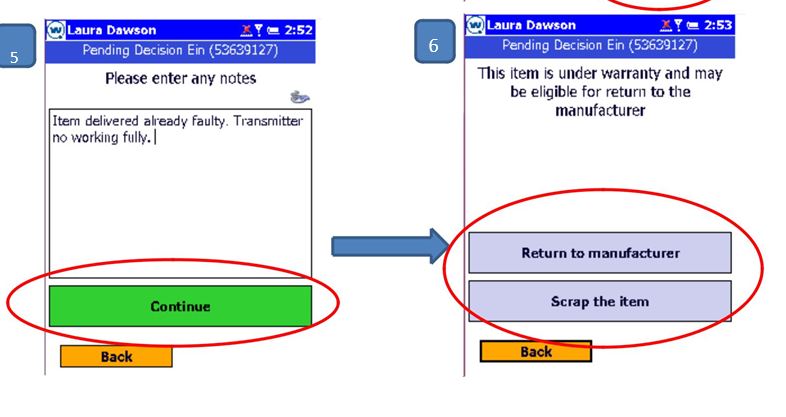
(5) Enter any notes regarding the claim and item, then select Next. Please note that when you are inputting your notes they must be at least 25 characters long.
(6) Once you have inputted the information you will then be able to see if you item is still under warranty. If this is the case, you will then be able to select the most suitable option to move forward with your claim.
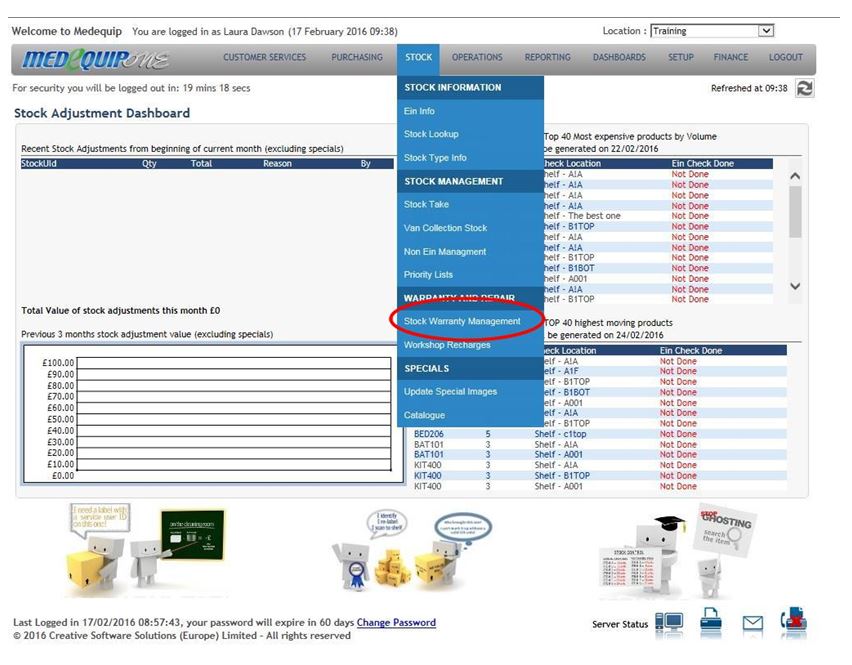
Next you need to log onto MedequipOne, select Stock then go to Stock Warranty Management.
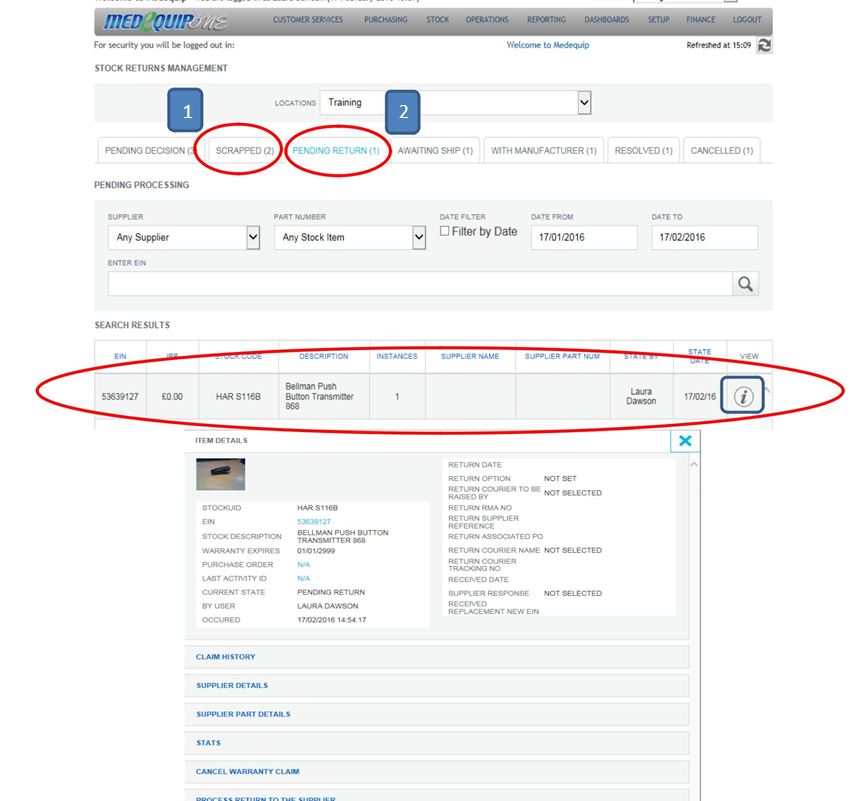
When the page is loaded you will automatically see the below screen, you will be defaulted to the Tab “Pending decision” But because we have already followed the above process the item is now showing under tab “Return to Manufacturer”.
(1) if you choose the option “Scrap the item” Then when you look at the below screen this will move item straight into the “Scrapped Tab” In this tab you are able to investigate previous notes and pictures also the EIN Status of this item will be showing as scrapped. From this point you able to complete your normal process for scrapped items within the depot.
(2) If you choose the section Return to Manufacture. You will then be able to see the item in the Pending return tab below. Here you can check all notes and pictures and confirm that you are happy with all the information you have provided by clicking the “I” at the end of the line showing the item in question. If you are happy with all the information you now leave this Warranty issue with purchasing who will process this claim further.
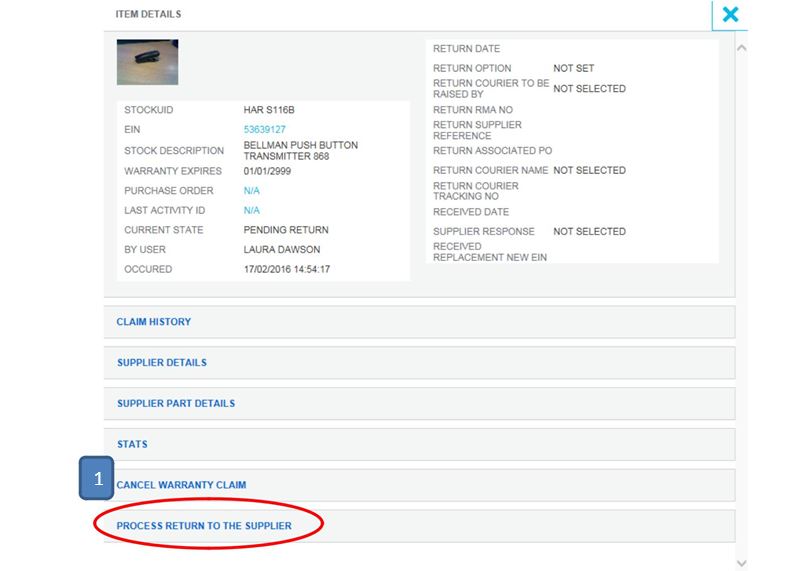
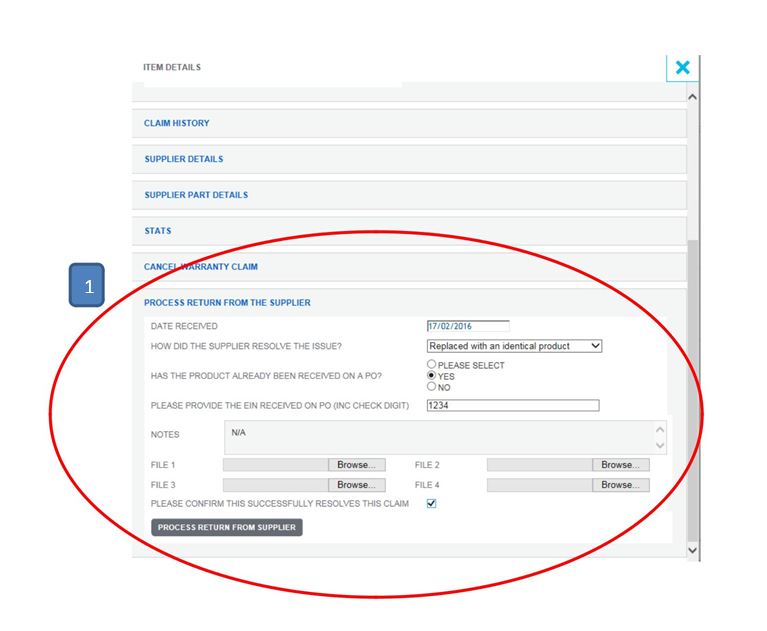
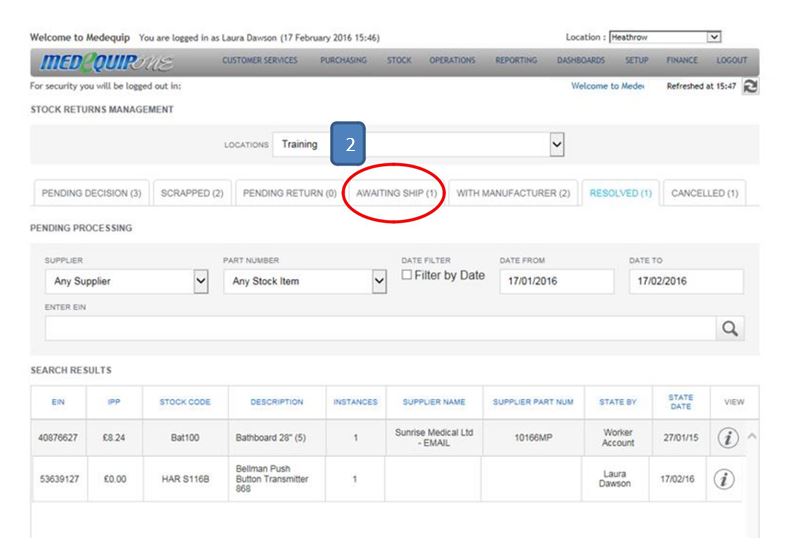
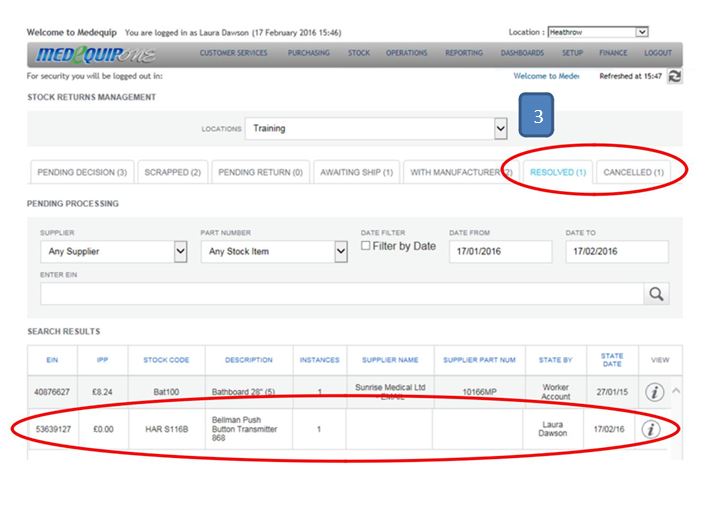
Each day at 3pm the Warranty management should be checked to see if purchasing have processed your claim further. If they have your item will now show under tabs Awaiting Ship, With Manufacture, solved or cancelled. Depending on what has happened with the claim depends on what you need to do next
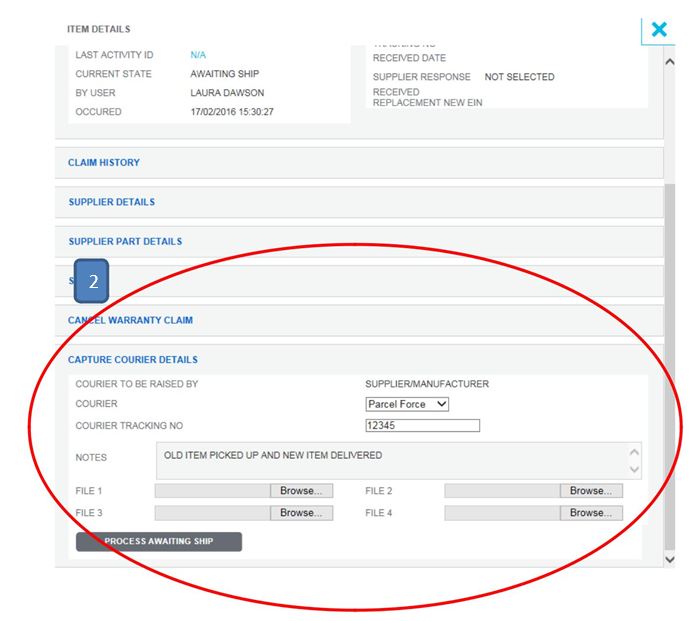
(1) Example - if your item is being collected for repair etc by a courier. You will then need to enter to courier details as shown below.
(2) If a new item is being shipped out the warranty line will move into the “Awaiting Ship” tab. Once the item has arrived in stores you will need to complete the “Capture Courier details”.
(3) Once you have confirmed what has happened to the item and the claim is complete this will then move into the resolved or cancelled tab depending on the outcome.
Now you have completed your warranty claim and you are able to then move the stock back to the relevant section within the warehouse/cleaning.
Please note – In sections “process Return from the supplier” and “Capture courier details”. There is a tick box where you can confirm if you claim is completed or not. Please ensure when tick the box you are 100% your claim is complete, or please leave this box empty.
If you are having any system issues, please contact LiveChat
Or if your questions are in regard to the warranty claims please contact purchasing.
Updated over 7 years ago