
Clocking in/out - App
How to clock in using the power Apps application and how to edit existing records.
This is a new Power Apps Application
Please note this app is a new application which can be used for all staff who do not have access to a scanner such as customer services. This app can be downloaded onto a device or a website can be used. If you do not have access please email [email protected].
When the clocking in app has been loaded you will be presented with the below screen. Where you can select the below options.
Clock in - This will start your working day and must be selected as soon as start work.
Clock Out - Will end your day at work.
Start break - Will let the system know when you have taken your break.
End Break - Must be selected once your break has ended and before you start to work again.
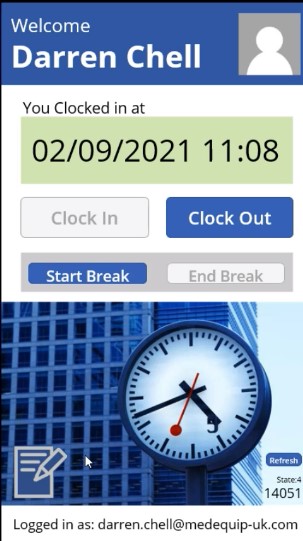
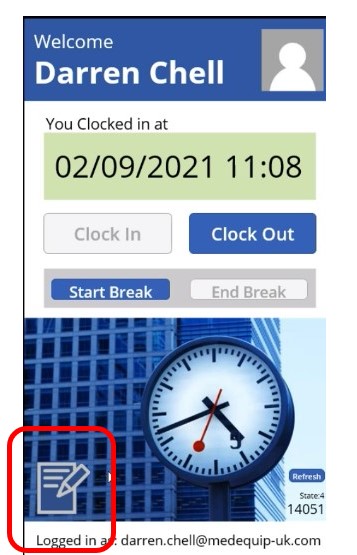
If you are a manager, you will be able to edit the clocking in/out for other staff members. To do this select the icon highlighted below. Please note if you are unable to see this icon you do not currently have access.
How to get access
If you do not have access and require this, please contact Livechat.
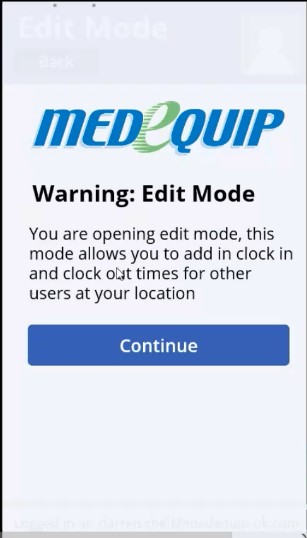
Once the icon has been selected you will need to read the warning message and click continue.
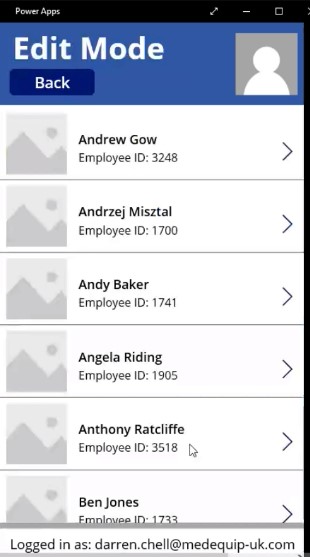
Now you will be presented with a list of staff names. Find the name of the user you wish to edit.
Once the user has been selected you can either select if you would like to clock this person in or out. Then select a date and time as to which you one like to set. Once this information has been filled in you can select the "add clock out" button.
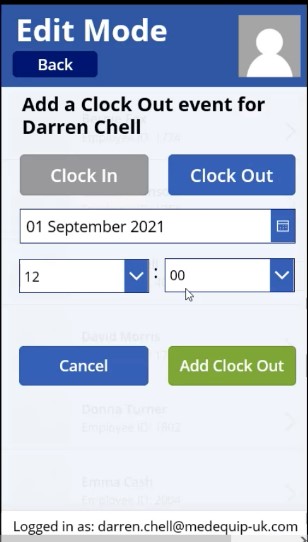
This record will now be updated and the information set will be visible on all reports.
Reports
To access the clocking in/out report go to MedequipOne > Reports > Analysis > Working Time directive.
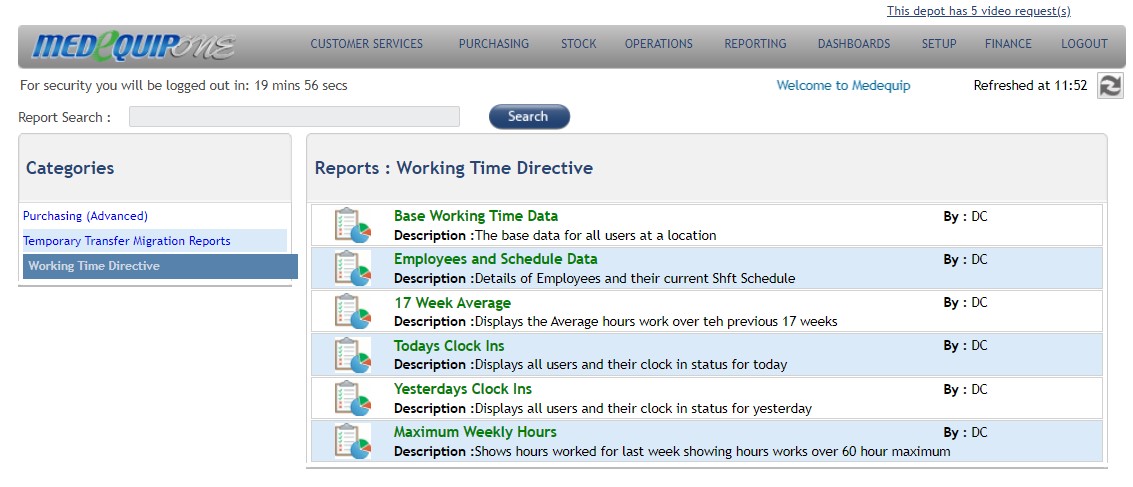
How to gain access to the reports
If you do not have access to these reports, please email [email protected].
Updated over 4 years ago