
Booking in stock
This manual will walk you through how to book in stock using a PO.
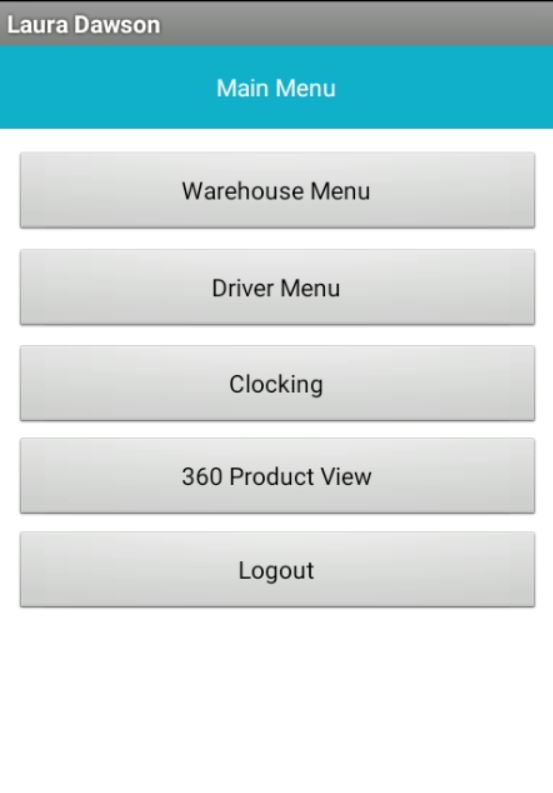
Log onto your scanner and access the Warehouse Menu.
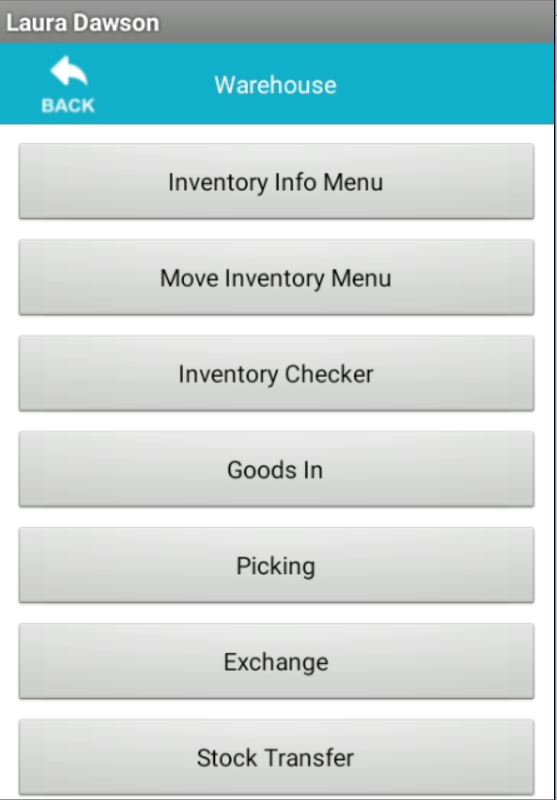
Then select "Goods in"
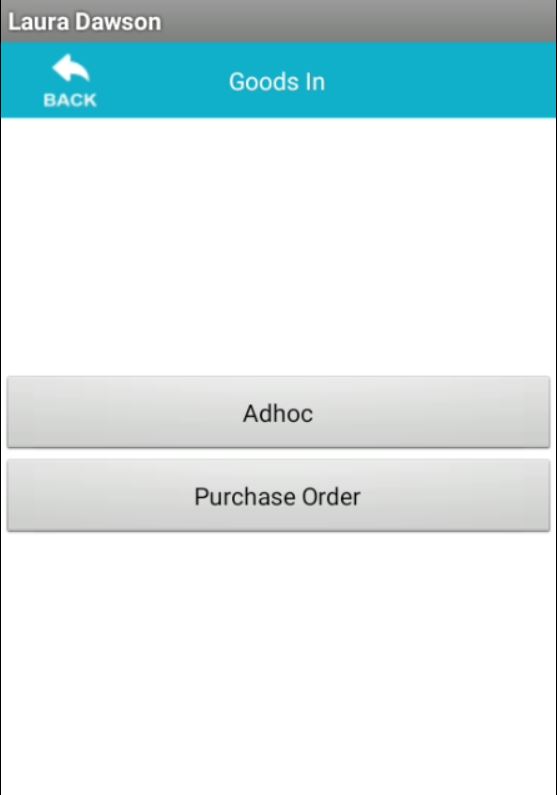
Select "Purchase order"
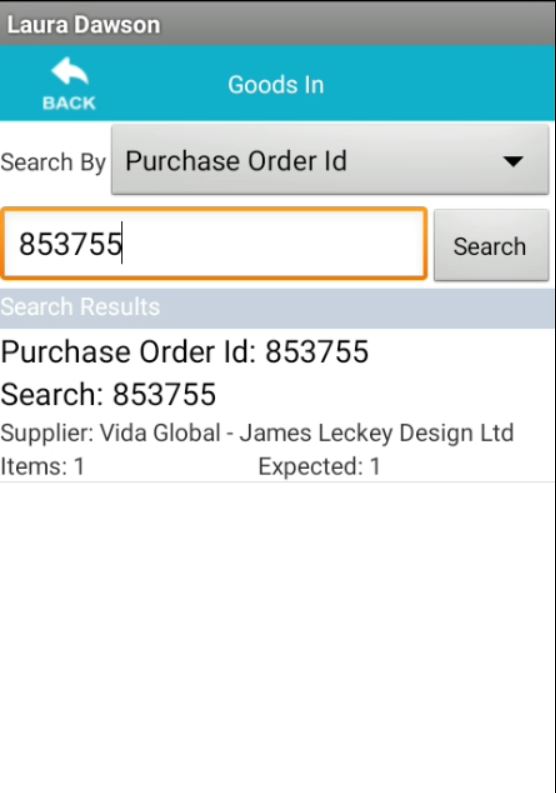
You will now be able to enter the relevant PO Number, once you have inputted this information click "Search". The result you are looking for will be listed below. Click the correct result.
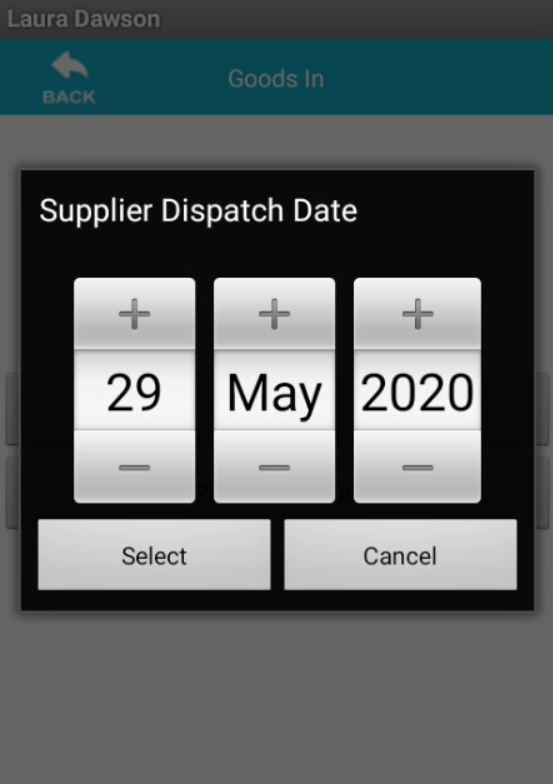
You will then need to input the Supplier Dispatch Date; this will be visible on the dispatch note delivered with the item. Use the sliders provided to change the date, once you are happy the date entered is correct hit "Select".
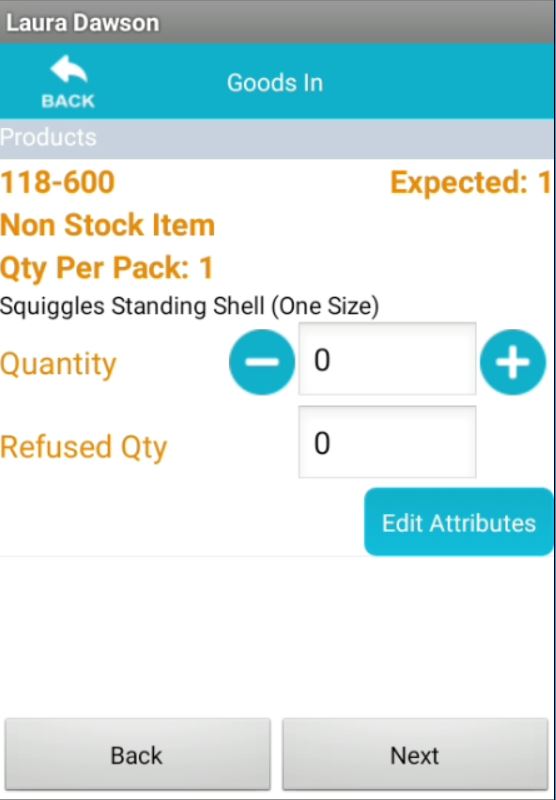
Check the line detail to ensure the correct item has been delivered, then select the quantity received.
For LOLER & PAT items you will need to select "Edit Attribute" and enter the serial number of the equipment.
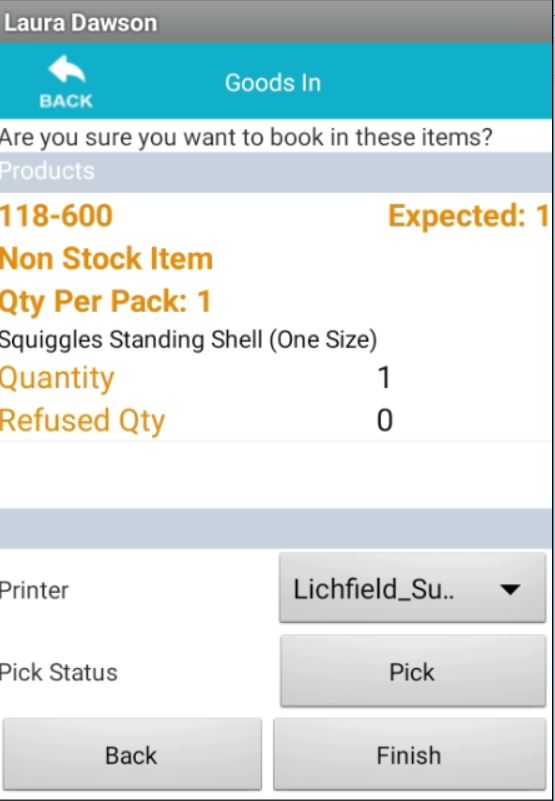
Now you can select the printer you wish the labels to be printed off on.
To move the item to a location within the warehouse select "Pick".
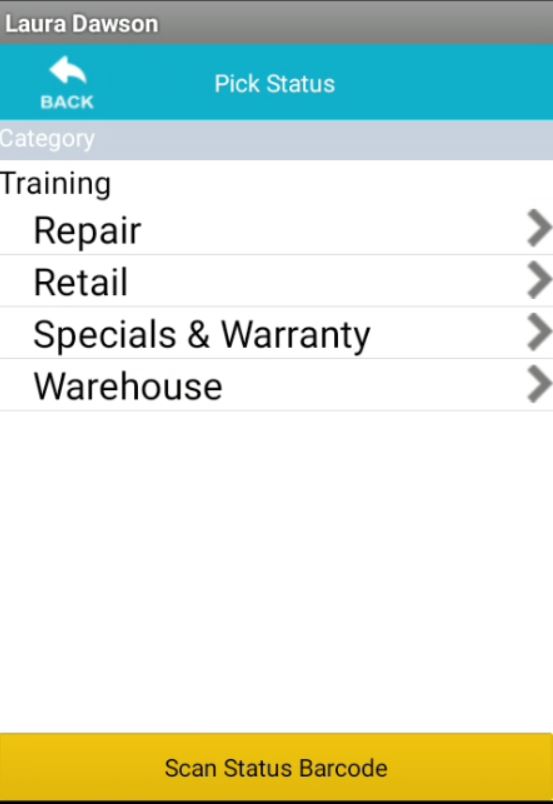
You can then select which status you would like the item to automatically move to.
Once you are happy with all the information which you have provided select "Finish"
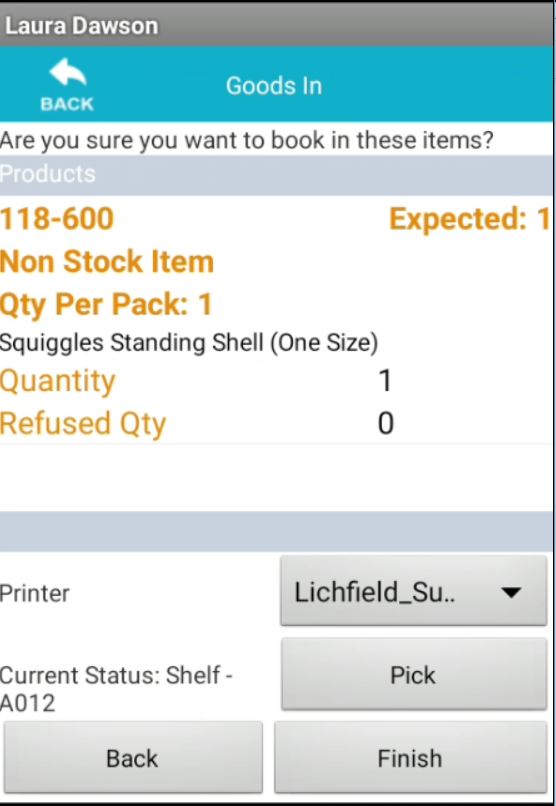
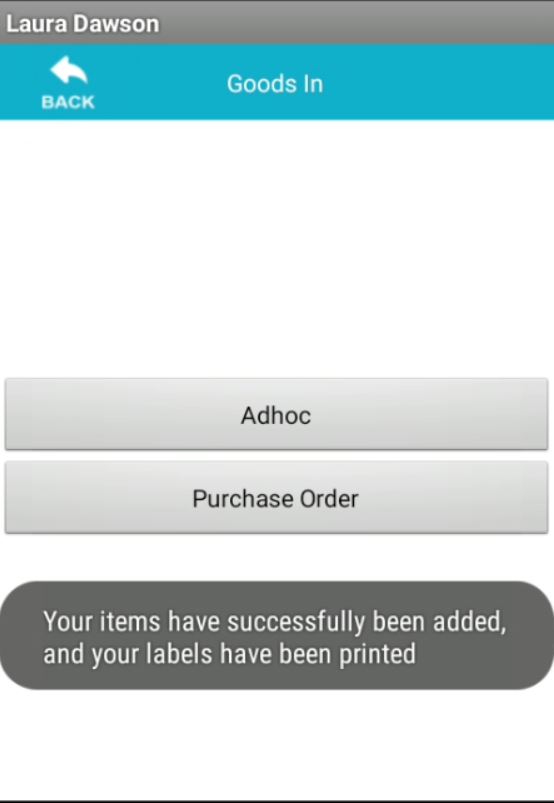
When you click finish if the item has been successfully booked in you will see the below message.
Purchasing infomration
From time of receipt we expect all deliveries to be scanned into the system and shelved at its location team within 24 hours. Any shortfalls, duplicated deliveries, quality issues or incorrect delivery address should be reported to purchasing within 24 hours. The supplier POD has to be clearly signed with full name written underneath the signature. When a supplier delivery arrives at the depot the operator should find the PO number on the delivery note. If no PO number is stated please contact the purchasing team who can confirm the PO number, do not choose any open POs without confirmation from purchasing.
Updated over 5 years ago