
Direct Deliveries
To print a direct delivery item EIN label at the depot before completing another activity for the same service user.
If an order is raised for a service user who have previously had a special delivered direct, the scanner will now prompt the technician to print the direct deliver label. Meaning this can be attached to the equipment while the technician is attending the property.
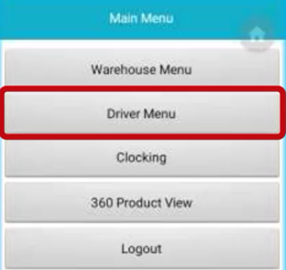
On your scanner select "Driver Menu"
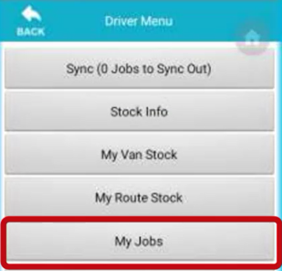
Then "My Jobs"
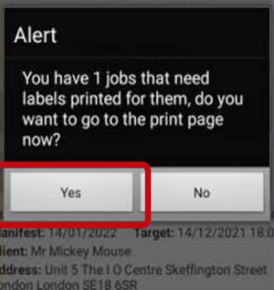
If you have any labels to print for any orders you are attending, the scanner will prompt you that there is a direct deliver EIN label to print to take out while attending the property.
Select "Yes"
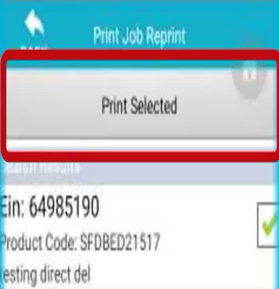
You will then be given the item information on screen, and you will need to select "Print Selected". This will force the label to be printed off at the depot.
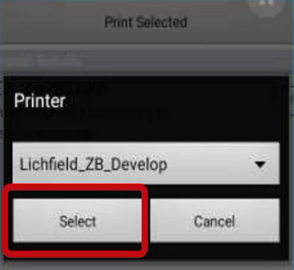
Now select the printer you wish for the labels to be printed on. Then click "Select"
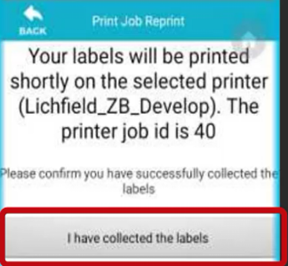
Once the labels have been printed and you have collected this from the printer. Select "I have collected the labels"
Don't worry !
Don’t worry if you forget who the label is for, the scanner will prompt you when you at the job that needs the label attaching.
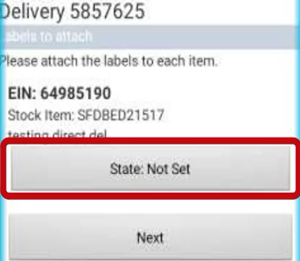
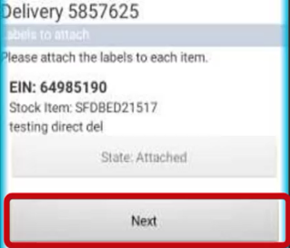
When you arrive at the service user’s property that you are required to attach the label too. The scanner will prompt you and ask you to attach the label.
Select "State: Not Set"
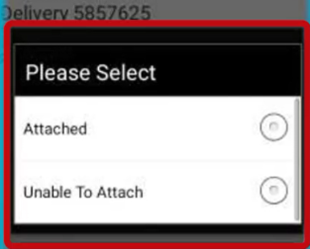
Select "Attached" once the label has physically been attached to the item.
Finally select "Next"
You will not be able to continue with your original job as needed.
TRAINING VIDEO
Video available to show scanner steps - Please contact LiveChat for access to this training video.
Updated almost 4 years ago