
Bluetooth printers
Getting to know your printer
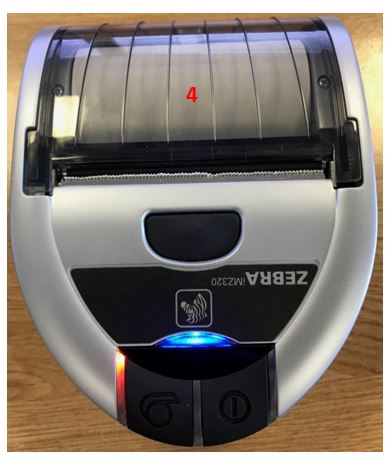
- This button releases the clear section of the printer to allow paper rolls to be replaced or added.
- Pressing this when the paper is loaded pushes through a small section of the paper roll to be used as needed.
- Power button needs to be held down for around 5 seconds to turn the printer both on and off.
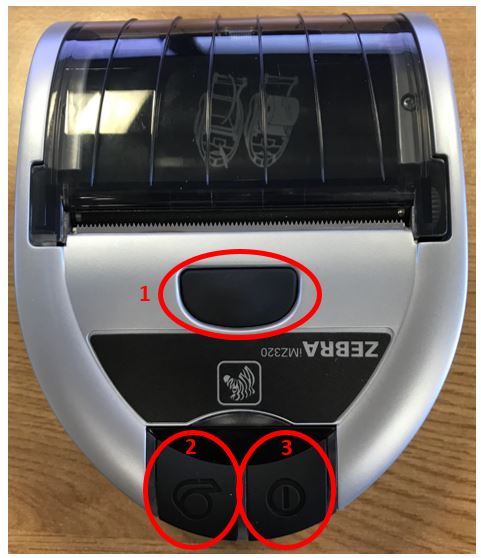
-
This light flash blue when connecting via Bluetooth.
-
This light will be green when the printer is on and is ready to be used. If these light changes to amber or red this is due to a low battery. Please note when the printer is turning on this may also show as amber.
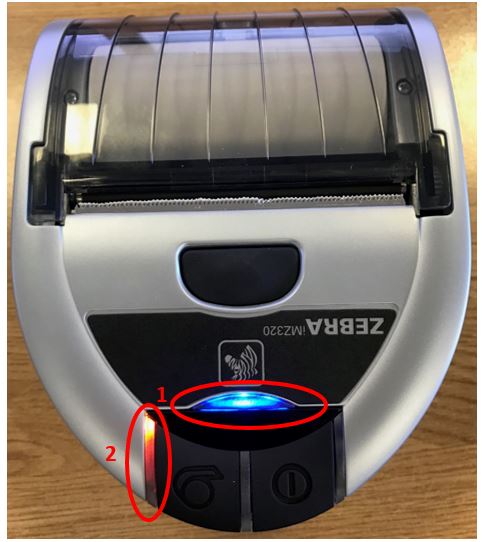
-
By pressing the circled button shown in screenshot 1 this will pop up the clear section of the printer.
-
Once this is open you will see icons into which way the paper needs to be placed into the printer.
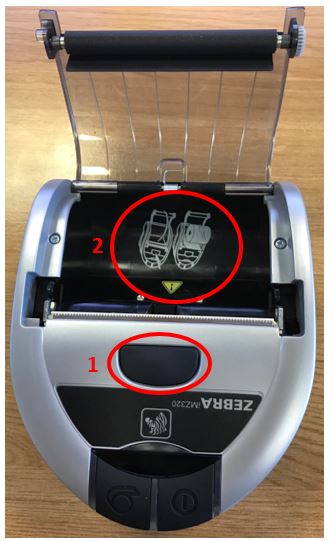
- Place the receipt roll into place and hold down a section of the paperwork out of the machine.
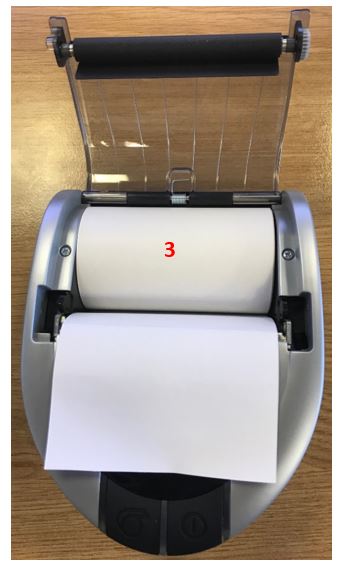
- Then click the lid closed and tear off any extra paper. Once this is complete you have successfully changed the receipt roll in your printer and are now ready to print receipts as needed.
-
Turn on the Bluetooth printer
-
Go to mobile, Select Settings > Devices > Bluetooth.
-
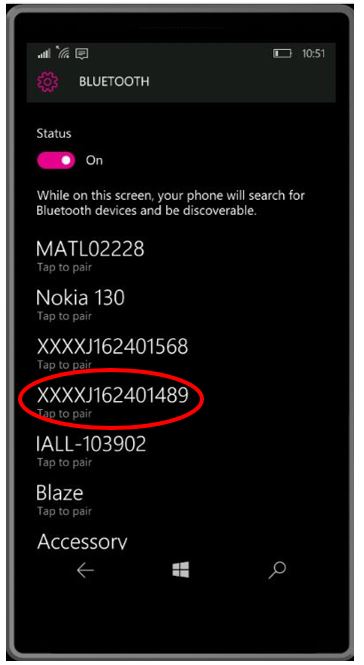
You will be presented with a list of devices your phone can connect to
. -
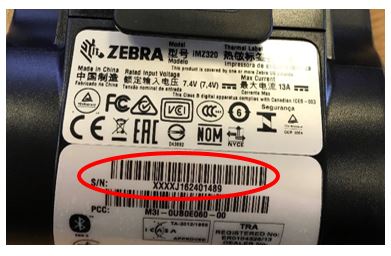
Check the back of the printer for a label with a barcode attached. This is the selected printer serial number, if you then refer to the phone you should see this device on screen.
5.Select correct Device on the phone and pair the device.
-
Once the device is paired a receipt will print with a code, to confirm you have connected the correct phone and printer. The code on your phone and receipt must match.
-
Once the device is paired you will not need to do this again. The device will connect automatically when both the phone and printer are turned on within 20 feet of each other.
**Please Note – Always keep the same printer as if you change printers you will need to set this up as a new Bluetooth device.
Always ensure your Bluetooth printer s the only device connected via Bluetooth, it is against company policy to use the Bluetooth handsfree in all vans. The printer must take a priority over any other devices.**
-
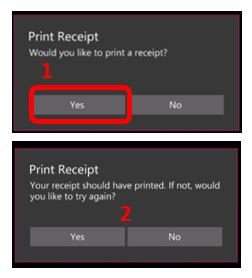
When you have completed the steps for completing a job on your Medemobile, the last screen presented will ask you if you would like to print a receipt. Select Yes when your phone and printer are within 20 feet of each other. The receipt will then print automatically.
-
Once it’s printed you then have the option to print again or not.
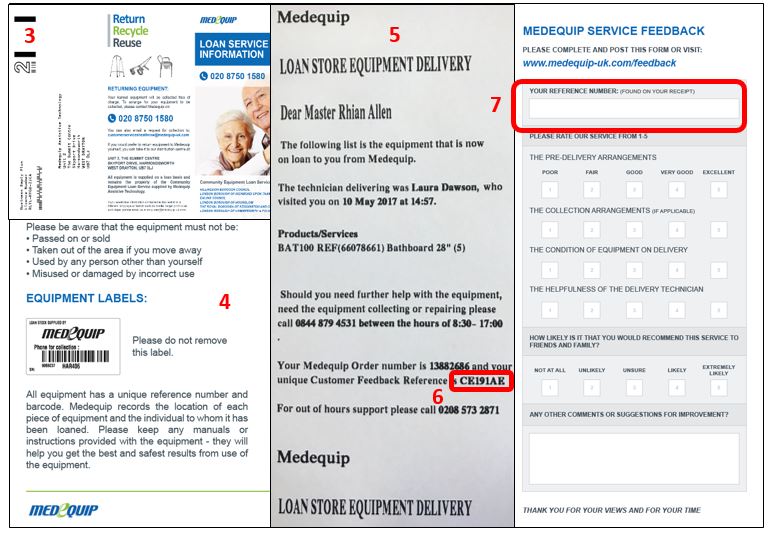
3 & 4. This is the leaflet to give the client with all the relevant information on including the feedback form.
-
Place your receipt in the middle of the delivery card.
-
On your receipt printed, there is a Feedback reference number.
-
Write the feedback number into the box shown and then pass this information over to the client for future reference.
FAQ
• How far apart can my phone and printer be to stay connected? The printer and selected handset must be within 20 feet of each other to print the receipt as needed
• What happens if my Medemobile breaks? The ability to turn back on the paperwork if you are having any technical difficulties can be arranged Via Livechat.
• Can I swop and change printers and phones? Always keep the same phone and printer once the devices are paired
• Do I always have to print a receipt? Yes, we need to ensure all clients have full information in regard to their orders and what to do next.
• Can I still use the Bluetooth in my van for making calls? It is against company policy to use the Bluetooth feature in your van, the Bluetooth on your Medemobile must only be paired to one device and this must be your selected printer.
• How do I get the same information I used to from my paperwork? If you use the Manifest Sheet within the driver menu on the Medemobile this provides the same information found on the paperwork, including added extras.
• How do I order further Delivery Cards & Receipt rolls? Please Contact Matthew Ward [email protected] for further delivery cards and receipt rolls to be ordered.
Updated over 7 years ago