
Waste Management
How to print waste labels -
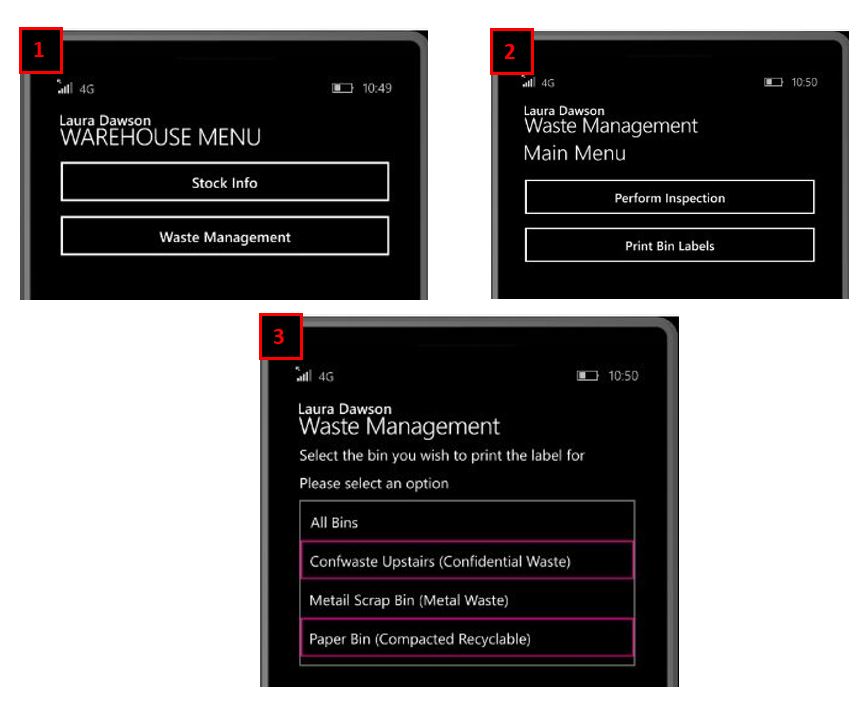
How to print your waste management labels for the first time or how to re print a label.
-
From the Main menu, select Warehouse Menu, then select Waste Management.
-
Select Print Bin labels
-
If you are printing your labels for the first time or you wish for all available bin labels to be printed select All Bins. If you just wish to reprint an individual label, select the bin needed and the label will print as needed.
Place all labels on an A4 sheet of paper and laminate, this way you keep all labels in a good condition, store the sheet in a location available to the members of staff who will be managing this.
Bin Inspection
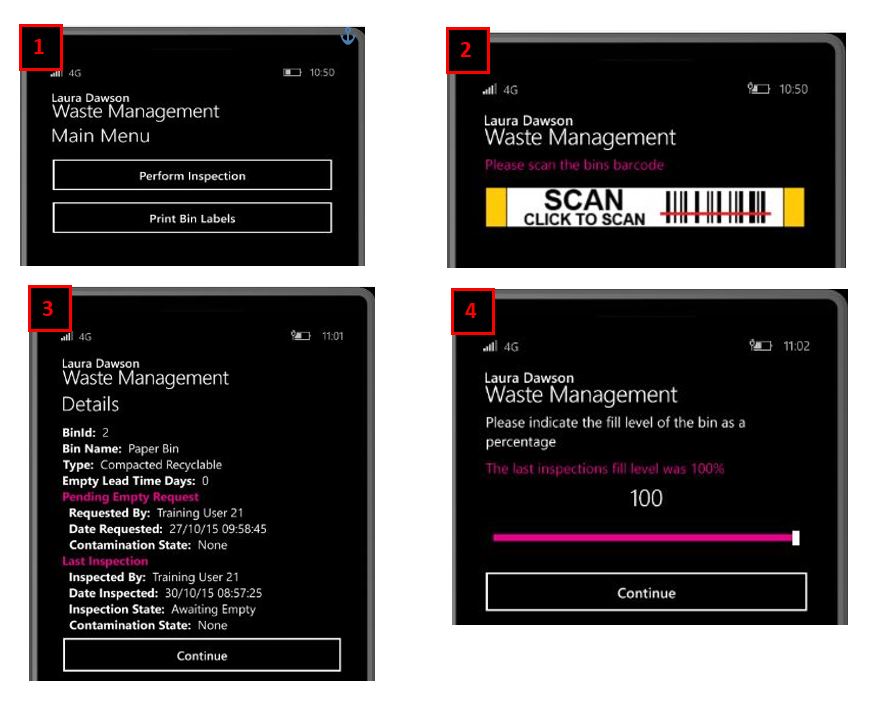
Bin collections will no longer be arranged via phone or email; all bin inspections must be done via the scanner.
-
Select Perform inspection
-
Scan the relevant label of the bin you wish in inspect
-
You will then be presented with the bin information
-
Select bin level indicator of how full the bin is question is, then select continue.
-
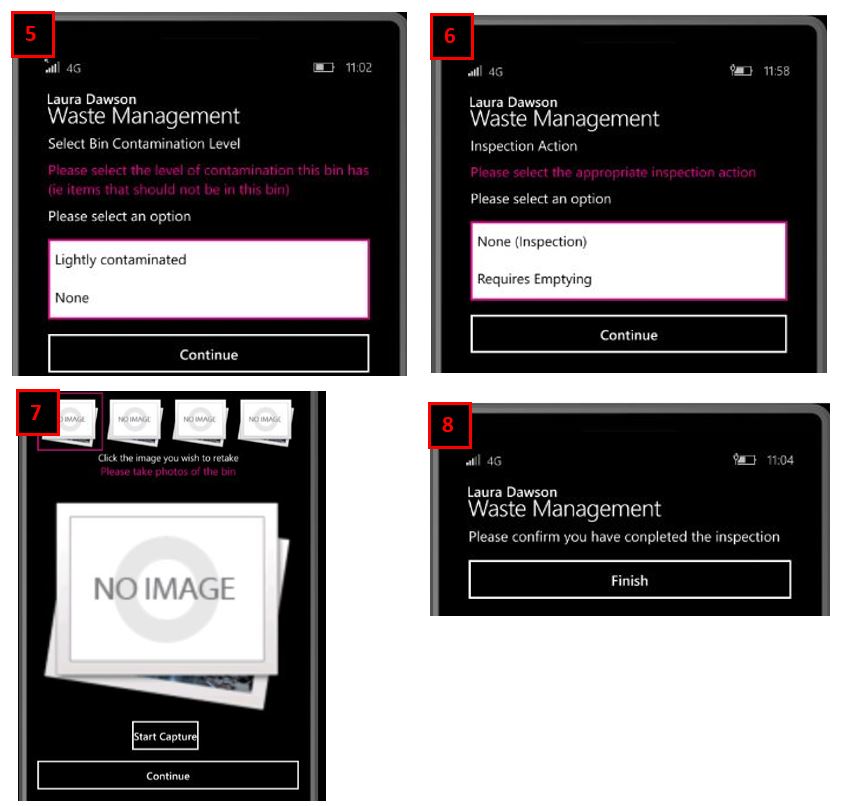
Select suitable contamination option and press continue
-
Select suitable inspection option, none (inspection) is a standard inspection. Requires Emptying means you would like to request the bin to emptied.
-
You will be asked to capture images of the bin, once complete select continue.
-
Select finish, this will complete the inspection.
If you select Requires emptying, this sends an automated email to the bin provider to arrange collection
If you have any issues in regard to this process please contact Livechat.
Bin collection complete
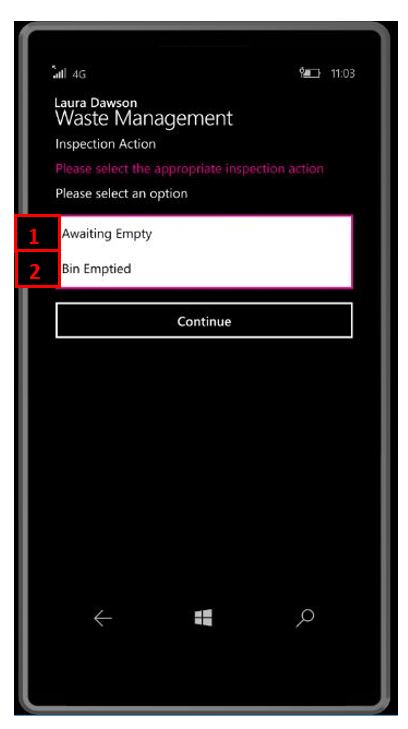
Once the bin collection has been completed you need to complete a further inspection to confirm this.
Follow the above steps to the point where you select the inspection action. From here you will notice that the options in the drop down have changed.
-
If Awaiting Empty is selected a “Chaser Email” will be sent to the contractor with all the details previously selected.
-
Bin Emptied, if this is selected then it will close the outstanding action and confirm that the bin has been successfully emptied.
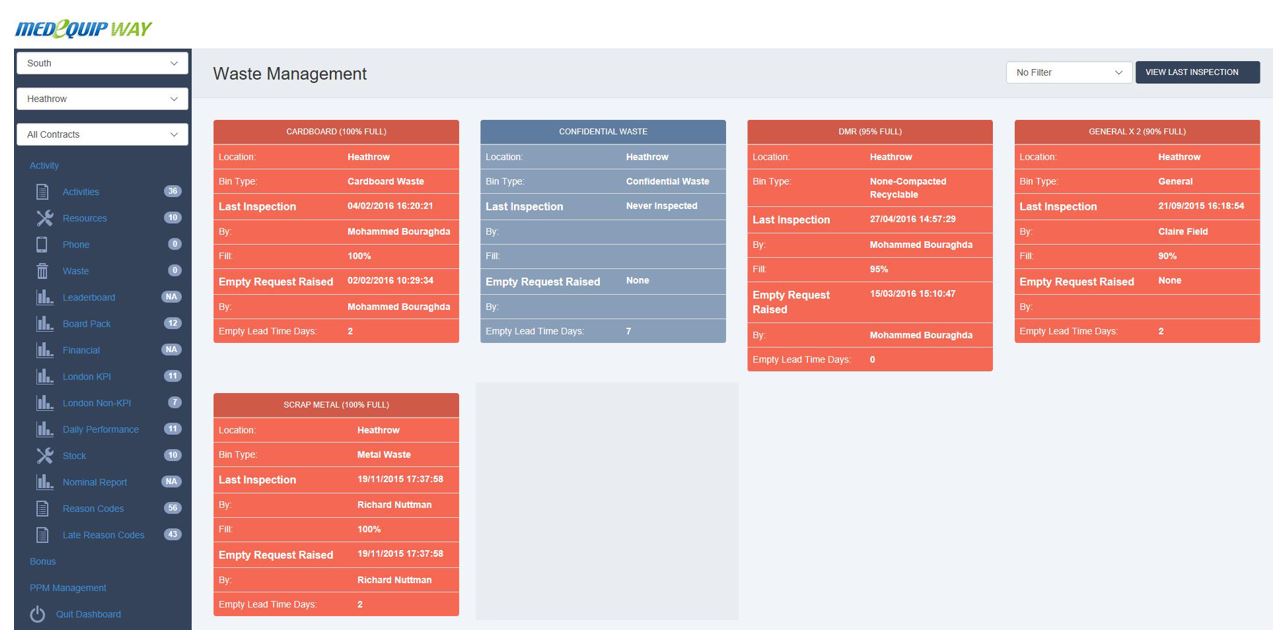
MedequipWay > Reports Dashboard > Select region and location > Select Activity > Waste Management.
Here you will be presented with a list of all bins with any activity.
Updated over 7 years ago