
Booking Peripheral Store Orders
Booking Peripheral Store Orders
The Peripheral Store system has been created so you can manage your Peripheral Stores in the same way as normal day to day routes, this manual has been created to ensure the same process is being used throughout depots.
The Peripheral Store routes will need to be set up before using but can be managed day to day by Customer services or management.
To Start with the Peripheral Stores, need to be set up for the correct days, the bulk of your peripheral manifest will be set up before you begin to use the new P store system. But there may be a time where you need to edit or update current records on when we attend a certain store.
There's a few things you need to remember when using this system, please see below.
Once an order is booked in and picked for by warehouse, if you then unbook this job after it’s been picked for, the warehouse will need informing that the job has been unbooked and the items need scanning back to shelf. If the P store has accidently been unbooked and then re booked again, this will need picking for again for the order to close successfully.
You must get the P store to be picked by the warehouse on an MC75 and not using the log in of the driver who will be completing the jobs. Once the order has been picked for the order must only be closed on the Medemobile app.
Images below show you how to gain access to the p store set up.
MedequipWay > Menu > Peripheral store management
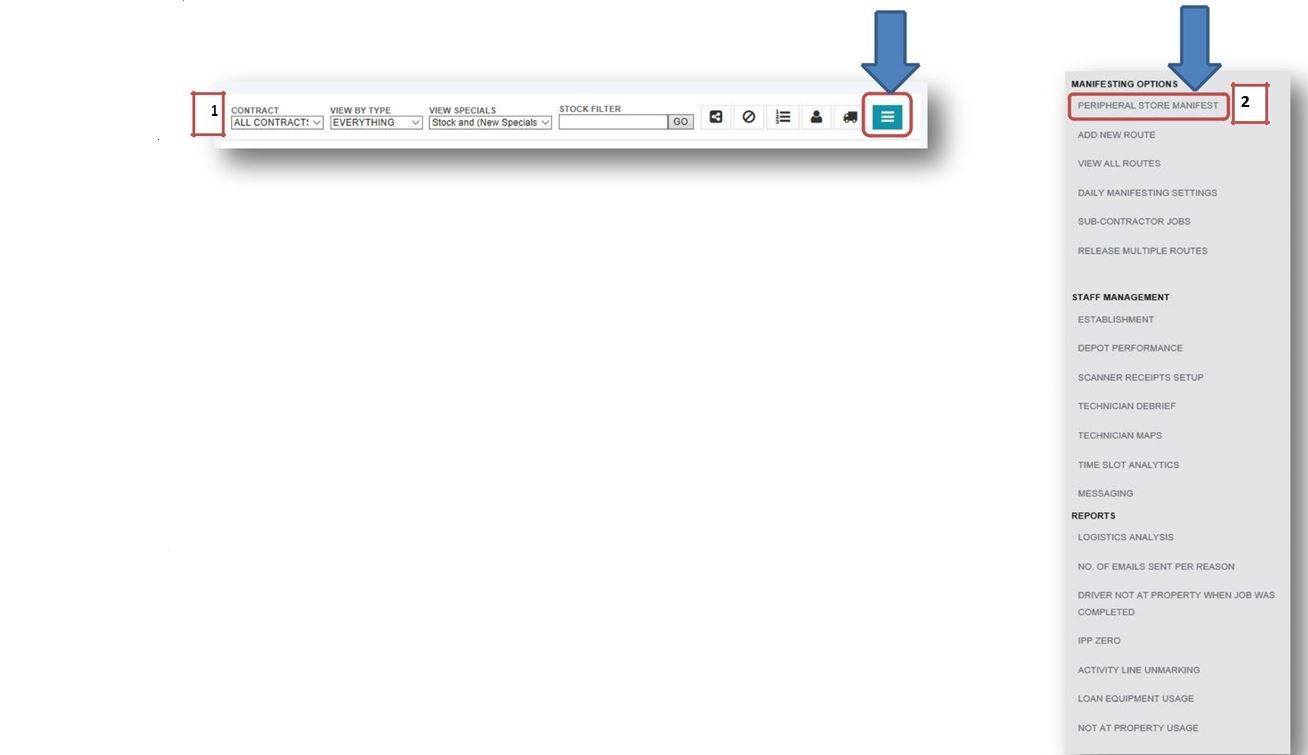
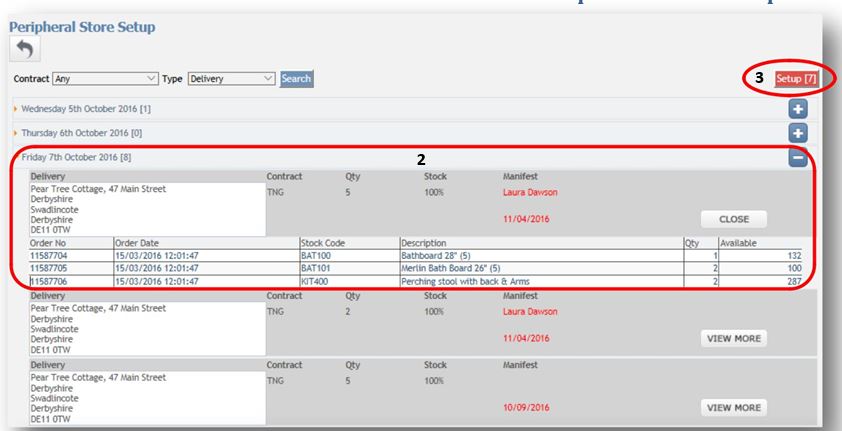
From the p store page, you are able to see what orders are due on what day. You can drill into these orders to find out more information by clicking the '+' button.
-
This section shows you the extra information in regard to the p store and what currently is on order.
-
By clicking the Setup button it will open Peripheral store screen, where you are able to edit all the Peripheral store and the selected days we need to attend.
The set-up section in your peripheral store management needs to be cleared down each day, this is to ensure no order get missed.
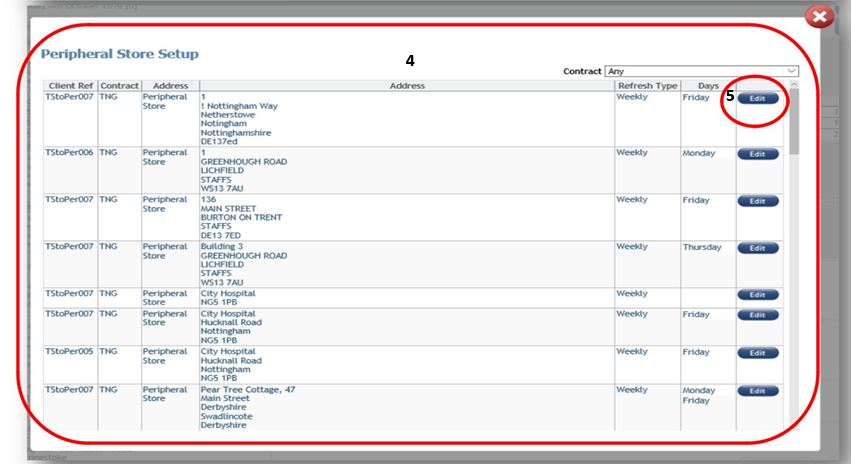
-
Here you can see what Peripheral store we attend and what dates this is set for, so looking at the top Peripheral store we can see this is '1 Nottingham Way' and we attend weekly every Friday.
-
If I wanted to change what day we attend the p store I would click section 5 the 'edit' button.
Useful Tips – You can select to attend a Peripheral store either weekly and choose the selected days or you can select monthly and select exact days you would like the tech to arrive at the stores.
Remember you can select multiple days or dates
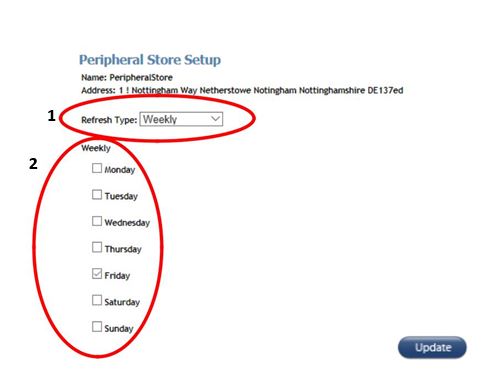
When clicking the edit button, this will then bring up an option where you can choose what days you would like to attend the p store.
-
This is where you can decide if you would like to attend the store weekly or monthly. In this example I have chosen weekly.
-
Here I am selecting which day I would like us to attend the stores, so for instance I have chosen Friday. You can select multiple days if this is needed also. Once I am happy with the day picked, all you need to do is click update.
-
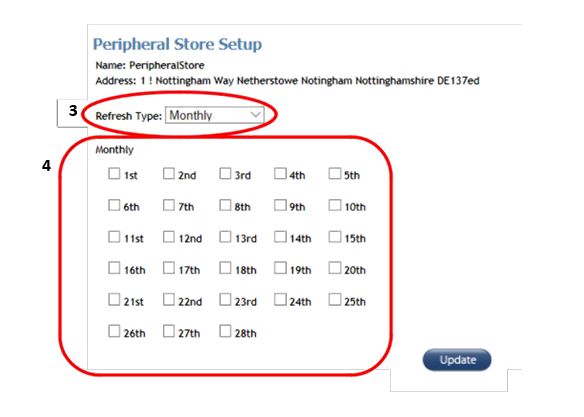
In example 3 I am showing you the different between the options you have if you select weekly or monthly.
-
Here we have selected monthly and you can now select which dates each month we need to attend, you are able to choose as many dates as needed. Please note the order will always be due for delivery each month on whatever dates you have chosen in this set up.
-
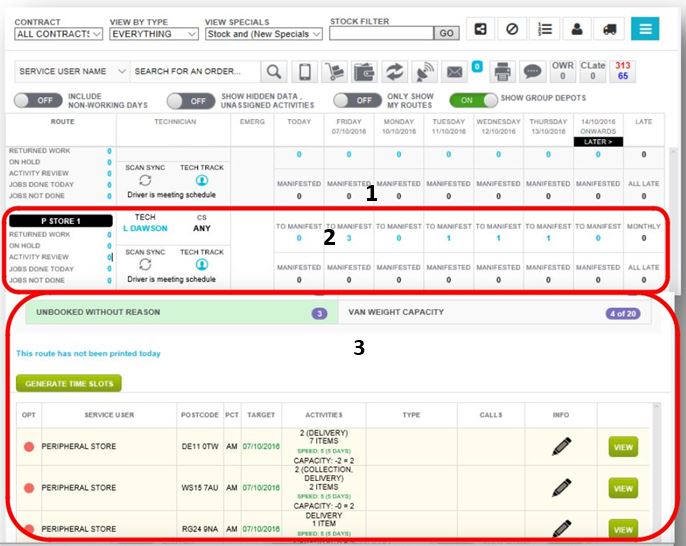
When looking at your routes you will notice your selected p store route. Here we are looking at P Store 1. We can see what jobs are currently outstanding for what days. The jobs should only fall into the correct day of which you have set up your peripheral store for. To investigate and book the orders needed we need to select a day to work with.
-
So if we selected Friday 07/10/2016 there are 3 jobs to manifest.
-
Once you have clicked on the 3 orders to manifest this will list the orders like your everyday routes.
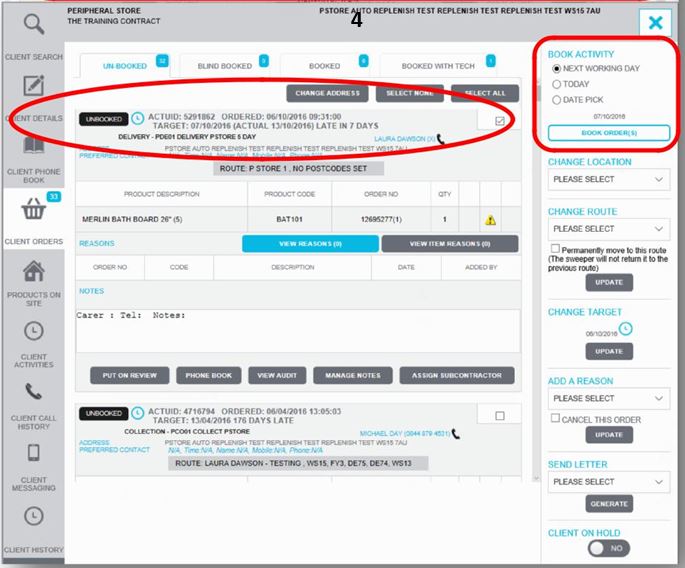
- Once you are in the order screen you can check the order information and manifest for the date of delivery. Once this is booked in it will move into the booked section on the system again the same as when you are booking a standard order.
Once the order is manifested this order now needs nothing more doing to it. It is now Warehouses turn to pick all the items to ensure this P store delivery can be completed correctly.
Please ensure once you have booked these jobs in that they are not un manifested, as this order will need picking for again.
-
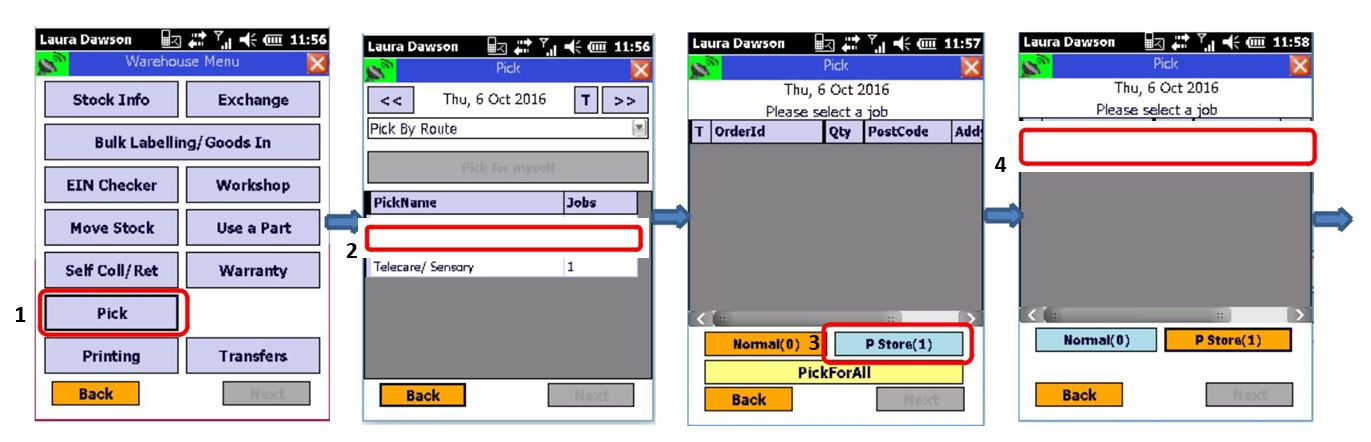
Warehouse Menu on an MC70/MC75 Scanner and select 'Pick'
-
Pick by a selected route, in this example we want to pick for Route 'P Store 1' select this route.
-
Select the P Store Button, the number at the side will depends on how many p store orders you are picking for.
-
Select the order you would like to pick
-
Select an item showing to pick and scan the appropriate bar code/EIN. Once all items for the selected route has been picked, select “finish”.
-
The scanner will then list all the items you have picked if you are happy with all the items click “Confirm”
-
Once your pick list is empty you can then click “back”.
Once all items are picked, Customer Services or Management can then release the Peripheral Store route to the selected driver and print the paperwork.
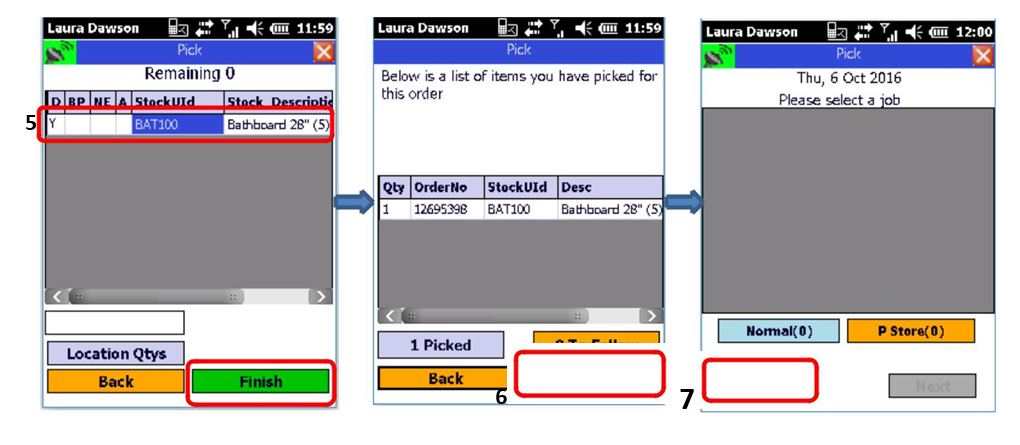
Once all items are picked, Customer Services or Management can then release the Peripheral Store route to the selected driver and print the paperwork.
To complete a Peripheral order on a scanner, follow the below steps.
-
Select “Driver Menu “
-
Select “My Jobs”
-
Choose the activity you would like to work with first.
-
Confirm you would like to work with the activity.
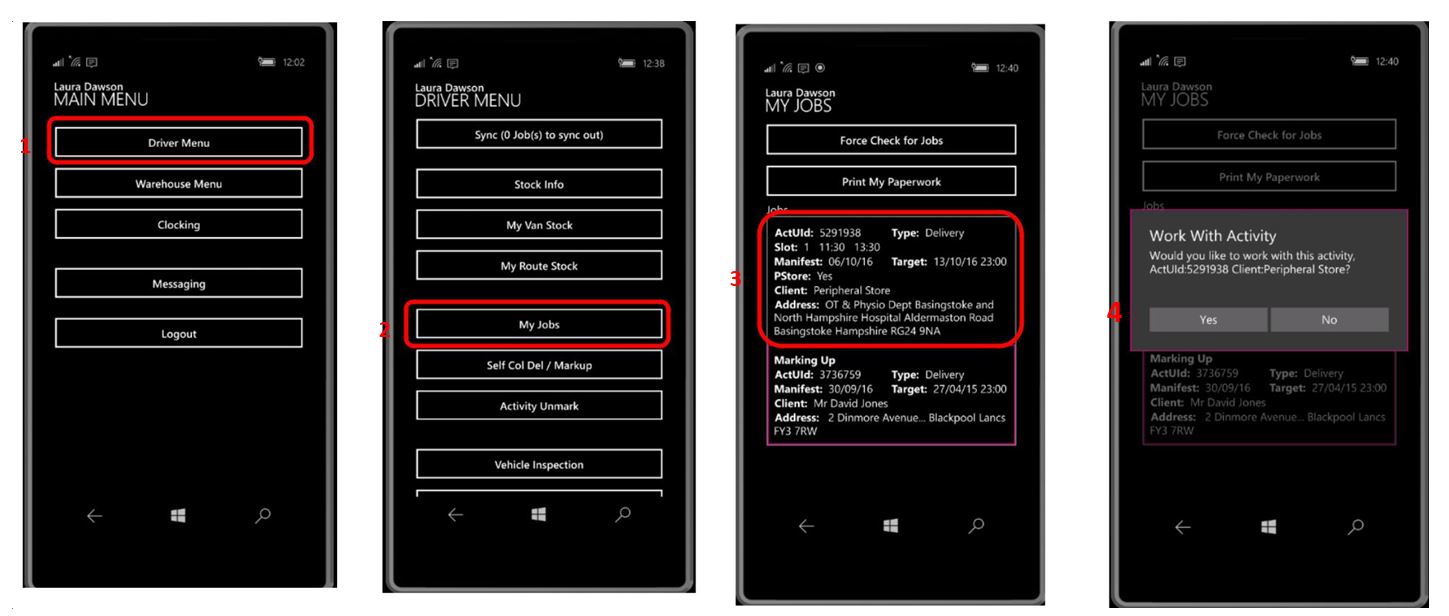
- Read all order information and ensure you are completing the correct order, then select “Continue”.
6.Select “Yes I want to complete this order”.
-
Select “Yes I want to deliver picked”.
-
Select from the drop-down sections to inform us on how many manuals have been received etc, then select “next”.
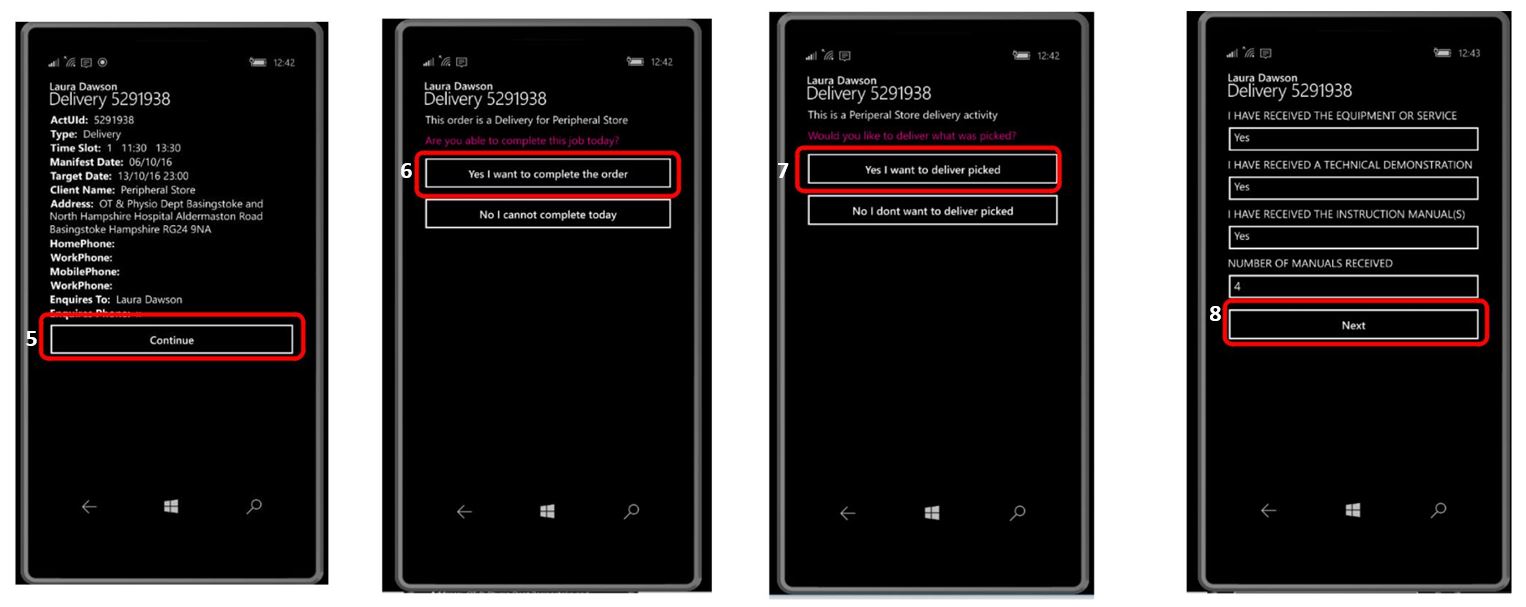
-
Ask the person receiving the delivery of the items to fill in their relationship to the P store ordered, there Name and to sign so there is a proof of delivery.
-
If there are any notes or further information on this order please add here, once you are complete click “Next”
-
Once your order has been successful you are now able to select “Finish”
-
Before locking your scanner please ensure there are no jobs left to Sync, if there are please select the Sync Button to ensure this order gets closed correctly.
Your Peripheral store order should now be completed. Please ensure to check all orders on a Debrief to ensure all has been completed correctly.
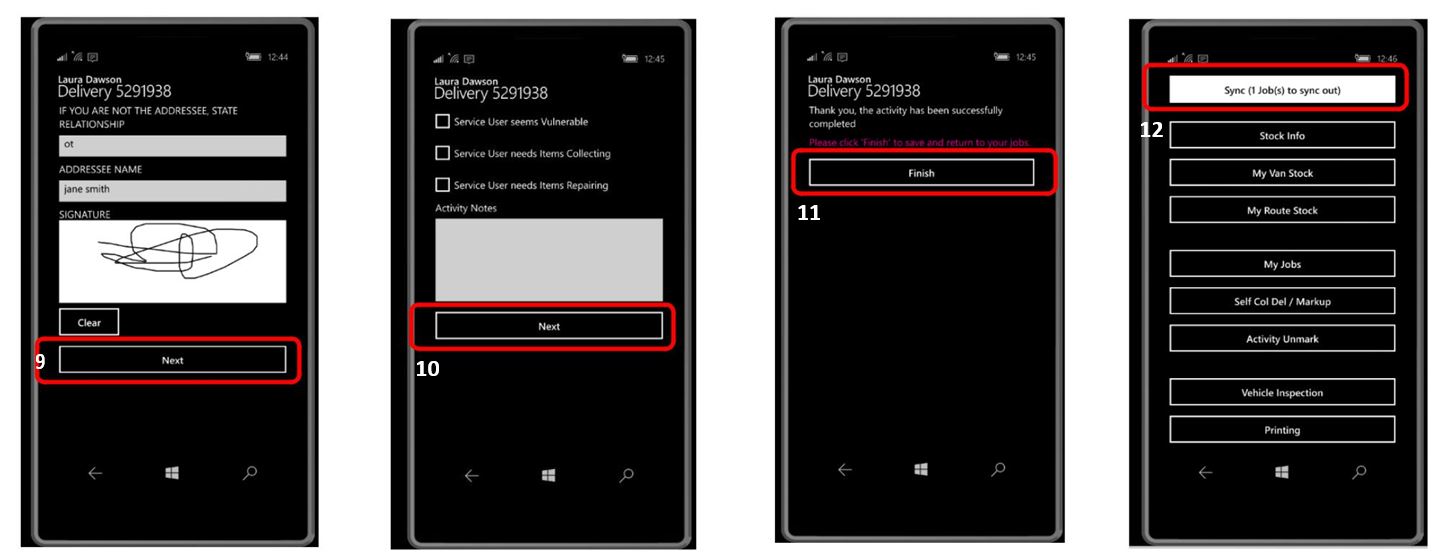
Useful Tips
Below I have listed some helpful tips of how to complete Peripheral Stores for different scenarios, depending on how you manage your day to day routes and Peripheral Store orders
If you combine standard deliveries and Peripheral store orders into the same route. How will this work?
You can manifest any type of order into the P Store route, you just need to ensure all orders are picked for before the route is released to the driver. If you wish to add extra standard orders onto the route after the route has been released this is also fine but remember you will get no paperwork printed off the same as a standard emergency delivery and the warehouse will need to pick by drivers name instead of the selected route.
You have released the route to the incorrect driver?
You can un-release the round from a driver and release this again without it causing any further issues. If you accidently un-manifest any order from the selected route, then this order needs to be Re Picked for again before the round can be released to the driver for completion.
If you have any further questions regarding the new Peripheral Store system, please contact myself for further information [email protected]. If your depots work slightly different to any of the scenarios listed above, please let me know so I can advise on the best practice to complete your orders
Updated over 7 years ago