
Peripheral Store - Booking Out Equipment
Booking Equipment to a service user
Firstly, you need to log into the relevant application.
To do this you need to insert your 4-digit security pin which is unique to you (please do not use another users 4 digit pin code) into the relevant boxes and then select Log in.
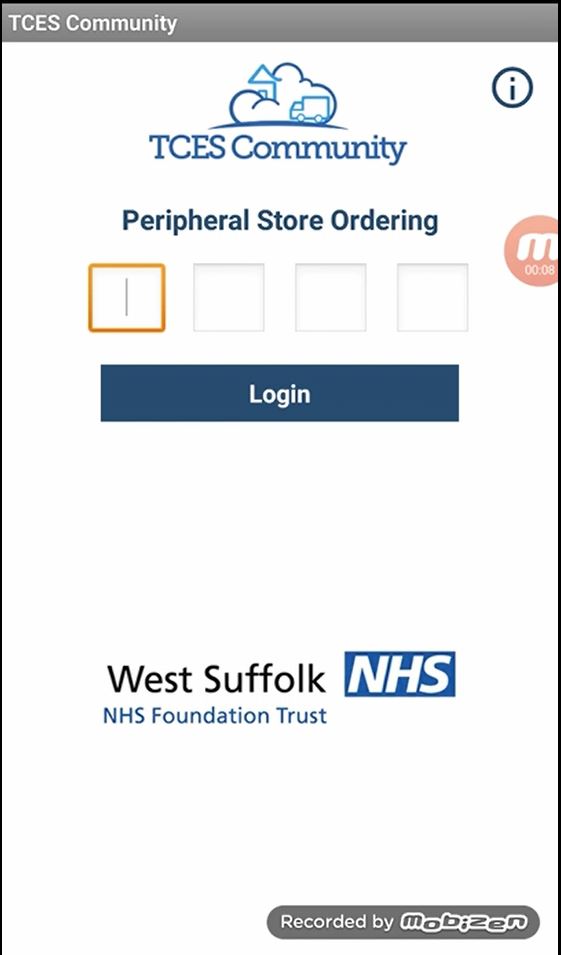
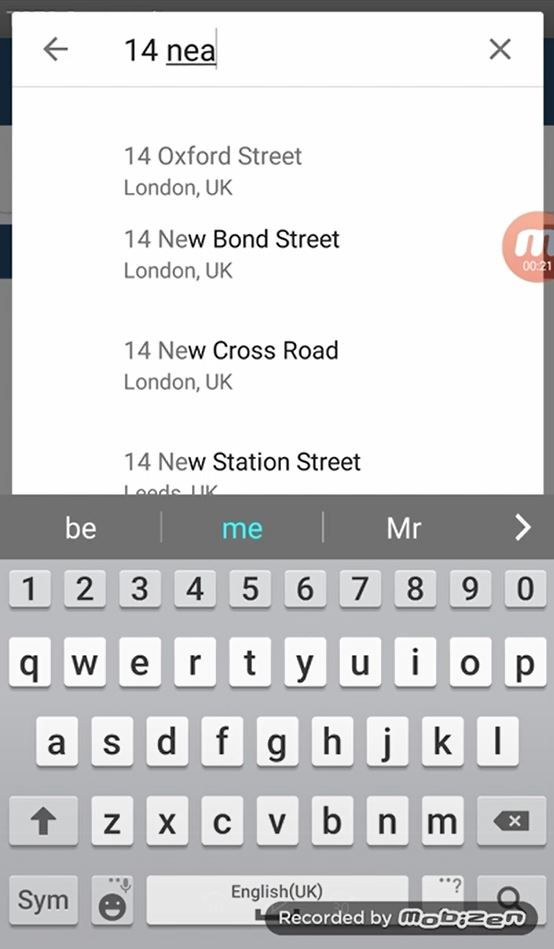
Now you are logged in you can search for the clients address of who you would like to work with. Once you have started typing the address suggestions will display below. See the second screenshot.
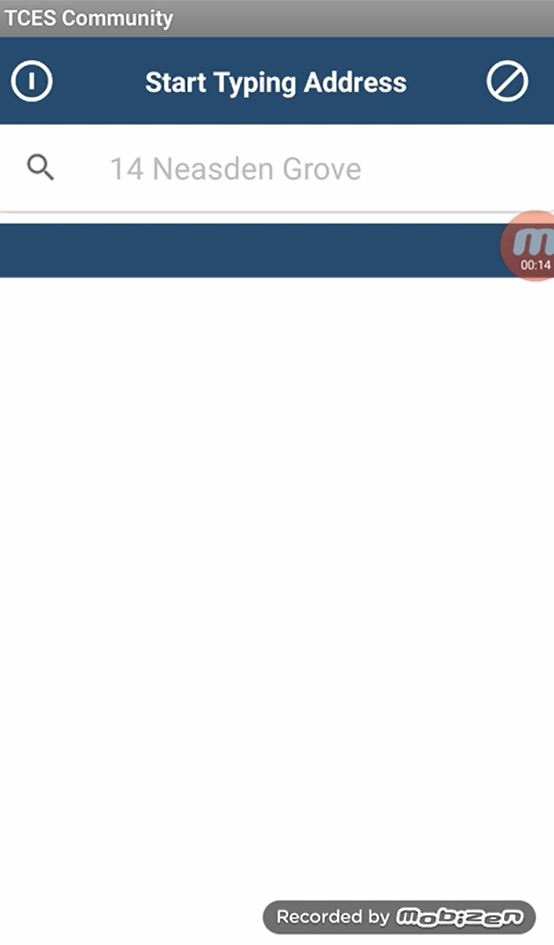
Once the correct address appears, select this.
Once you have confirmed the address, the application will bring up all service users matching the address selected.
Select the correct service user from the list provided.
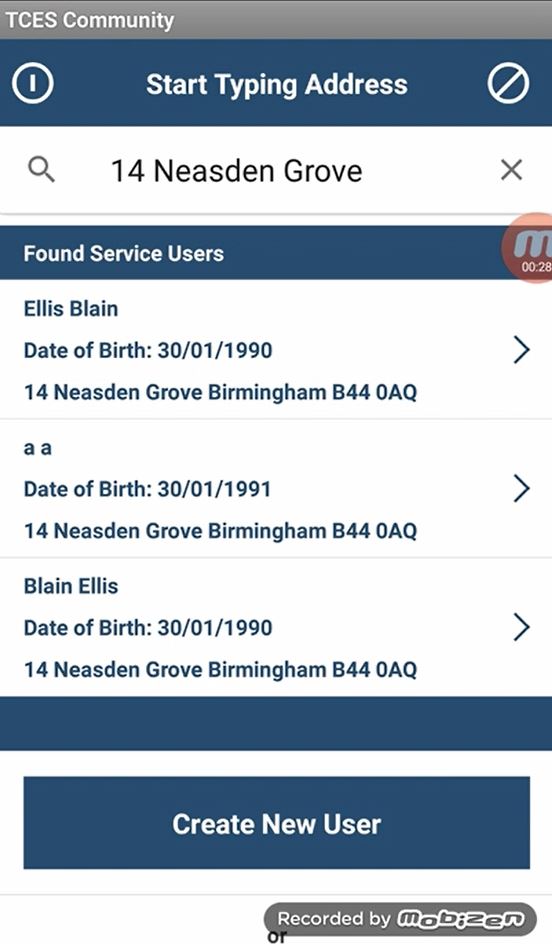
If you are unable to find a service user, you can add a new one by selecting create service user. All you then need to do is enter all the relevant information on the service user to create a profile as needed.
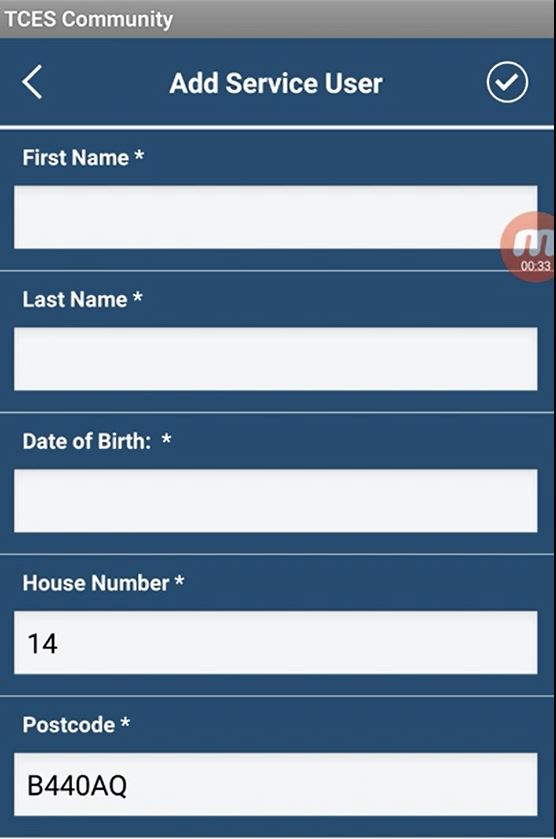
Now we have selected our service user we can issue the equipment as needed. Select the Barcode icon in the top right-hand corner. This will automatically open the camera, so you are able to scan the barcode of the selected piece of equipment.
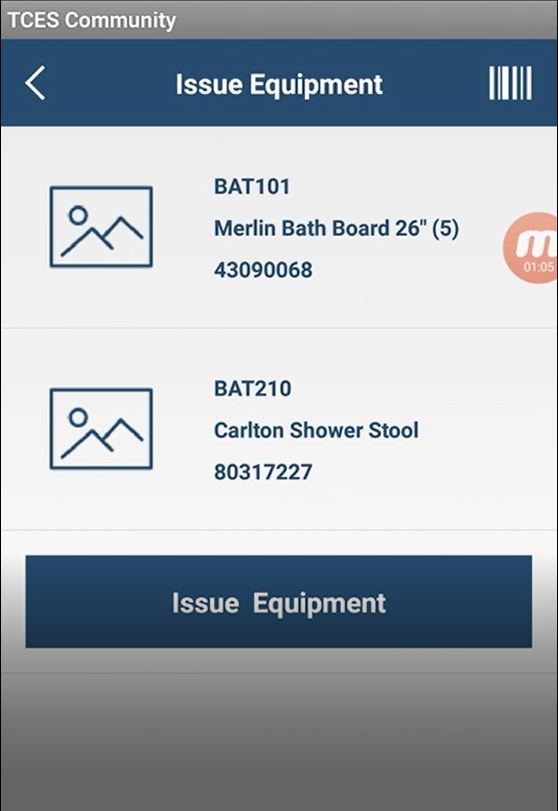
All the equipment which has been scanned will appear on this screen.
Once the equipment shown is correct, select Issue Equipment.
If you select an item in error or no longer wish to add, select the item to remove and the system will ask you to confirm this and then will remove the item.
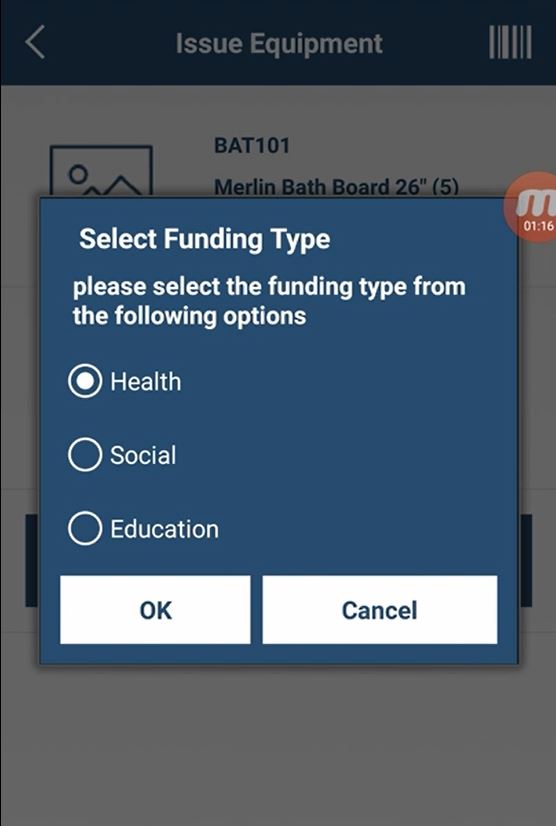
Before issuing the equipment, you need to select the funding type. Once you have selected this, click next.
Before the order completes you will be asked to confirm the information and equipment for the service user.
Once confirmed you will be presented with a confirmation message.
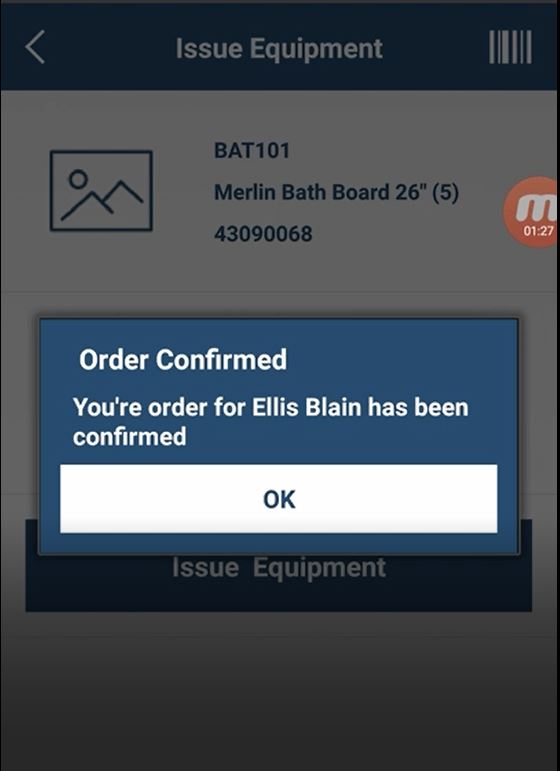
Now you have successfully issued the equipment.
Updated over 6 years ago