
Adding Pre Contract items on Customer site
Adding a pre-contract item on customer site allows you to raise orders on the relevant items.
Firstly, you will need to search for the relevant service user, from there select 'products on site’.
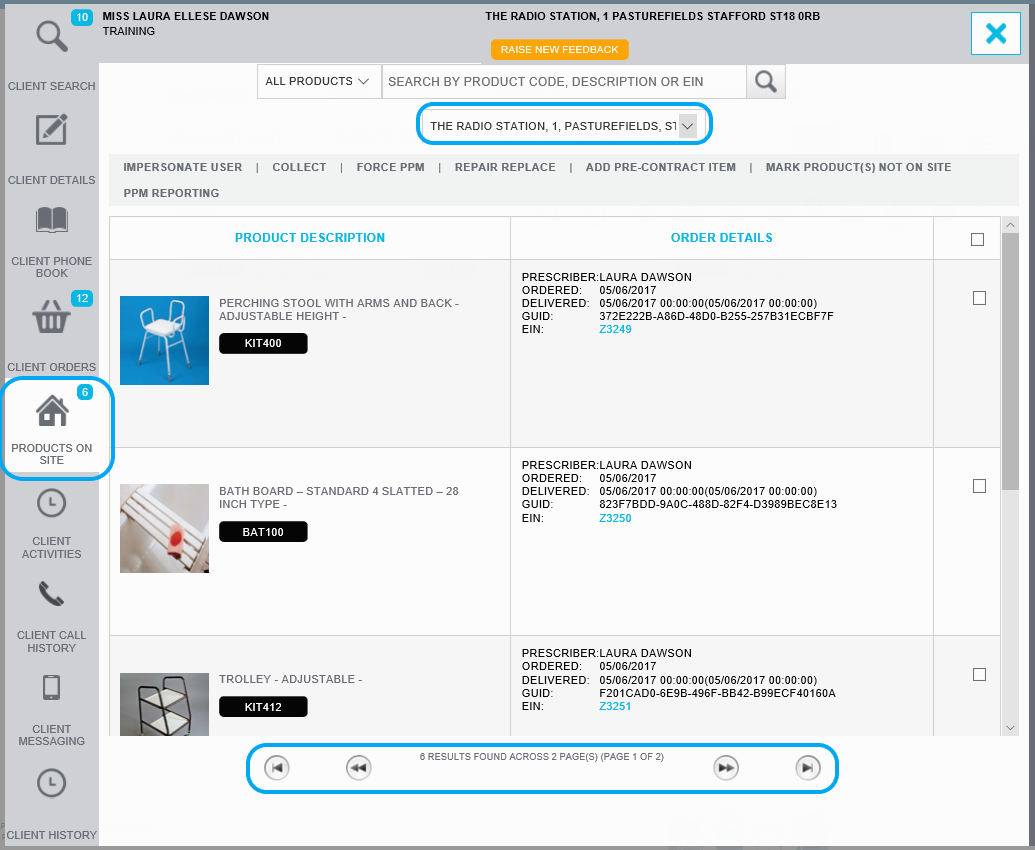
Before you add a pre-contract item on site, ensure you have check all address on the service user profile, to do this select the drop-down box at the top of the page.
The profile may hold more than one page of equipment, check all pages before adding a new item.
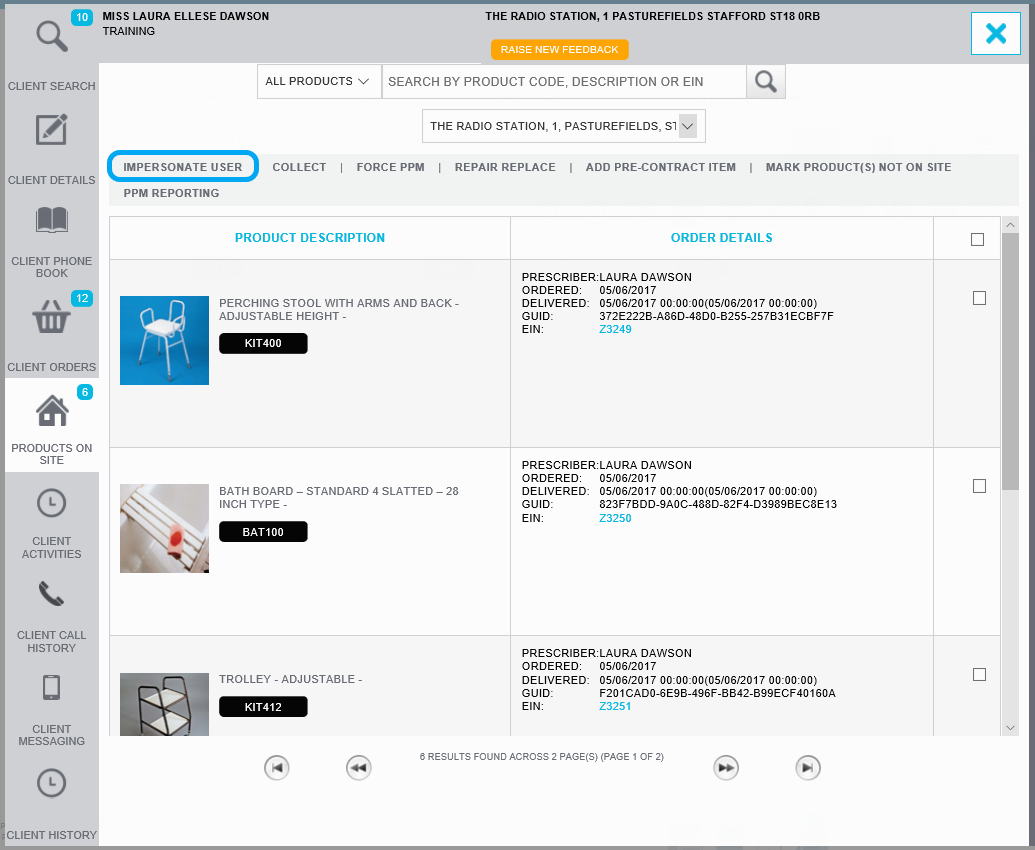
Before you can add an item onto site you need to impersonate a user. To this select the 'impersonate user' button.
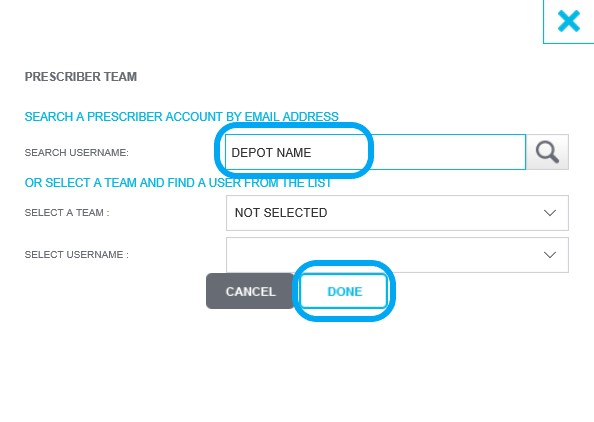
Then input the depot username, this is normally the depot name. If you are unsure of the username you should use, ask your team members. Once the have inputted the username select the magnifying glass icon. Then select 'done'.
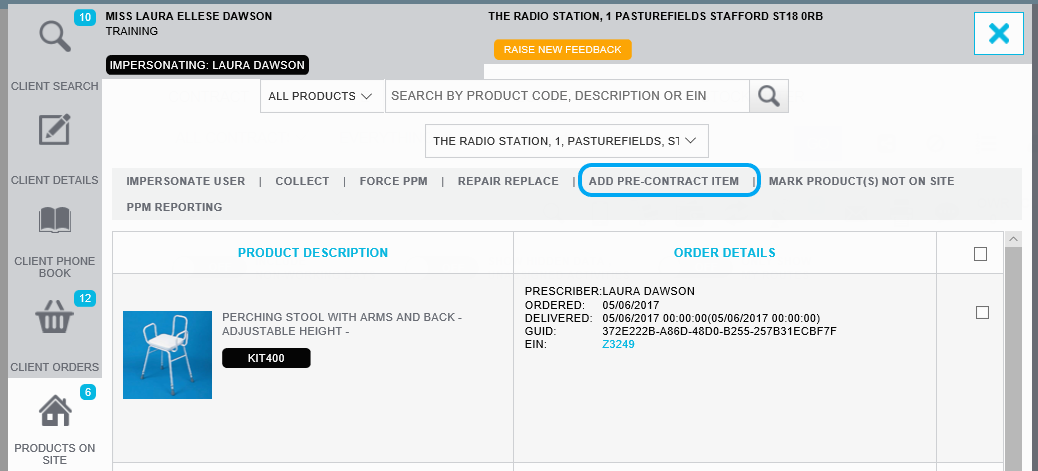
Now you can add any items needed. Select 'Add Pre-contract item'.
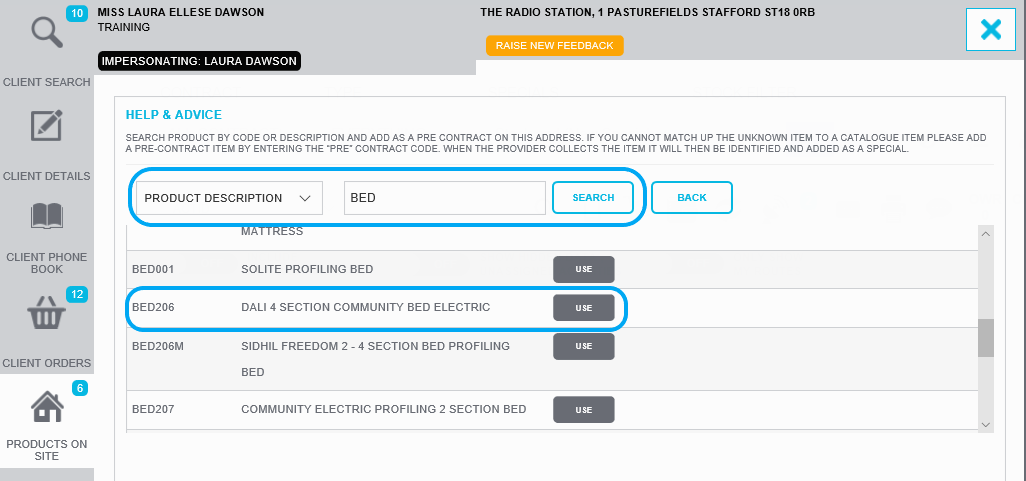
Now you can search via either product description or product code. This can be changed in the drop-down box. For this example, I am searching for a BED, scroll through all of the results and pick the item in question by selecting 'use'.
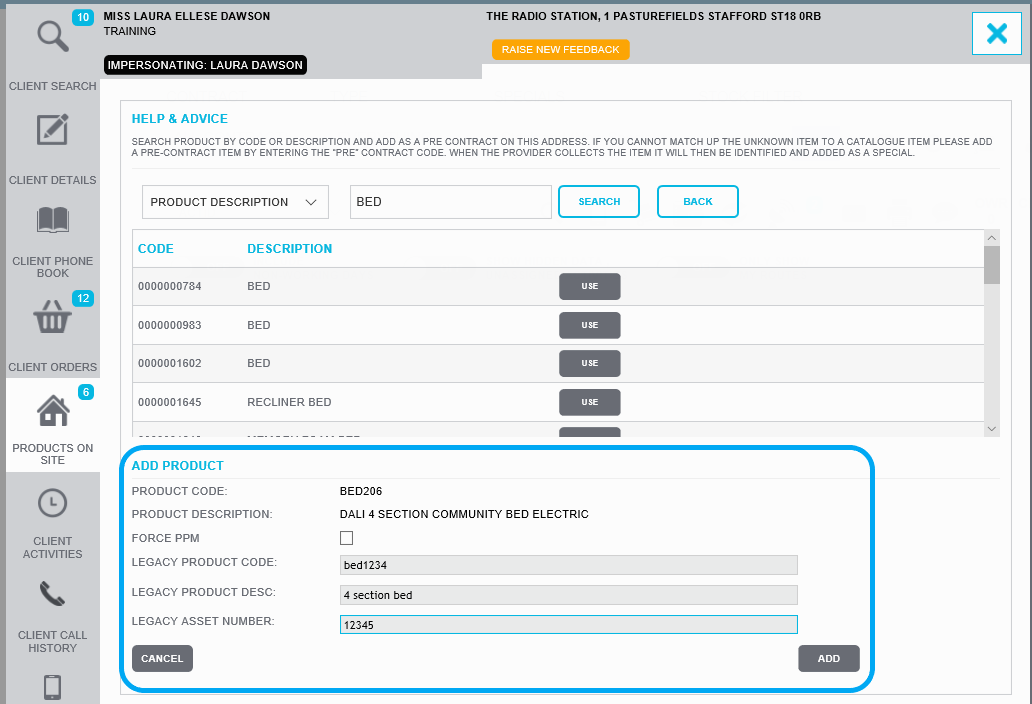
Once you have selected use, you are able to add any legacy information of the item you are adding, this information needs to be gathered from the service user if available. Then select 'Add'.
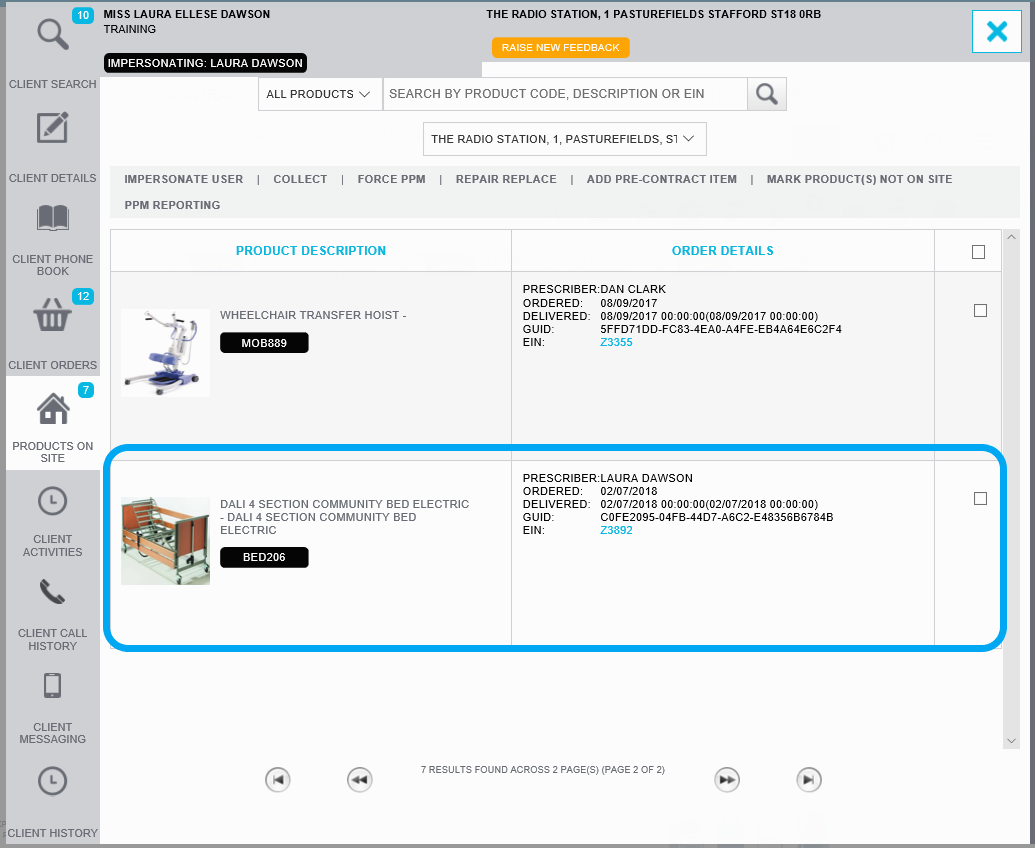
Now the item is showing on site you can add any further orders for the item. Please click here to view the Client searching & Raising orders manual.
If you are experiencing any issues with the system, please contact LiveChat.
Updated over 7 years ago