
Picking CTE items
How to pick CTE items on the scanners.
- Proceed to pick the stock for your selected route as you normally would.
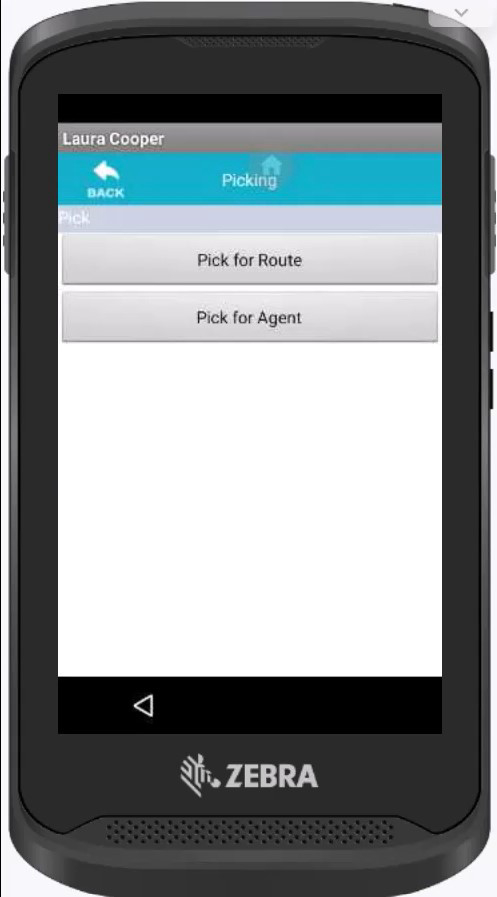
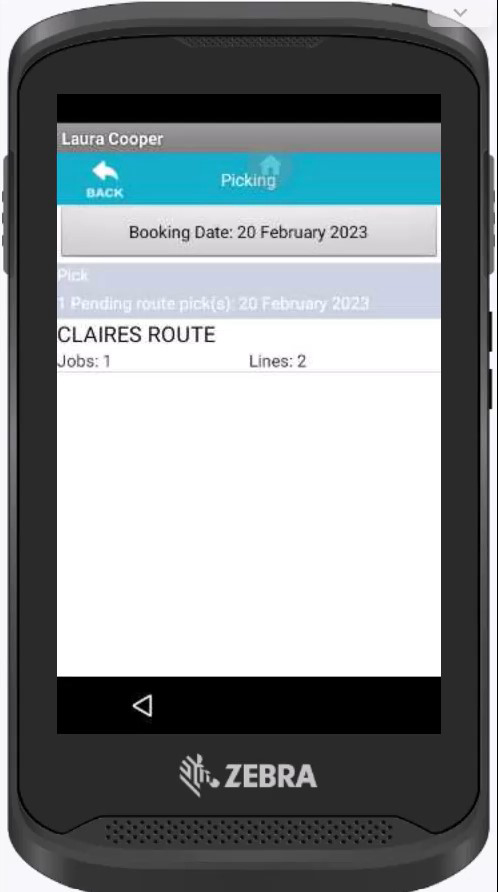
- Select the route and date you wish to pick for.
- Click the item you are picking.
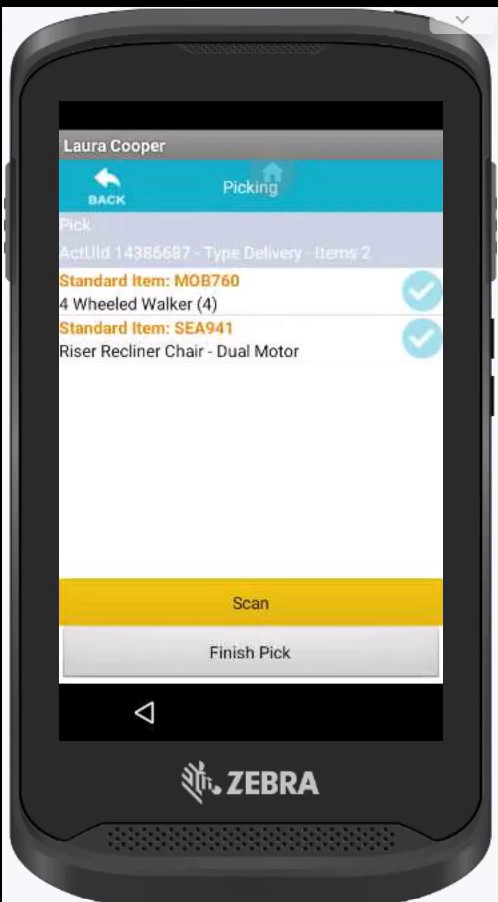
- Now you can click "location Qtys" to find out where that selected item is location within the warehouse. Or if you know the item is already out of stock you can click "View CTES". If you have clicked view CTES, please step 5.
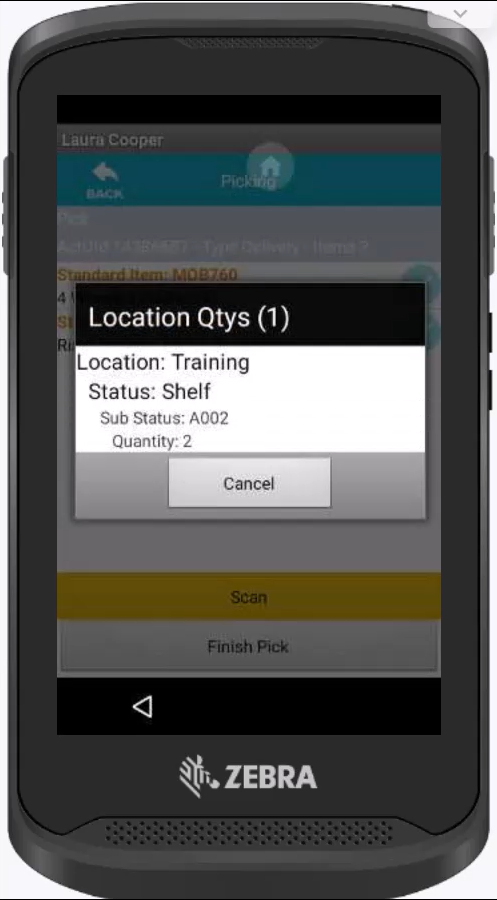
- If you selected "location Qtys" in step 4 and the item is out of stock you will see a similar screen to the below. This now gives you the option to view the CTE items for the selected stock item.
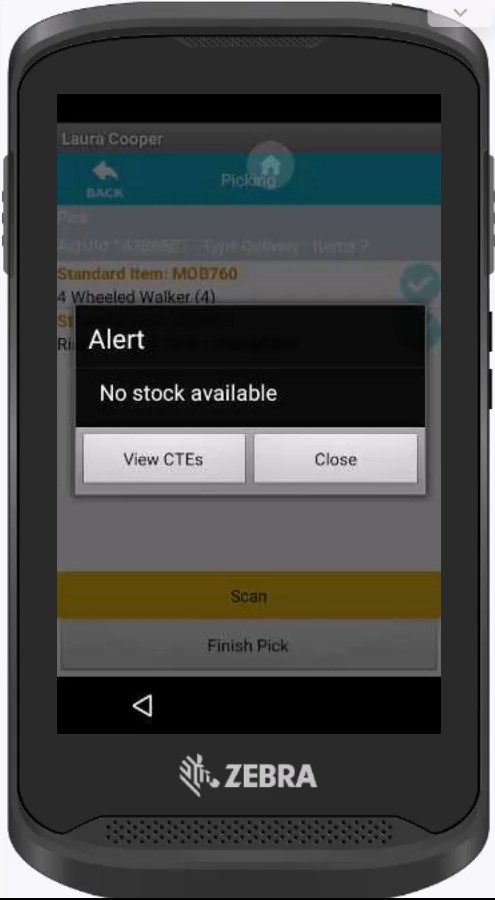
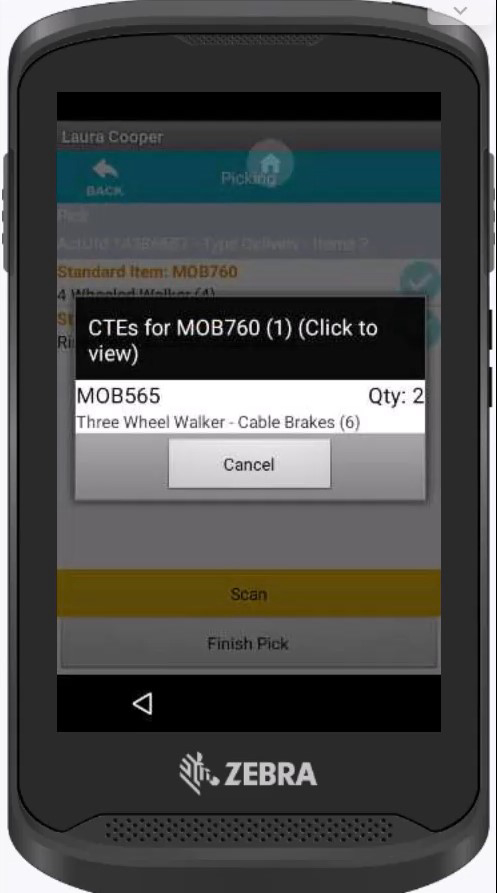
- Now you have clicked to view the CTE's. You will be given a list of stock codes which are listed as CTE items for the original item ordered, you can also see the stock quantity. Select the item for the stock location within the warehouse.
- This shows you the location of the CTE item within the warehouse and quantities.
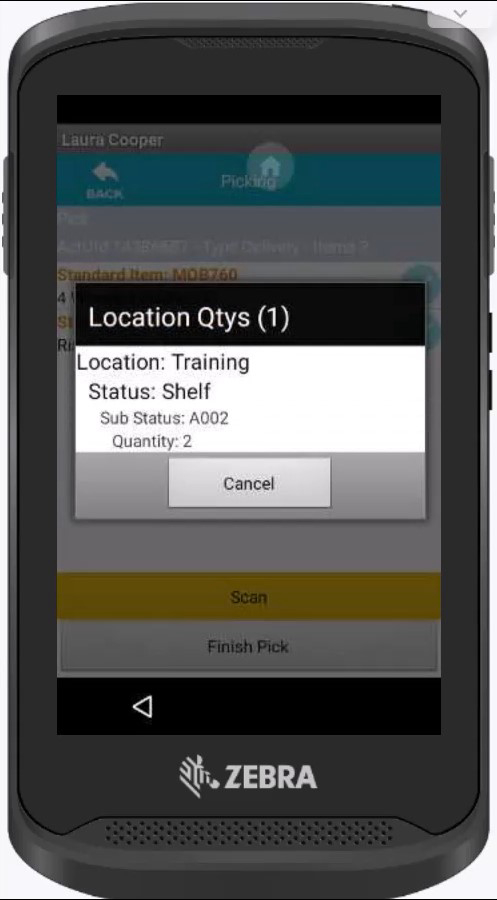
Now you can pick the CTE item as you normally would and complete the pick.
Please note, if no CTE items are set up for the stock codes, you will not see the option to pick CTES.
Updated almost 3 years ago