
Customer Feedback
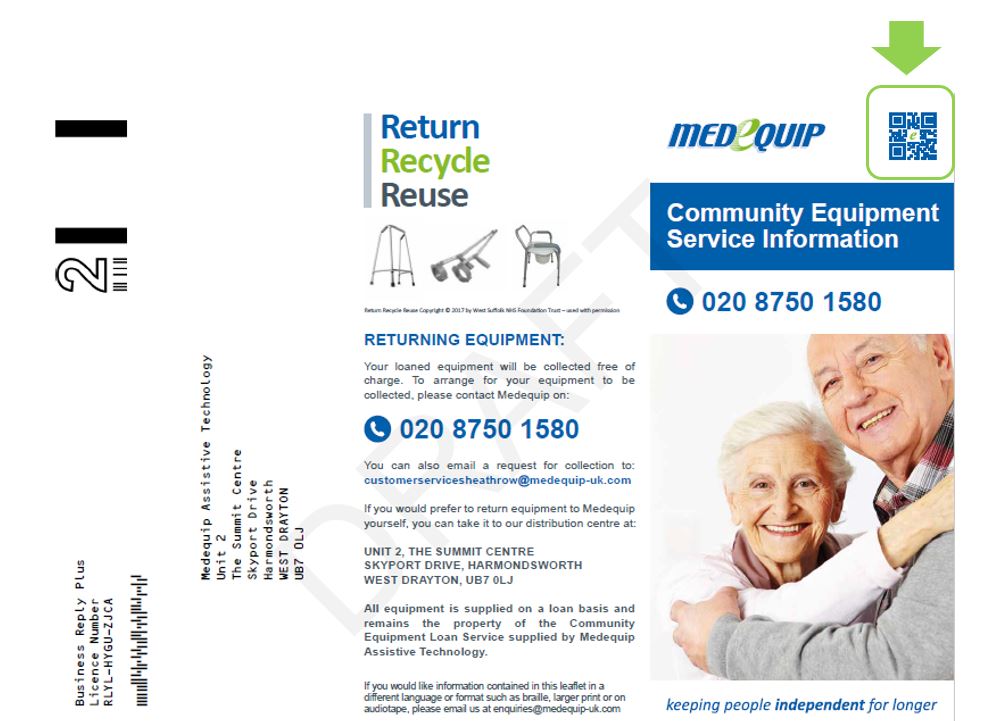
Gaining customer feedback on all orders is a high priority throughout the business. All feedback cards will now be printed to include a QR code which can be scanned at the end of each successful order.
Once each order is completed all technicians need to ensure service users are provided with a feedback form. In the top right-hand corner of each feedback form you will see the QR code which needs to be scanned.
If you continue through this document, you will find a detailed walkthrough of how to submit the feedback to the service user successfully.
Please note that some job types will not allow you to move forward until a unique feedback form has been scanned.
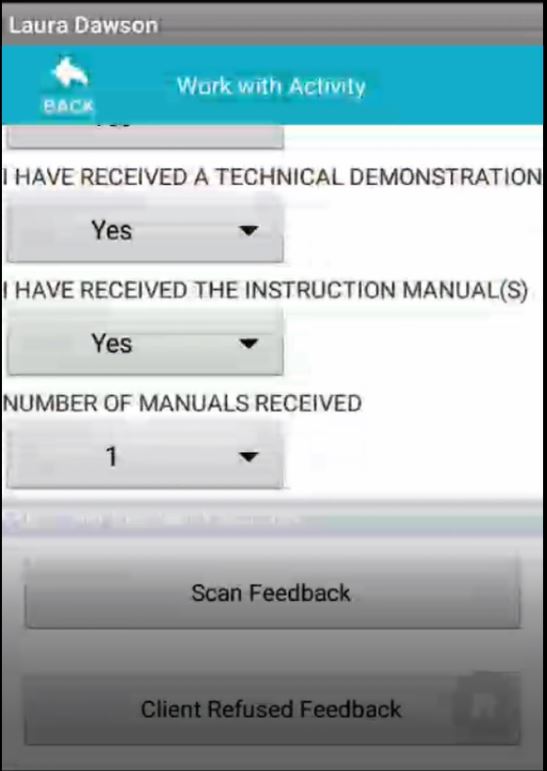
At the end of each job you will be asked a series of questions to how you completed the activity. At the bottom of this page you will see two options. Scan Feedback and Client refused feedback, if you select scan feedback. This will automatically open the camera on the scanner to enable you scan the QR code of the feedback form you will be providing. If you select client refused feedback this will then register on the system as the client did not want to receive the feedback form, then you will be able to complete the job as normal.
Once you have selected either of the two options this will be recorded for managers to review.
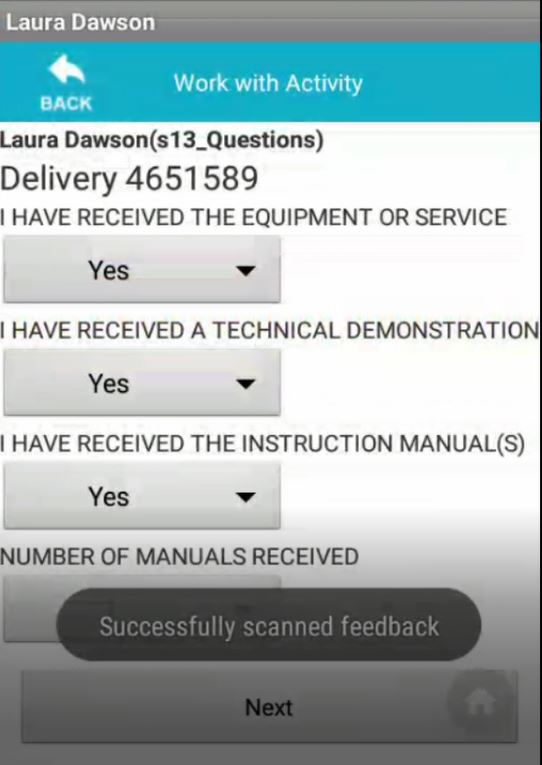
If you have selected scan feedback, once the barcode has been registered on your scanner you will see the below message. This means the feedback card has been scanned successfully and you can now supply the feedback form and the receipt to the service user.
All technicians need to ensure all service users are offered a feedback form to ensure we are gaining as much customer feedback to the service they have been provided.
If you have selected scan feedback, once the barcode has been registered on your scanner you will see the below message. This means the feedback card has been scanned successfully and you can now supply the feedback form and the receipt to the service user.
All technicians need to ensure all service users are offered a feedback form to ensure we are gaining as much customer feedback to the service they have been provided.
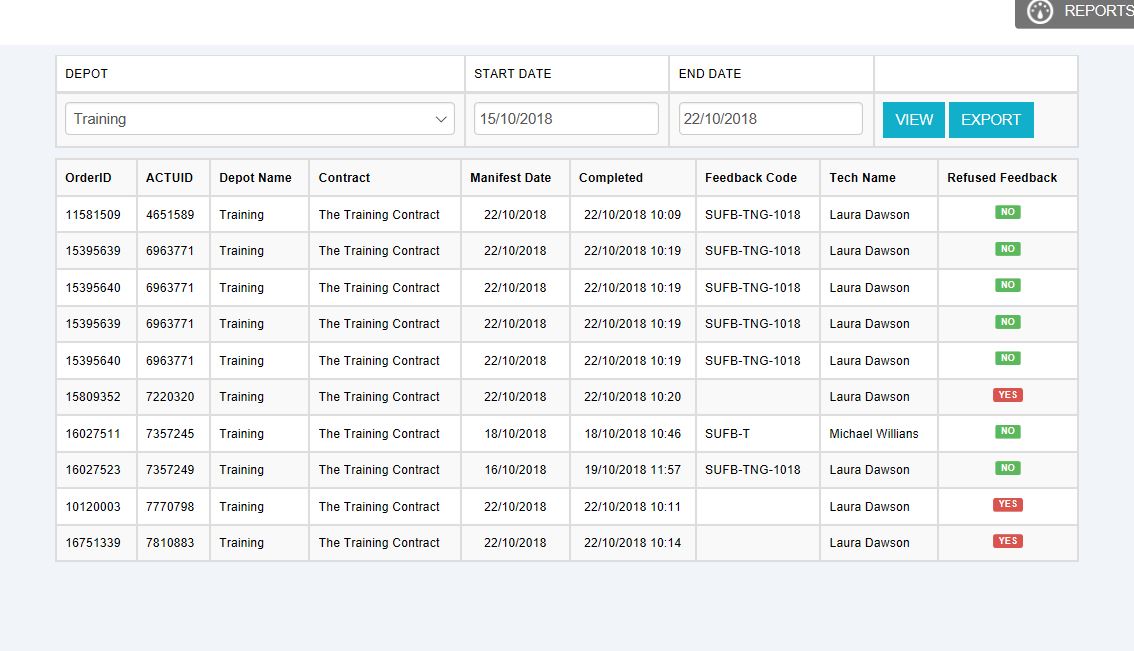
For the feedback report to all technicians within a depot please see the below.
Log into MedequipWay > Then select Menu > Feedback report
This shows you a breakdown of what happened with all orders within a time scale. This can also be exported into excel.
***Important information -
Each bath of feedback forms has a different QR code to be scanned, this way managers can keep a track of what feedback forms are being given.
You must always try to present the service user with a feedback card.
Updated about 7 years ago