
Spare Parts - TC25
How to add parts on the TC25 Scanner.
Once you are logged into your scanner. Go to the "Warehouse Menu", then select "Classic Workshop".
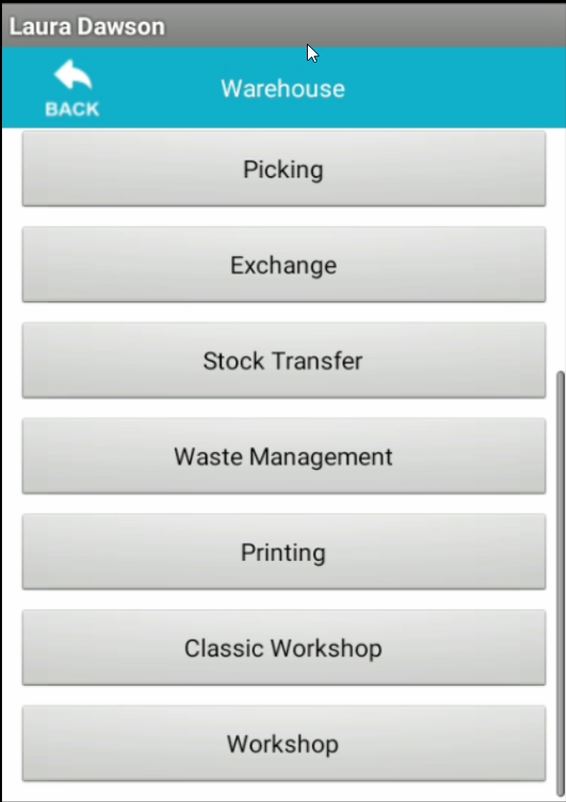
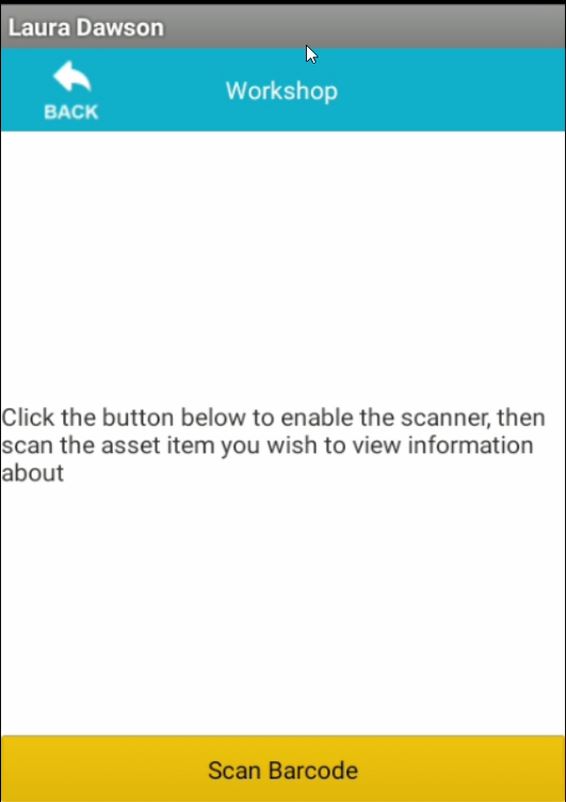
Then scan the relevant EIN you wish to work with.
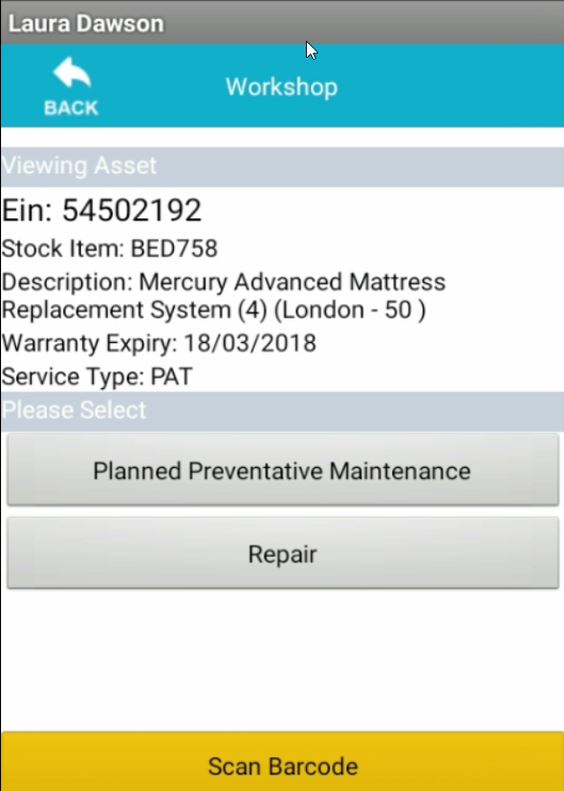
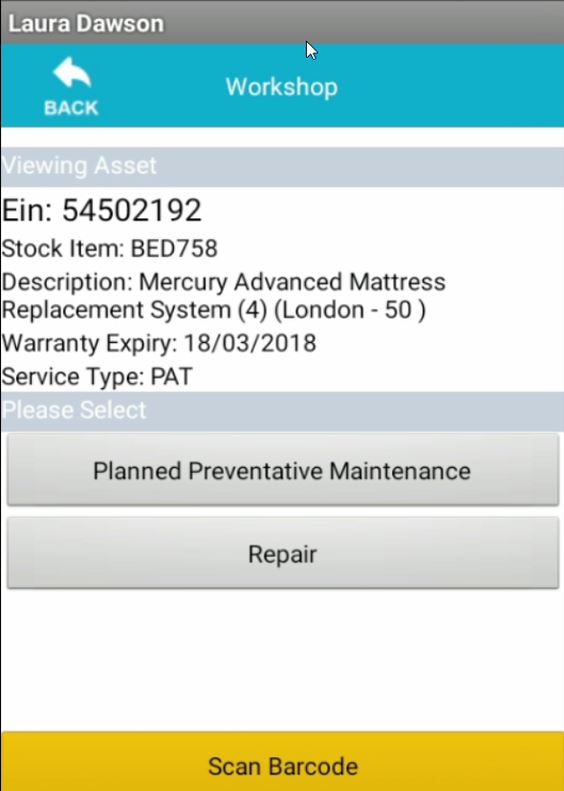
Now you are working with an individual EIN you can select either "Planned Preventative Maintenance" or "Repair"
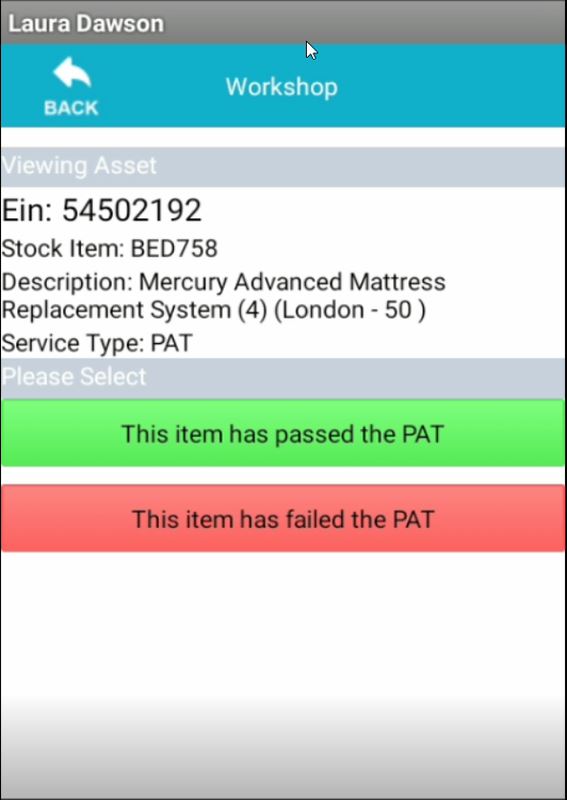
If you select the "Planned Preventative maintenance" option, this will complete a PPM on the selected EIN. You will be asked if the item has passed or failed. Select the appropriate.
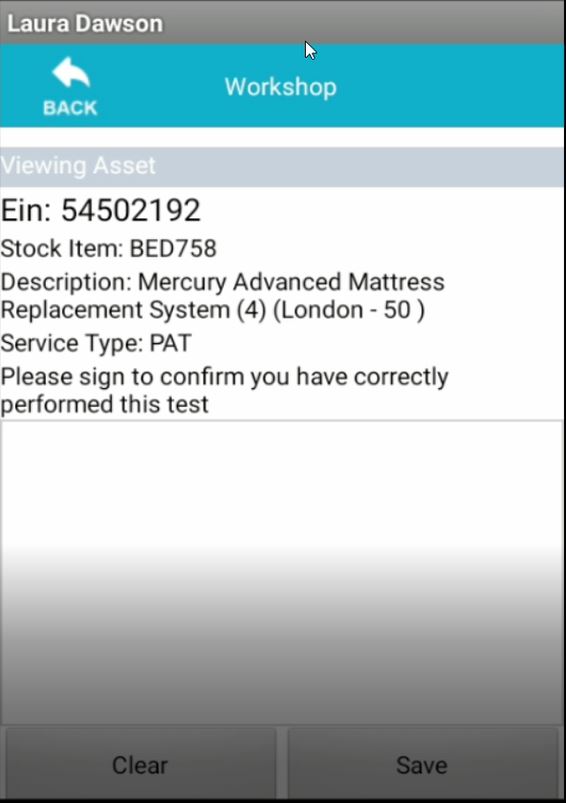
You will then need to confirm you have correctly performed this test.
Sign and click "save"
You will then be notified when this has been marked successfully.
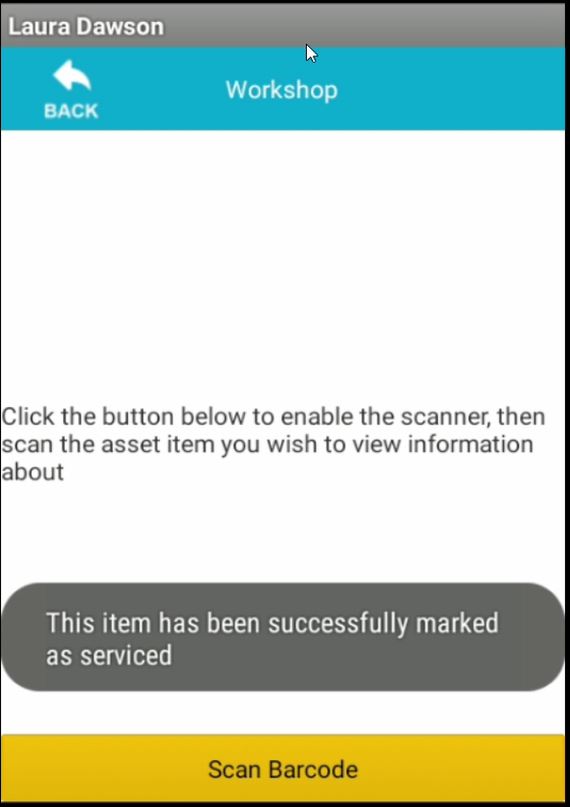
We will now go back to the "Classic Workshop" but this time we will select "Repair" rather then PPM.
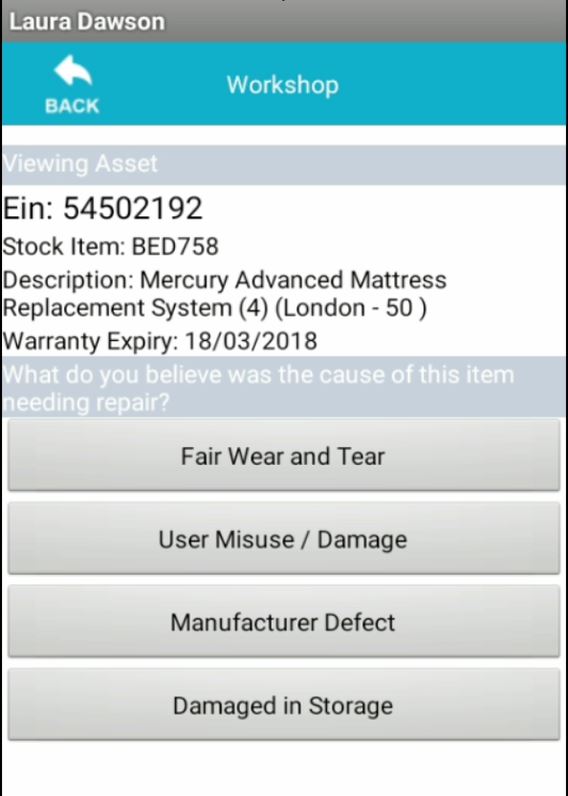
Select the cause of the item needing a repair.
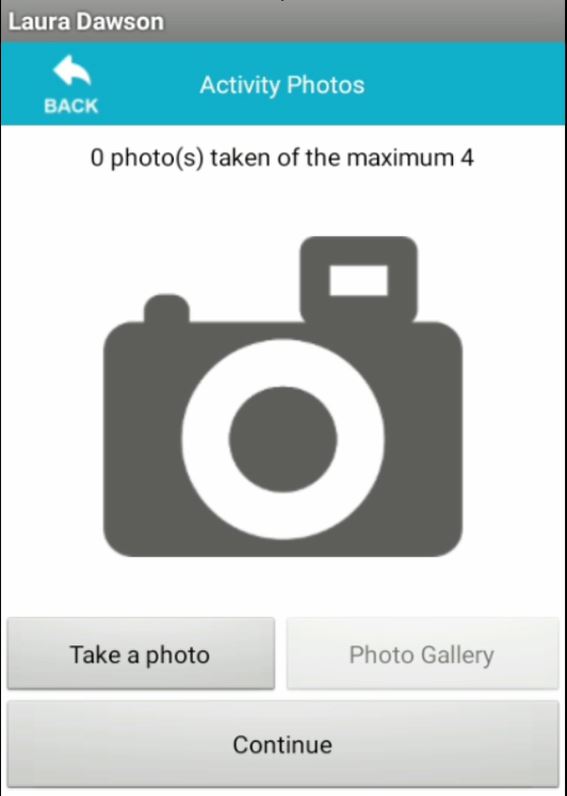
Take an image of the item you are repairing.
Images
You can take a maximum of 4 images.
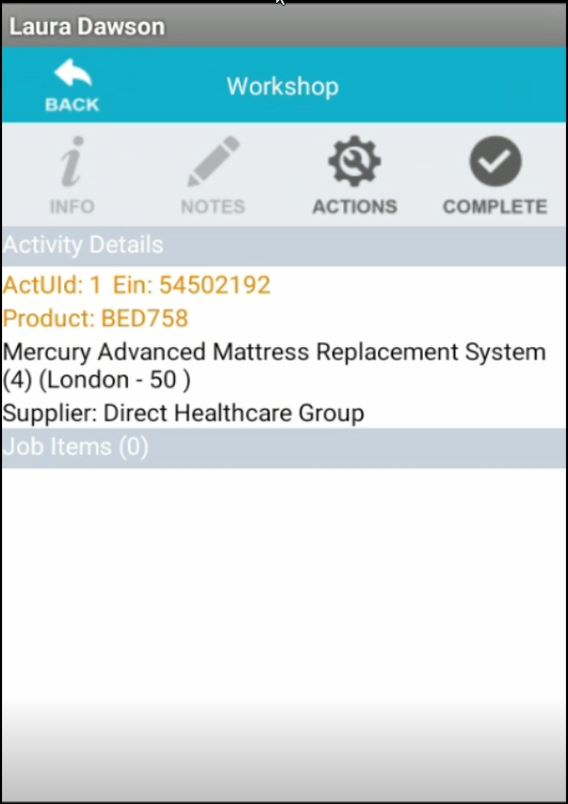
Now you can complete the repair, to do this select "Actions".
From the actions screen you can add parts via EIN scanning, Batch Scanning, Add a part, Add Labour or add tech notes.
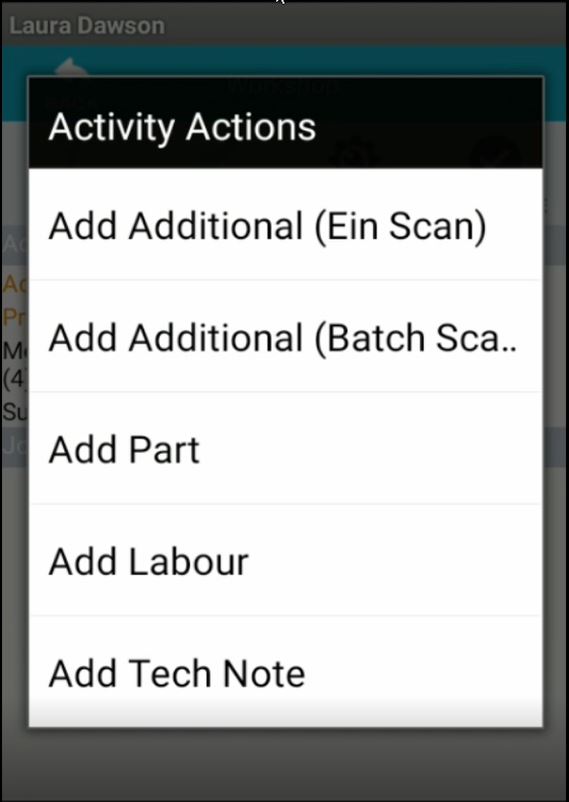
In the below screenshot, "add part" has been selected.
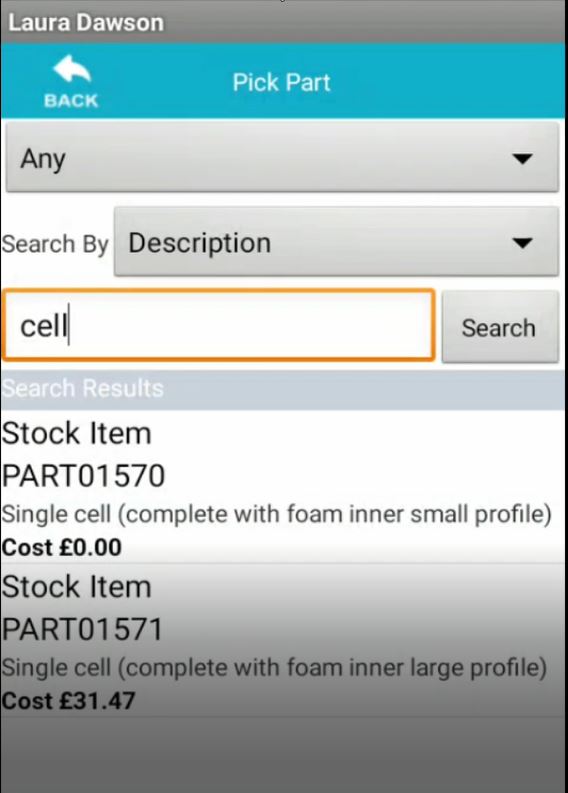
We can now search any of the parts needed, you can either do this by part code or description. This can be changed using the drop down.
Search the word or part code in question and the results will appear below. Then select the relevant part.
Add the quantity of the part you wish to add.
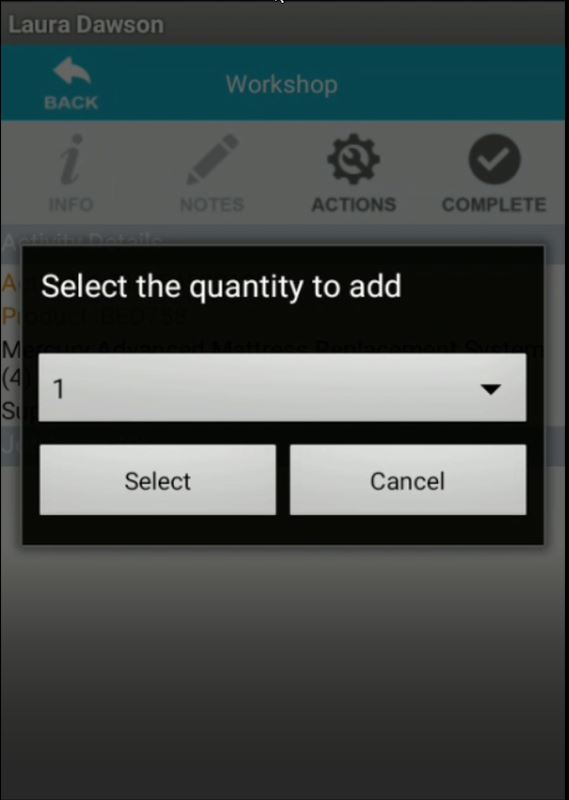
If you wish to add more then one different part, you can repeat the last steps until all parts have been added to the repair.
What to do if the part is not showing
If the part you are looking for cannot be found. Please contact the purchasing team for this to be added. You can email Storme on [email protected] .
To add labour select "Actions" then "Add labour"
Then select how long your labour time needs to be in minutes or hours. Also select the category of your labour time.
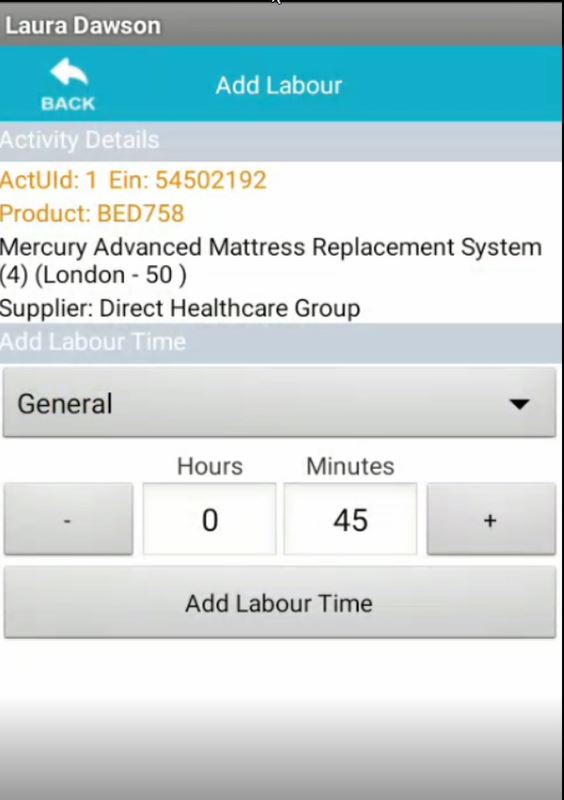
Once all parts and labour have been added to the select job. You can select "Complete"
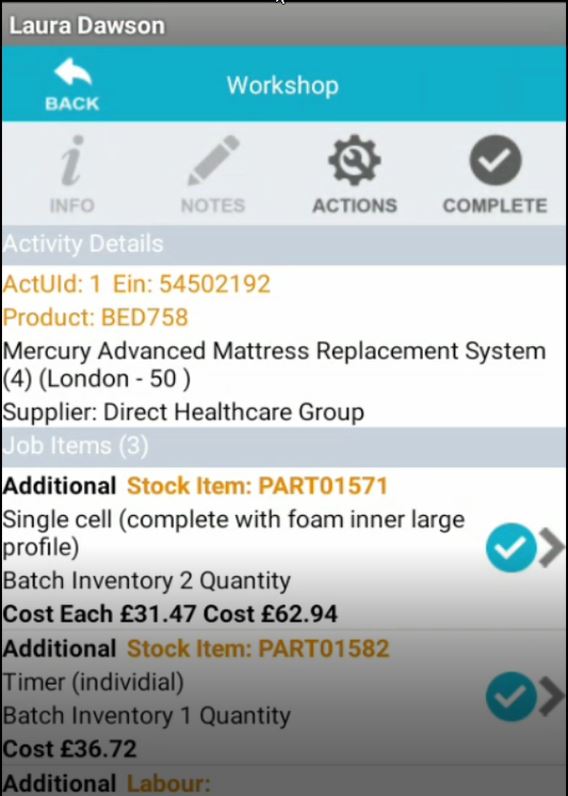
Once this is complete you will get a conformation message.
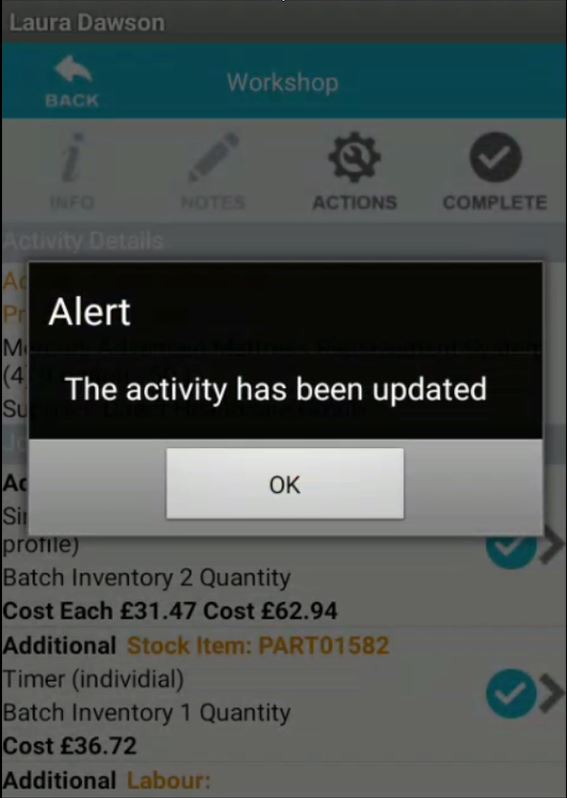
You have now been able to successfully complete a PPM & Repair parts and labour to an EIN.
Updated over 6 years ago